---
title: "Data Hub"
slug: "raynet-integration"
status: "update"
updated: 2026-11-18T18:37:57Z
published: 2026-11-18T18:37:57Z
canonical: "help.symphonysummitai.com/raynet-integration"
---
> ## Documentation Index
> Fetch the complete documentation index at: https://help.symphonysummitai.com/llms.txt
> Use this file to discover all available pages before exploring further.
# Data Hub
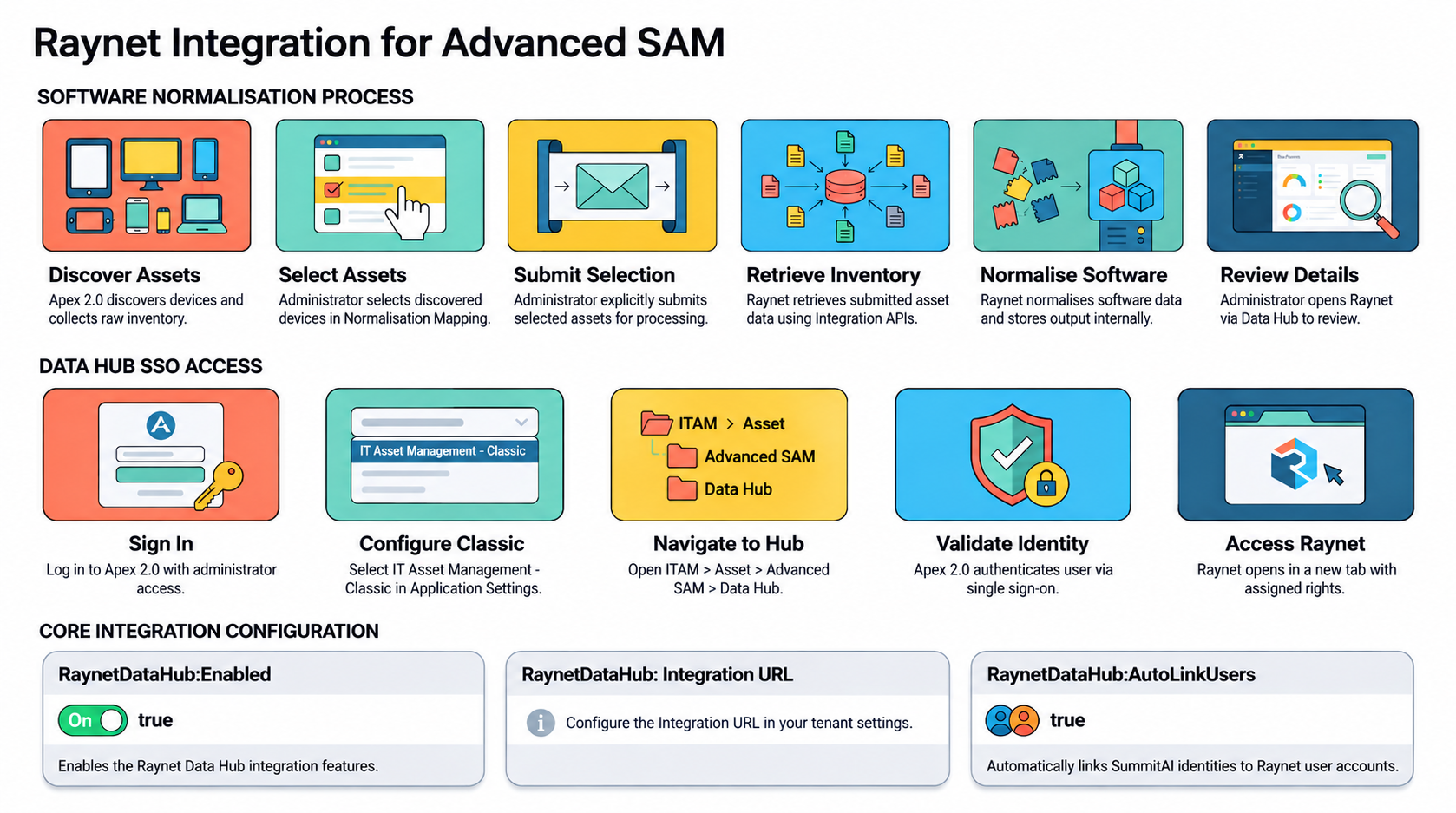
The Raynet integration extends software asset management for devices discovered in Apex 2.0. Apex 2.0 retains the discovered asset records, and administrators choose which assets to submit for normalization. Raynet retrieves the selected assets through the integration APIs, normalizes their software data, and makes the results available in Raynet for review and further analysis.
The integration also provides a single-app experience. Authorized administrators can open Raynet from the new Raynet menu in Item Data Hub in Apex 2.0, without signing in to Raynet separately.
The integration uses APIs to exchange discovered-device inventory between Summit and Raynet. The APIs provide the device, allocation, user, hardware, and installed-software information required for normalization.
### Key Benefits
- Choose which discovered assets to submit for software normalization.
- Normalize installed-software data in Raynet for review and further analysis.
- Exchange device, allocation, user, hardware, and software inventory through integration APIs.
- Open Raynet from Item Data Hub in Apex 2.0 without a separate Raynet sign-in.
| Use Case User Persona: Admin | Solution |
| --- | --- |
| NovaTech Technologies manages software across IT, Finance, and Human Resources at its locations. Its administrator needs to identify installed software accurately, reduce duplicate or inconsistent product records, and review normalized software information without switching between applications. | NovaTech uses the Raynet integration to normalize software data for selected discovered assets. **How NovaTech uses the Raynet integration** 1. **Select assets**: Review discovered assets in Apex 2.0 and choose which devices to submit for normalization. 2. **Normalize Software**: Submit the selected inventory through the integration APIs. Raynet retrieves the submitted device and installed-software data and normalizes it. 3. **Review results**: Open Raynet from Item Data Hub in Apex 2.0 to review the normalized assets and available software information.This workflow lets NovaTech control which assets Raynet processes while providing administrators with a connected experience. |
### Access requirements
To access Raynet through Data Hub, the logged-in user must have the following privileges:
- Have required administrative role access to the Data Hub menu in SummitAI ITAM.
- Have authorization and administrator access on the Raynet side.
- Have an identity that SummitAI and the Raynet application can map.
###
**How the integration works?**
The integration includes two connected workflows:
- **Asset normalization**: Apex 2.0 exposes the inventory for administrator-selected assets through its APIs, Raynet application retrieves the selected inventory and performs normalization in Raynet.
- **Data Hub access**: An authorized administrator opens Raynet from Apex 2.0 through a single sign-on flow to review the normalized assets and available Raynet information.
**Software normalization workflow**
1. Apex 2.0 discovers devices and adds their asset records and collected inventory to the asset inventory.
2. The administrator opens the Normalization Mapping page and selects the assets to process. For example, an administrator can select 50 of 100 discovered devices.
3. The administrator submits the selected assets for normalization. Discovery alone does not submit an asset to Raynet.
4. Raynet retrieves the submitted asset inventory from Apex 2.0 through the integration APIs.
5. Raynet normalizes the software data and stores the normalized results in Raynet.
6. The administrator opens Raynet from Item Data Hub in Apex 2.0 to review the assets Raynet normalized and other information available in Raynet.
> [!NOTE]
> Note
>
> Discovering an asset does not automatically send it to Raynet. The administrator must explicitly select and submit the asset for normalization. Raynet retrieves only submitted assets.
>
> For more information on normalization mapping, refer [Normalization Mapping](/apex/docs/normalization-mapping).
### View Software Discovery Details
The Raynet integration applies to devices discovered in Apex 2.0. Administrators can filter the asset inventory by Discovered status and review the software inventory collected for each device under Software Discovery Details. The administrator then selects assets for normalization; Raynet retrieves their inventory through the integration APIs.
To View Discovered Devices, perform the following:
1. Log in to Apex 2.0 with an account that has the required administrator access.
2. Navigate to **ITAM** > **Asset** > **Asset Inventory** > **Fixed Assets**.
3. Filter the devices by **Status**, select **In-store** and **Category** and search by **Discovered Status**.
4. Only discovered devices are eligible for this integration.
> [!NOTE]
> Note
>
> Raynet retrieves inventory through the integration APIs only after an administrator submits the asset for normalization.
1. Click **Software Discovery Details** to view the details on the Asset Details page.
### Access Raynet through Data Hub
The Raynet menu in Item Data Hub provides authorized administrators with direct access to Raynet from Apex 2.0. When an administrator selects the menu, Apex 2.0 validates the user and opens Raynet in a new browser tab through single sign-on. Administrators can then review normalized assets and the information available to them in Raynet, based on their assigned Raynet permissions.
1. Log in to Apex 2.0 with an account that has access to Item Data Hub and Raynet.
2. Navigate to **Asset** > **Advanced SAM** > **Software Delivery** > **Configuration** > **Intune** > **Data Hub**. Or you can search as **Data Hub** from search bar. 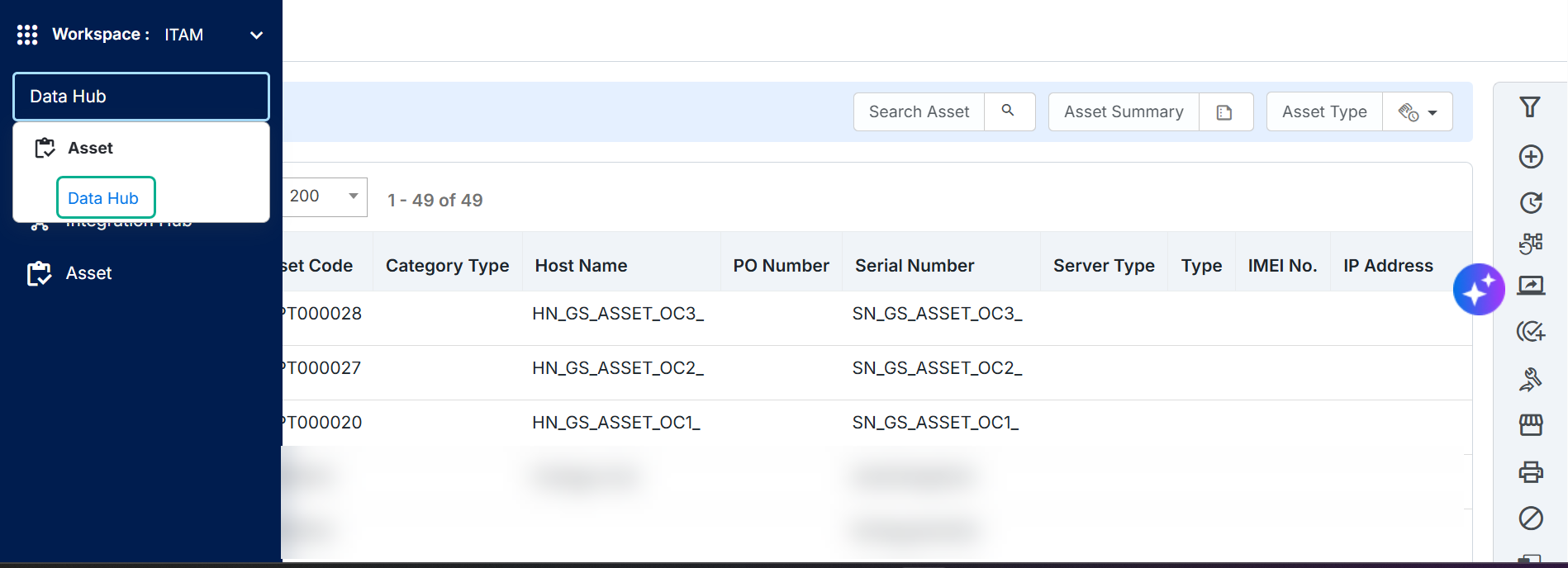 Figure: Data Hub
3. Click on Data Hub to access the Raynet Application with single sign-on.
4. Raynet opens in a new browser tab. 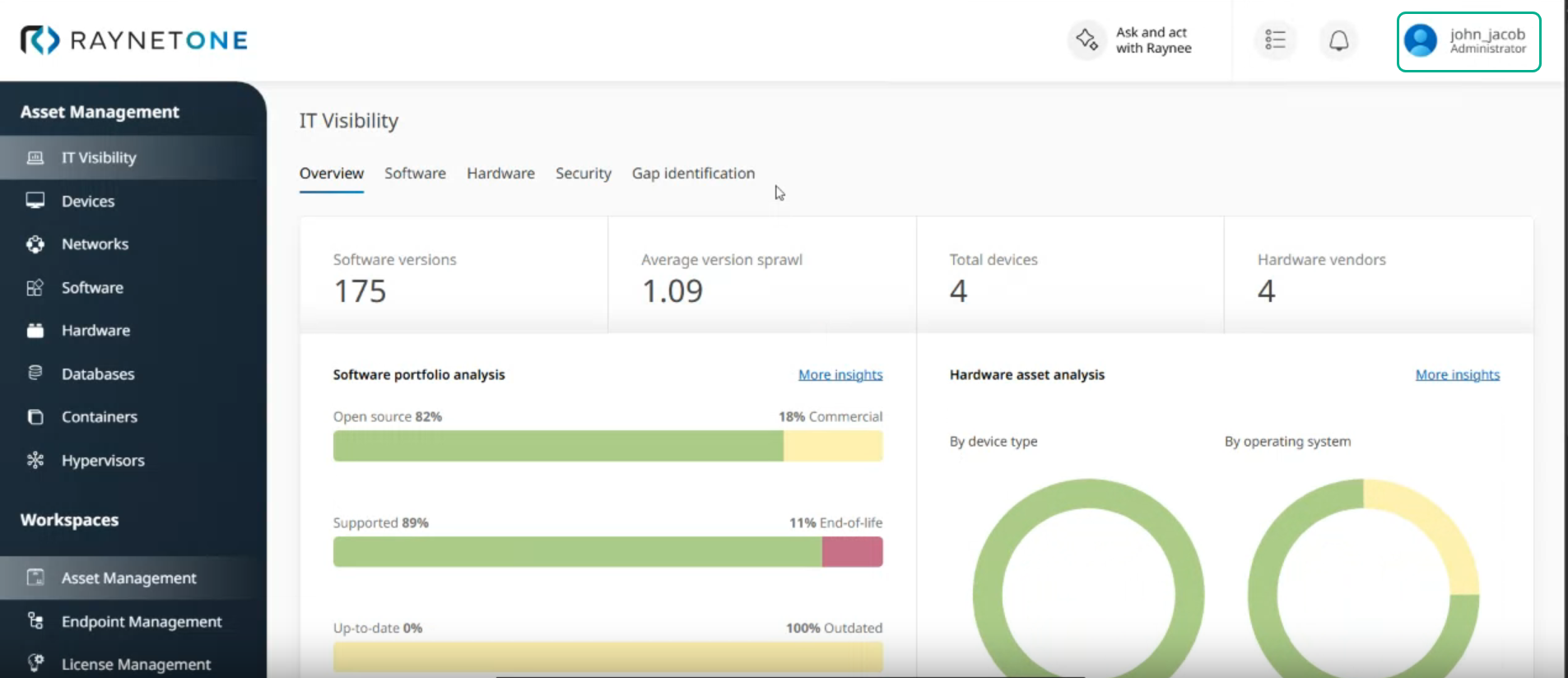 Figure: Raynet Application
5. Apex 2.0 validates the logged-in user and starts the single sign-on flow.
6. Review the normalized assets and other available information according to your Raynet permissions.
> [!NOTE]
> Note
>
> The Raynet menu acts as a launch point. Normalized results remain in Raynet; they are not displayed directly within Apex 2.0.
### Configure Raynet Data Hub
An administrator must check the required configuration keys in the web.config file and perform configuration on the Application Settings.
- [webconfig key enablement](/apex/docs/raynet-integration#webconfig-key-enablement)
- [Configure on Application Settings](/apex/docs/raynet-integration#configure-on-application-settings)
#### webconfig key enablement
Add these keys to the application’s web.config file to configure Raynet Data Hub authentication.
```web
```
For more information on keys, refer to the following:
| Configuration key | Example value | Description |
| --- | --- | --- |
| RaynetDataHub:OidcRedirectUrl | /MDLAssetMgmt/AM_RaynetDataHub_Launch.aspx | Specifies the SummitAI page to which the identity provider returns the user after authentication. The URL must match the redirect URL registered for the OpenID Connect client. |
| RaynetDataHub:SamlIdpEntityId | urn:summitai:itsm:raynet-datahub | Specifies the unique entity identifier of SummitAI when it acts as the SAML identity provider. Configure the same value in the corresponding Raynet or Keycloak SAML settings. |
| RaynetDataHub:SamlCertPath | ~/Certs/raynet-saml-idp.crt | Specifies the application-relative path to the public certificate used to sign or check the SAML authentication exchange. |
| RaynetDataHub:SamlKeyPath | ~/Certs/raynet-saml-idp.key | Specifies the application-relative path to the private key associated with the SAML certificate. Restrict access to the application service account and authorized administrators. |
#### Configure on Application Settings
In the application settings, under **Asset Management** you must select **IT Asset Management - Classic** for the **Data Hub** to appear in the left ITAM menu.
##### Enable Data Hub on Application Settings
Use the following steps to enable Data Hub in Application Settings. Configure the available options using the field descriptions below.
1. Log in to the application as an Admin and select **Admin** Workspace.
2. Navigate to **Infrastructure** > **General** > **Application Settings**. 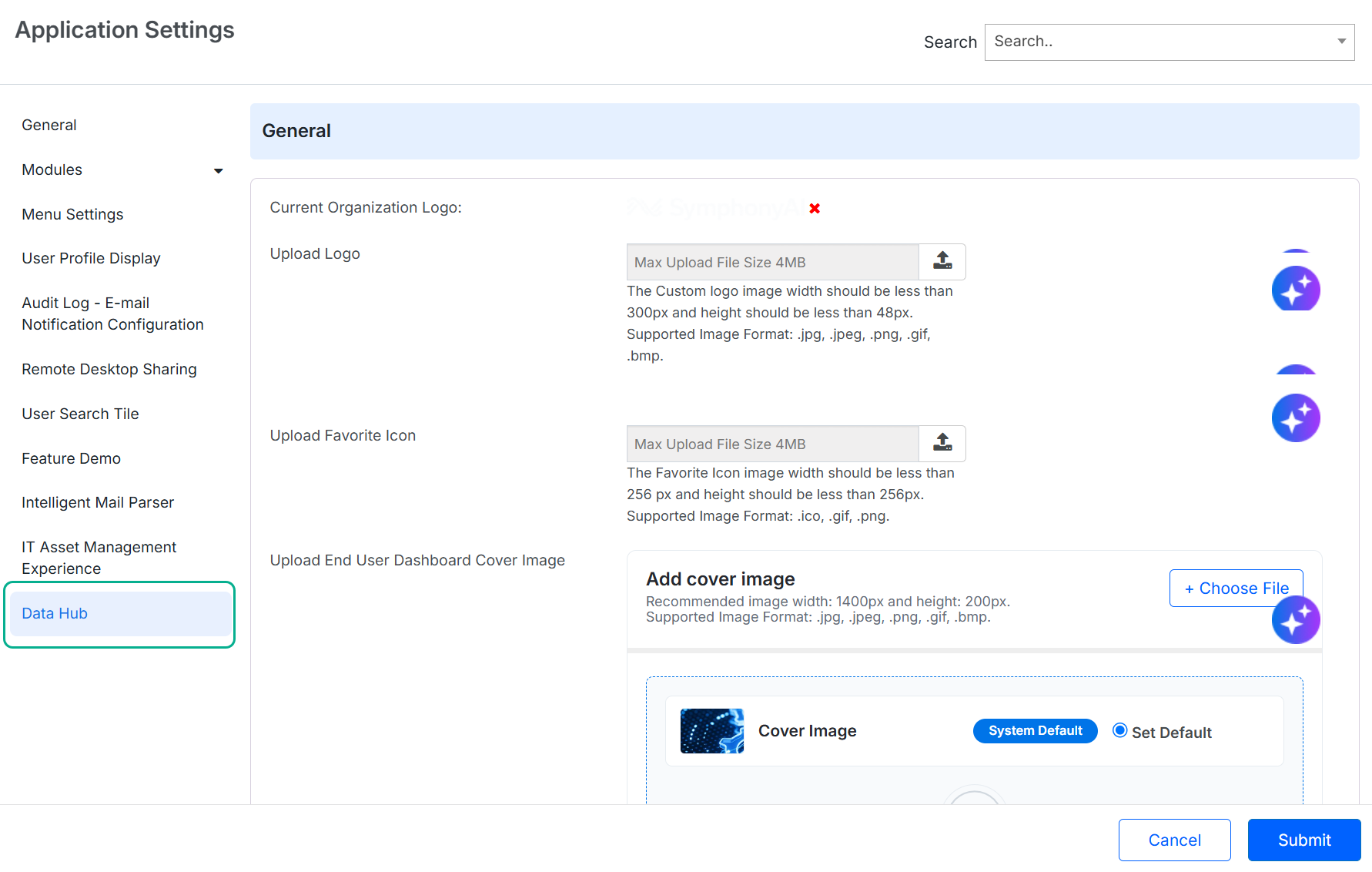 Figure: Data Hub App settings
3. Select **Data Hub** to configure it’s app settings and enter the details. For more information, refer to the [Field Description](/apex/docs/raynet-integration#field-description). 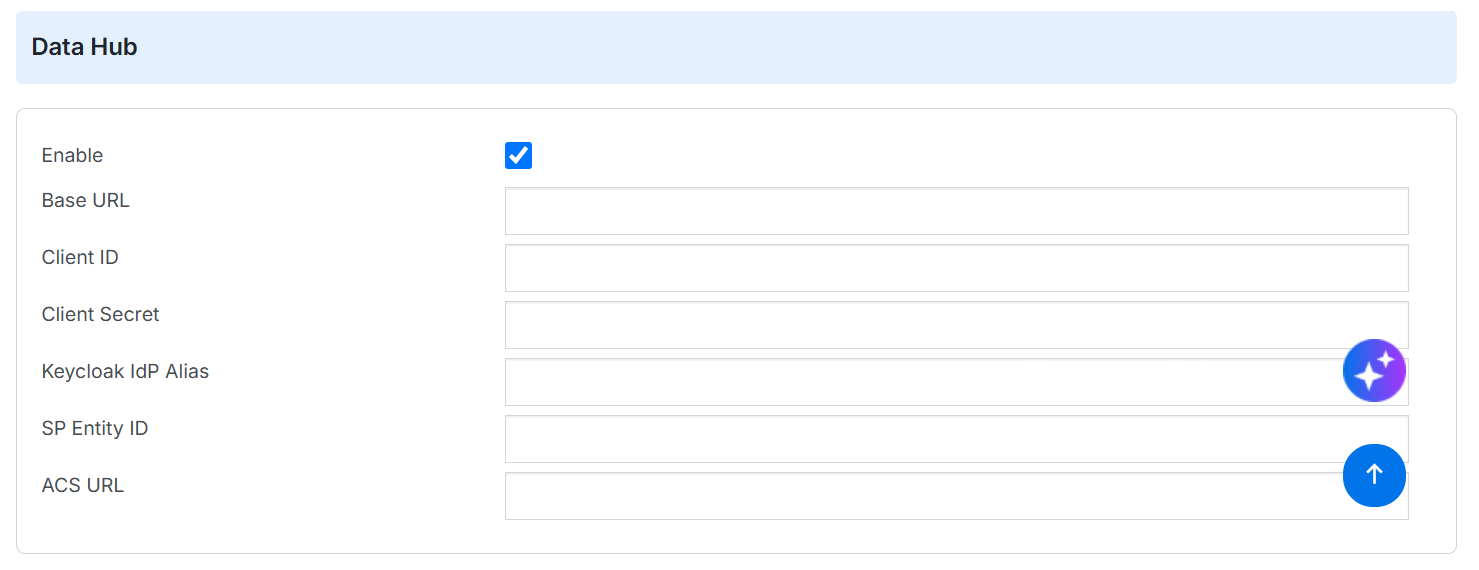 Figure: Data Hub App Settings Configuration
#### Field Description
| Field | Description |
| --- | --- |
| Enable | Enables the Raynet Data Hub integration. The application selects this option by default. Deselect it to disable the integration and remove Data Hub from the Advanced SAM left menu. |
| Base URL | Specifies the base URL of the Raynet Data Hub application. SummitAI redirects the authenticated user to this URL. Example: https://****-***-01.raynetone.com/ |
| Client ID | Specifies the client identifier registered for the SummitAI integration in the OpenID Connect provider. Example: rnoitsm |
| Client Secret | Specifies the secret used to authenticate the registered OpenID Connect client. |
| Keycloak Idp Alias | Specifies the alias of the SummitAI SAML identity provider configured in Keycloak. Keycloak uses this alias to route the authentication request to the correct identity provider. |
| SP Entity ID | Specifies the entity identifier of the SAML service provider that receives the authentication assertion. Example: https://id.raynetone.com/realms/****-***-01 |
| ACS URL | Specifies the Assertion Consumer Service endpoint that receives and processes the SAML authentication response from SummitAI. Example: https://id.raynetone.com/realms/****-***-01/broker/itsm-saml/endpoint |