---
title: "Define Portal Characteristics"
slug: "define-portal-characteristics-1"
updated: 2025-02-18T09:42:18Z
published: 2025-02-18T09:42:18Z
canonical: "help.symphonysummitai.com/define-portal-characteristics-1"
---
> ## Documentation Index
> Fetch the complete documentation index at: https://help.symphonysummitai.com/llms.txt
> Use this file to discover all available pages before exploring further.
# Define Portal Characteristics
**Service Portal** helps to orchestrate and showcase content from several modules on a single portal. It thus eliminates the need for the consumer to switch between different applications on the portal.
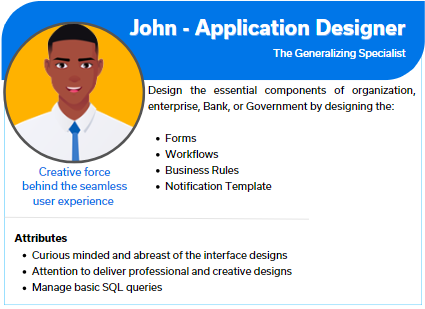
User persona: Application Designer
Essential characteristics of the **Service Portal Designer** are illustrated through an infographic below: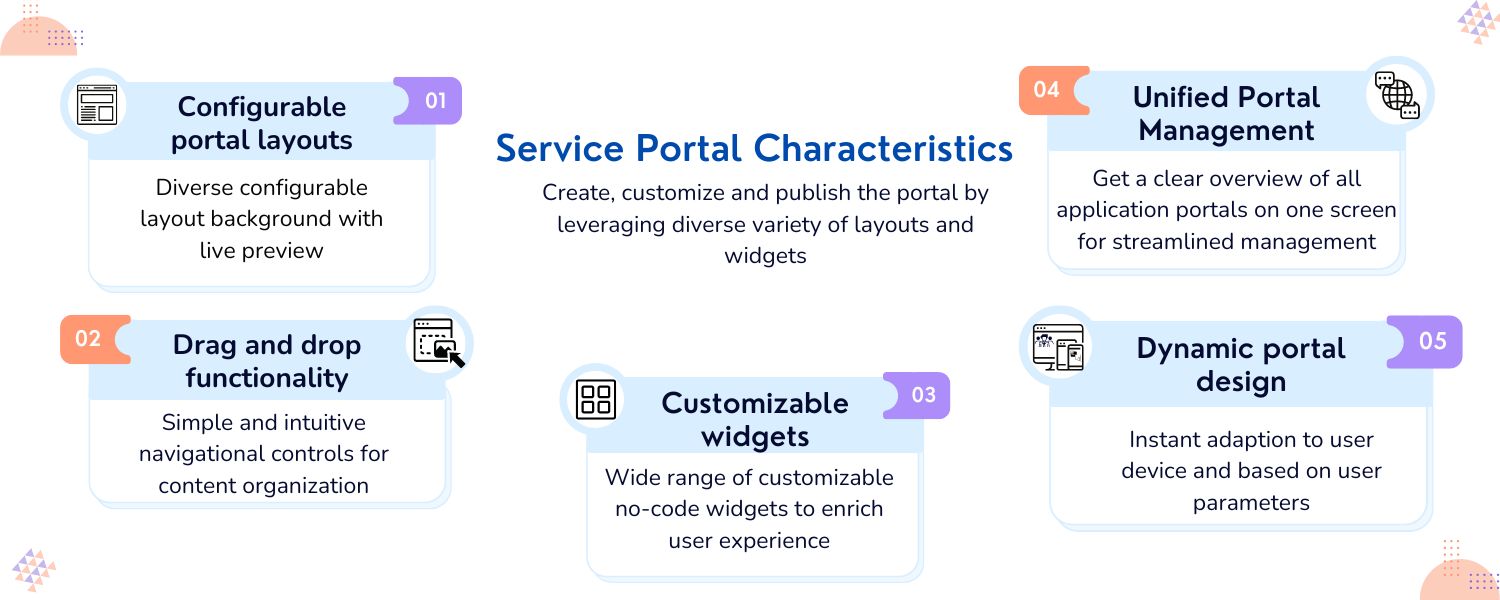
So, let us create a portal experience and deliver an engaging user interaction by leveraging customizable layouts and widgets.
## General Portal Details
You can configure the portal title, select the background, and create custom templates on the **Service Portal** screen.
Let us explore the following Use Case for customizing the **Service Portal:**
| **Use Case** User persona:Analyst | **Solution** |
| --- | --- |
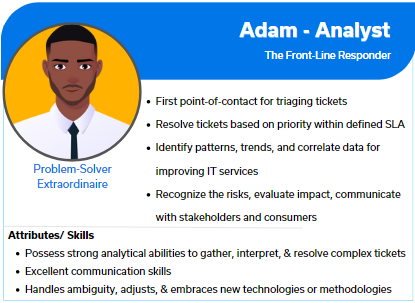
| Adam at ACME Services is responsible for managing a variety of **IT** **Service Requests**, **Incidents**, **Problems**, and **Changes**. He wants an Analyst Portal to handle diverse aspects of IT Service Management and provide a view of pending work in all modules on a single dashboard. | John can select **Background** and add **Title** as **Analyst Portal** and can configure the generic features of the layout and widget using the **Properties** option. John can add Module-based tabs with specific Data or Numeric or Action or Tabular widgets for **Service Requests**, **Incidents**, **Problems**, and **Changes**. |
For details about the Use Case, refer to the GIF below: 
#### **Create Service Portal**
This section contains the steps involved to design the **Service Portal**.
To create the **Service Portal**, perform the following steps:
1. Under **Design Studio**, select the **Application** and click **Service Portal**.
2. Select the **Domain** and **Sub Domain** from the drop-down menus. 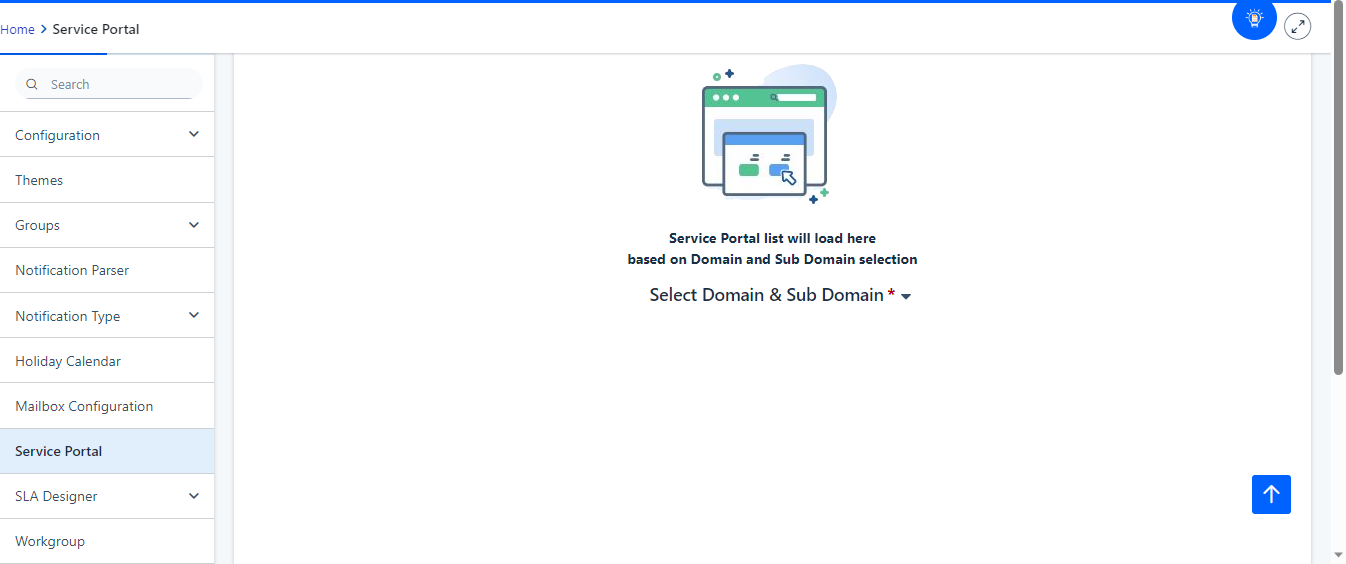Figure: Service Portal-Domain
3. Click **New** to add **Service Portal,** a pop-up window is displayed with two options **Start From Scratch** or **User Service Portal**.
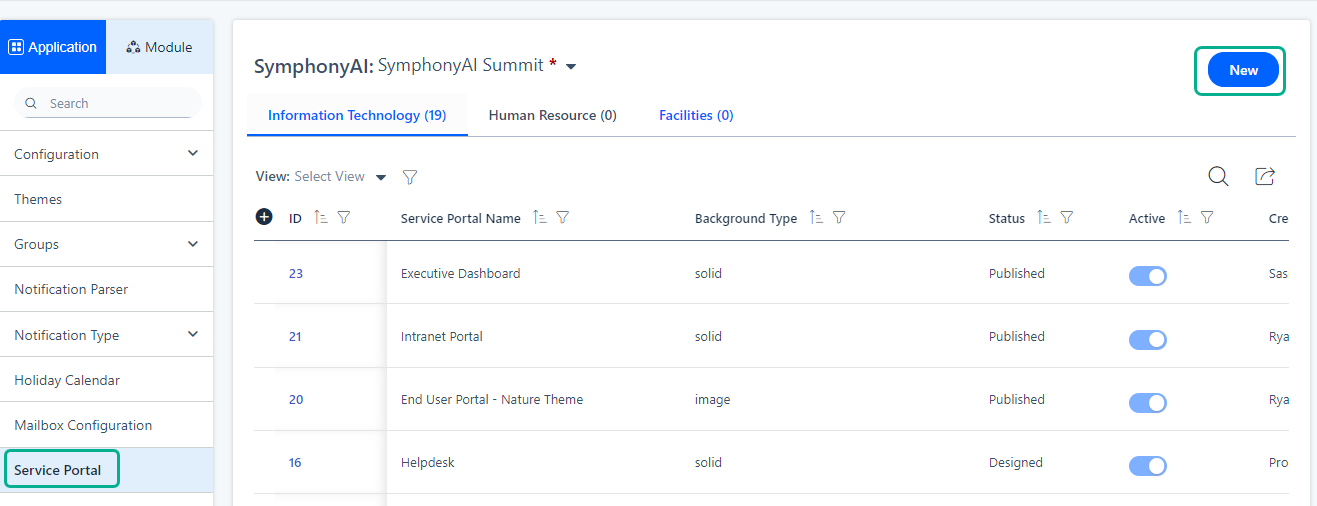Figure: Add Service Portal
4. Click **Start From Scratch** in the pop-up window to create a brand-new Portal or click **Use Service Portal** to use pre-defined Service Portal configuration.
### Start From Scratch
If **Start From Scratch** is selected, create **Service Portal** on a blank canvas. You can design portal by dragging and dropping the required layout and widgets. Then configure the properties and publish the portal. 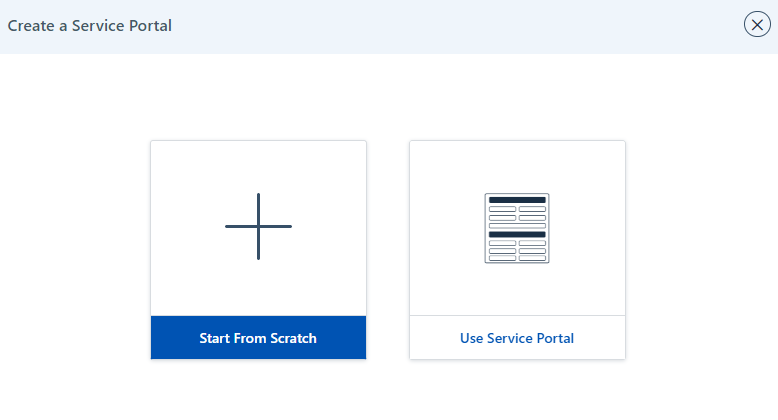Figure: Service Portal
1. **Service Portal** is designed using three step screen options. They are:
a. **General** - Specify the **Genera**l details as well as aesthetic properties of the Service Portal.
b. **Design Portal** - Drag and drop the required layout and widgets.
c. **Publish** **Portal** - Publish the portal as per the user's requirements.
You can view the step at the top of each screen, which indicate the progress of the **Service Port****al** configuration.
The following figure displays the details under the **General** tab: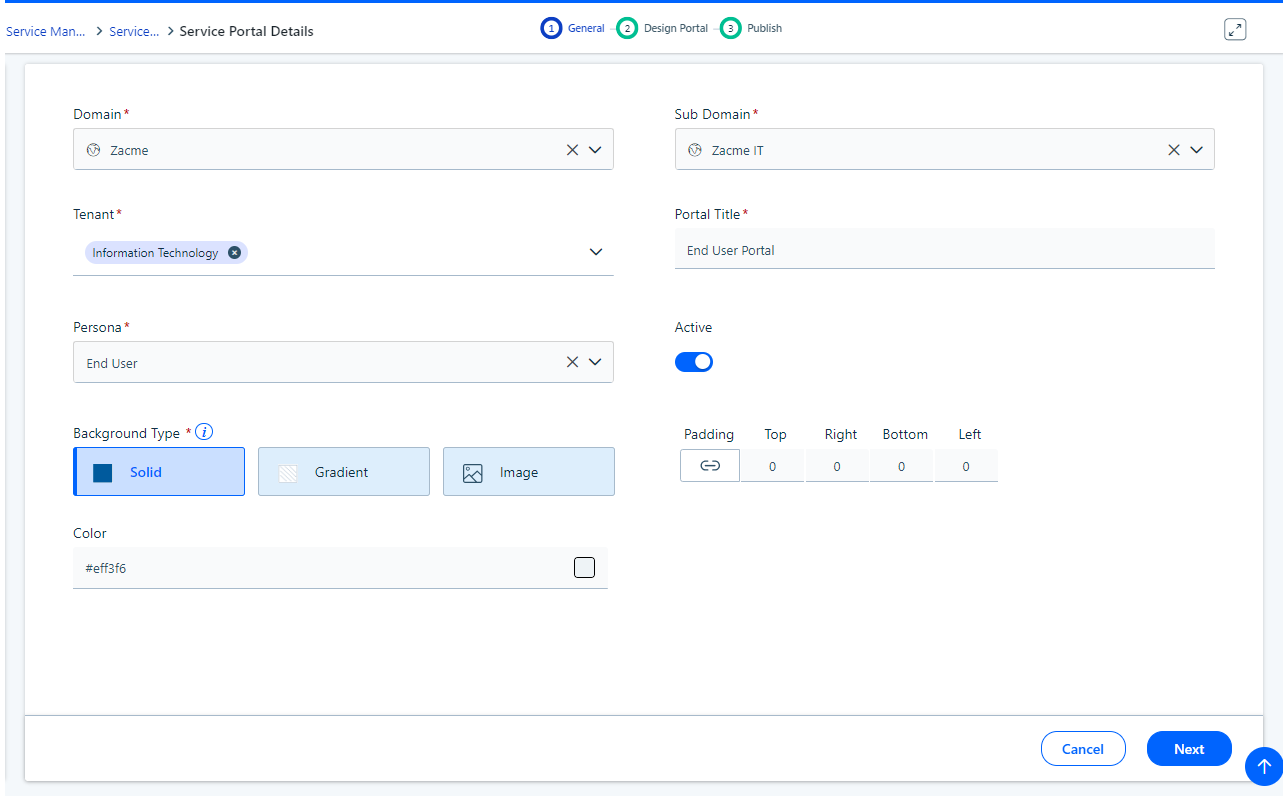
Figure: General tab
Refer to the Field description for more information.
**Field Description**
| **Field** | **Description** |
| --- | --- |
| Domain* | A **Domain** is the highest level on the hierarchy. Here Zcame is prefilled for the **Domain** field. Figure: Domain |
| Sub Domain* | A **Sub Domain** is the second level on the hierarchy. Based on Domain selection the drop-down values for [Sub Domain](https://help.symphonysummitai.com/summit-platform/docs/sub-domain) are loaded. Here Zcame IT is prefilled for the **Sub** **Domain** field. Figure: Sub Domain |
| Tenant* | Select a **Tenant** from the drop-down list. Based on [Sub Domain](https://help.symphonysummitai.com/summit-platform/docs/sub-domain) drop-down value, **Tenant** field value gets displayed. Here **Information Technology** is selected from the drop-down list as **Tenant** value.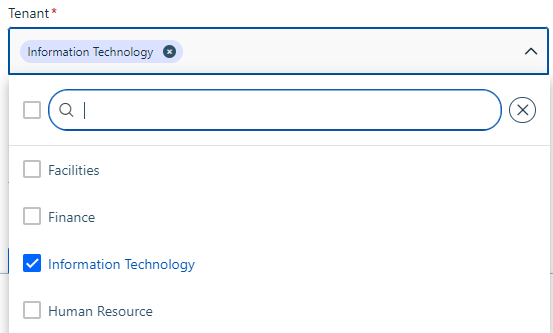Figure: Tenant |
| Persona | Select the **persona** from the drop-down list. 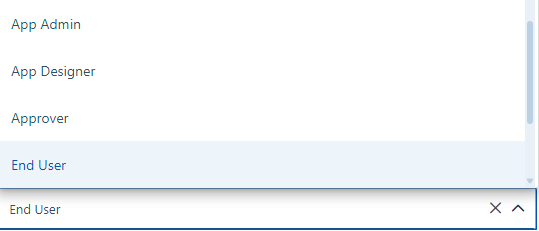Figure: Persona |
| Portal Title | Specify **Portal Title** for the portal template. Here the Portal is titled **End User Portal**.Figure: Portal Title |
| Background Type | Select the **Background Type** for the portal. You can choose Solid or Gradient or Image. Figure: Background Type Refer to the [Background Type](/summit-platform/docs/define-portal-characteristics-1#background-type) for more details. |
| Padding | Select the **Padding** to the **Right** and **Bottom** as per **Left** and **Top** by enabling the Auto switch in the Properties popup. This padding will act as the border for the entire portal. 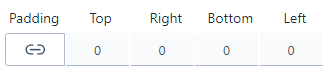Figure: Padding By selecting the **Padding** option as 0, you can give the same padding to the Top, Right, Bottom, and Left. |
| Active | Toggle the **Active** switch to activate the service portal and make it functional. 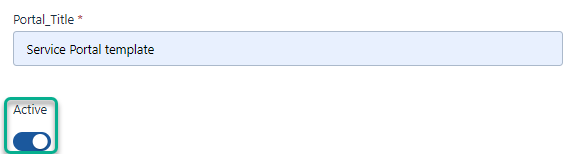Figure: Activating the service portal |
### Background Type
The section lists the steps involved in configuring the Background type. Refer to the Field Description for more details.
Field Description
| **Field** | **Description** |
| --- | --- |
| Solid | Select **Solid** under **Background** **Type,** to apply solid color to the portal background by selecting the color from the color palette. 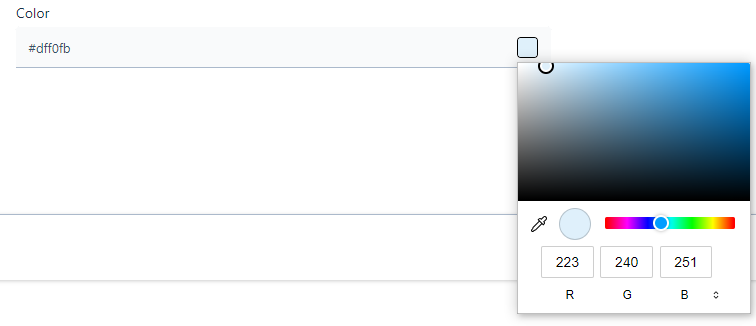 Figure: Solid Color |
| Gradient | If **Gradient** is selected as the background type, then you can select a combination of two gradient colors by clicking from the color palette. You can give **Linear** or **Radial** gradient style by selecting from the **Gradient** style tabs. 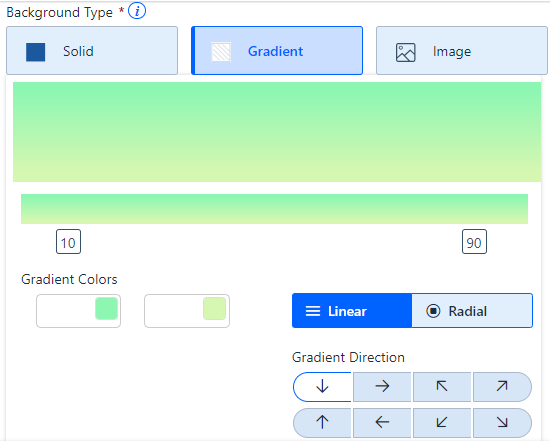Figure: Gradient If **Linear** is selected as the gradient style, then the **Gradient Direction** option loads accordingly. You can choose any direction from the **Gradient** style tab. 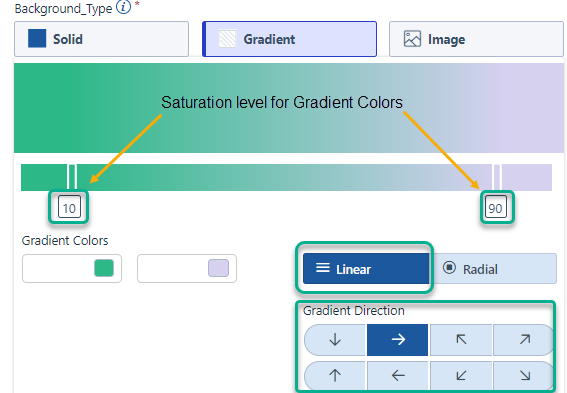Figure: Linear gradient style If you click **Radial**, then the screen is displayed as shown below. You can click the saturation bars to change the saturation percentage level. Here saturation levels are set at 15% and 90% for respective gradient colors. 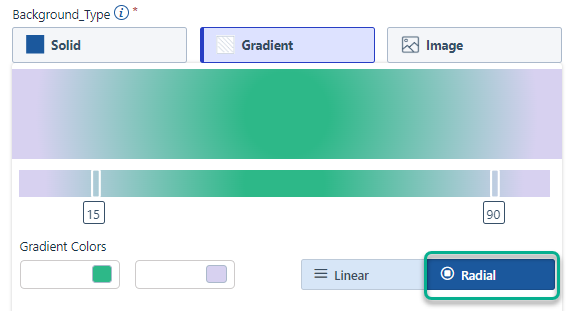Figure: Radial gradient style The colors radiate from centre to the outer periphery uniformly. You can change saturation levels for respective gradient colors from the saturation bars. It gets applied along the radial direction. |
| Image | Upload the images for the background using **Image** icon. Refer to the screenshot for more details. 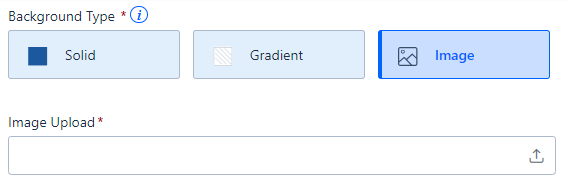Figure: Image Upload Enable the Overlay for the selected Image. 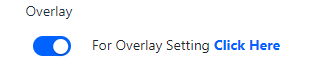Figure: Overlay Setting Pop-up screen for **Overlay** screen appears as shown. Apply the overlay percentage by sliding the **Overlay Transparency** slider. 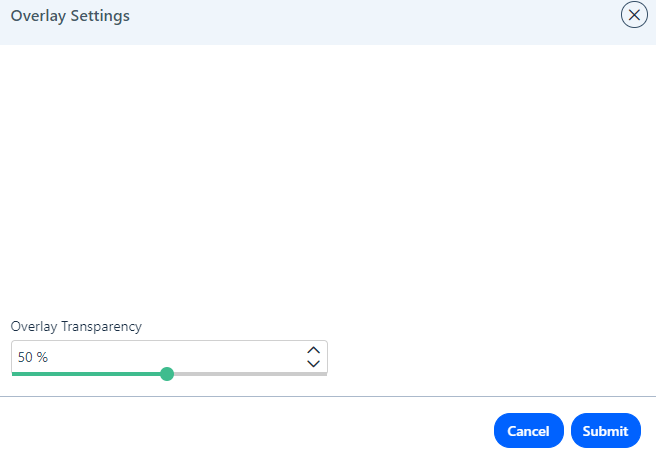Figure: Overlay TransparencyInfo - The default **Overlay Transparency** value is set as 50% - Minimum and maximum value of **Overlay Transparency**: 1% to 100% |
| Next | Click **Next** to apply the image to the portal background. If you upload single image, it gets rendered as shown. 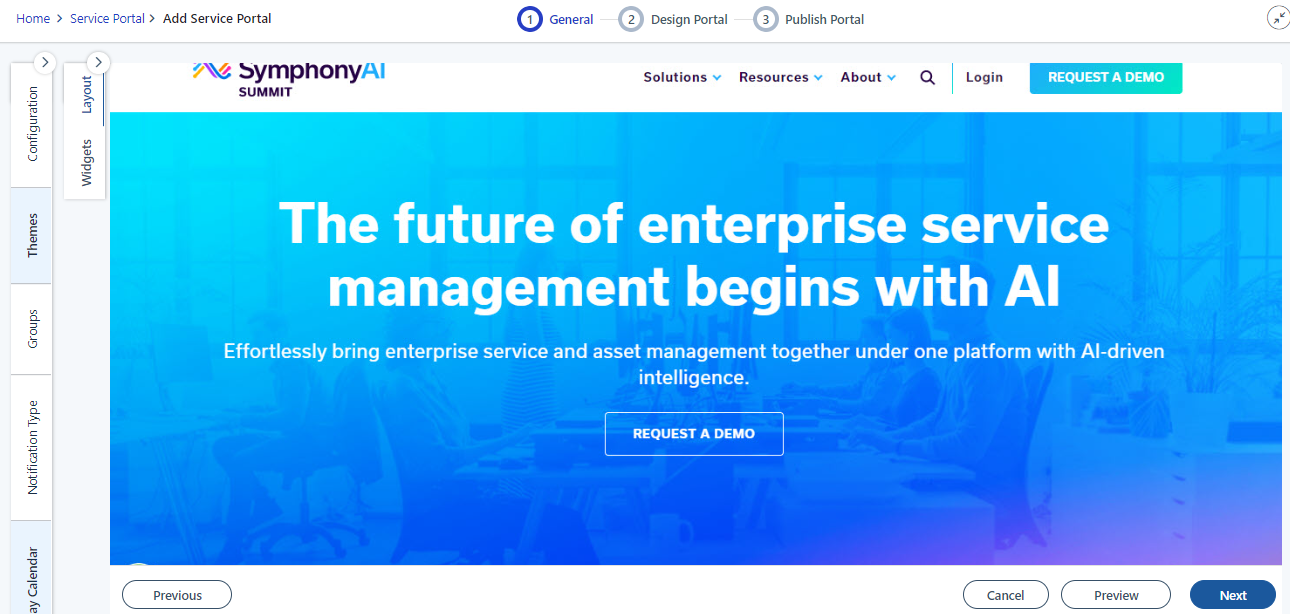Figure: Rendered view |
If portal configuration is not required, click **Cancel**. A pop-up window appears on your screen asking for confirmation to cancel this! Click **Yes** to discard the entered values and go back to the list page or click **No** to proceed with the **Service Portal** configuration and go back to the general information screen. 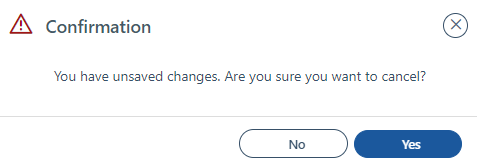Figure: A confirmation message
Click **X** to close the confirmation pop-up window and return to the general information screen to view all entered or selected values.
### Use Service Portal
This section contains the steps involved in using the predefined **Service Portal**.
To use the predefined template, perform the following steps.
1. Click **Use Service Portal** to select the existing **Service Portal**.
2. Select a predefined **Service Portal** from the tile view. The screen below displays all the details pre-filled, with layouts and widgets configured.
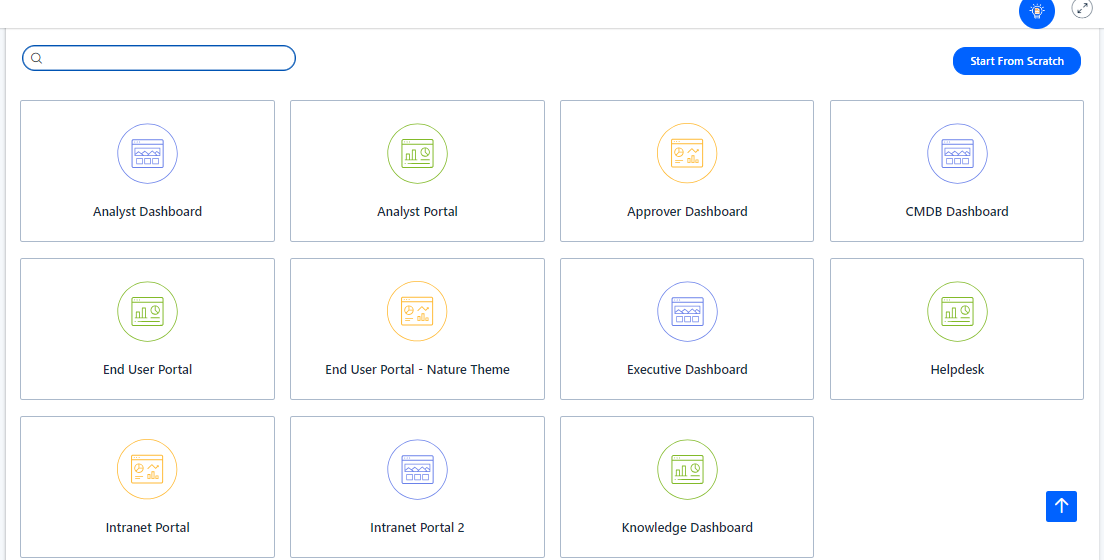Figure: Templates
3. Click **Use Portal**. The screenshot for the selected tile appears as shown below.
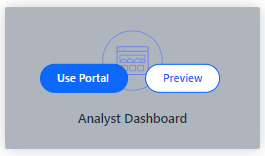Figure: Analyst Dashboard template
The Analyst Dashboard under the **General** tab screen appears as shown below.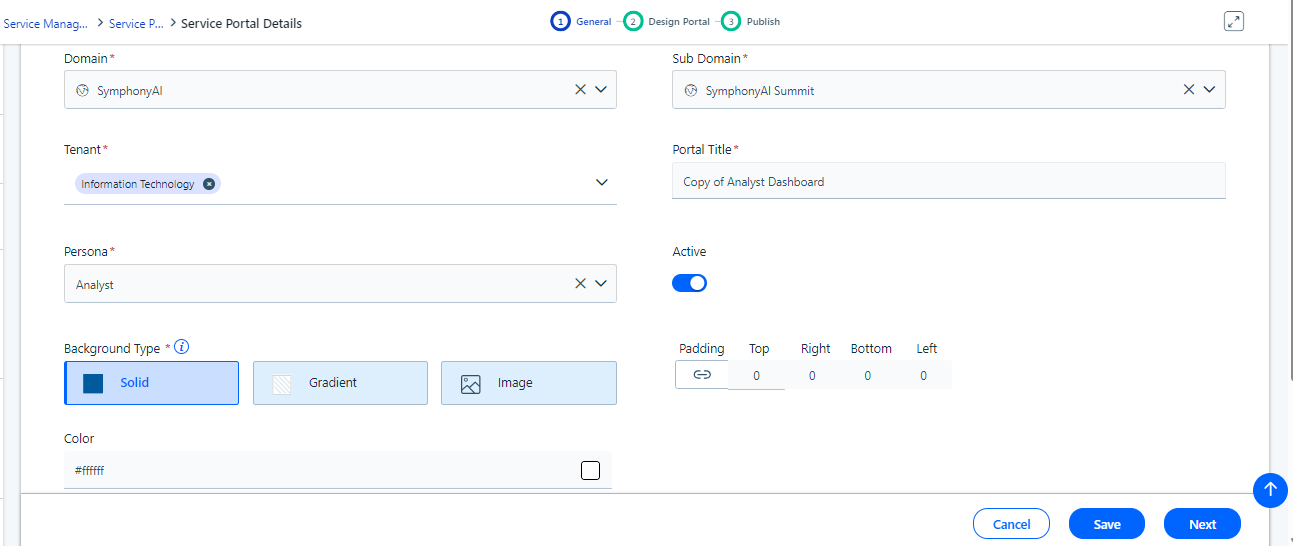Figure: General screen
4. Navigate to **Design Portal** tab and view the preconfigured layouts and widgets.
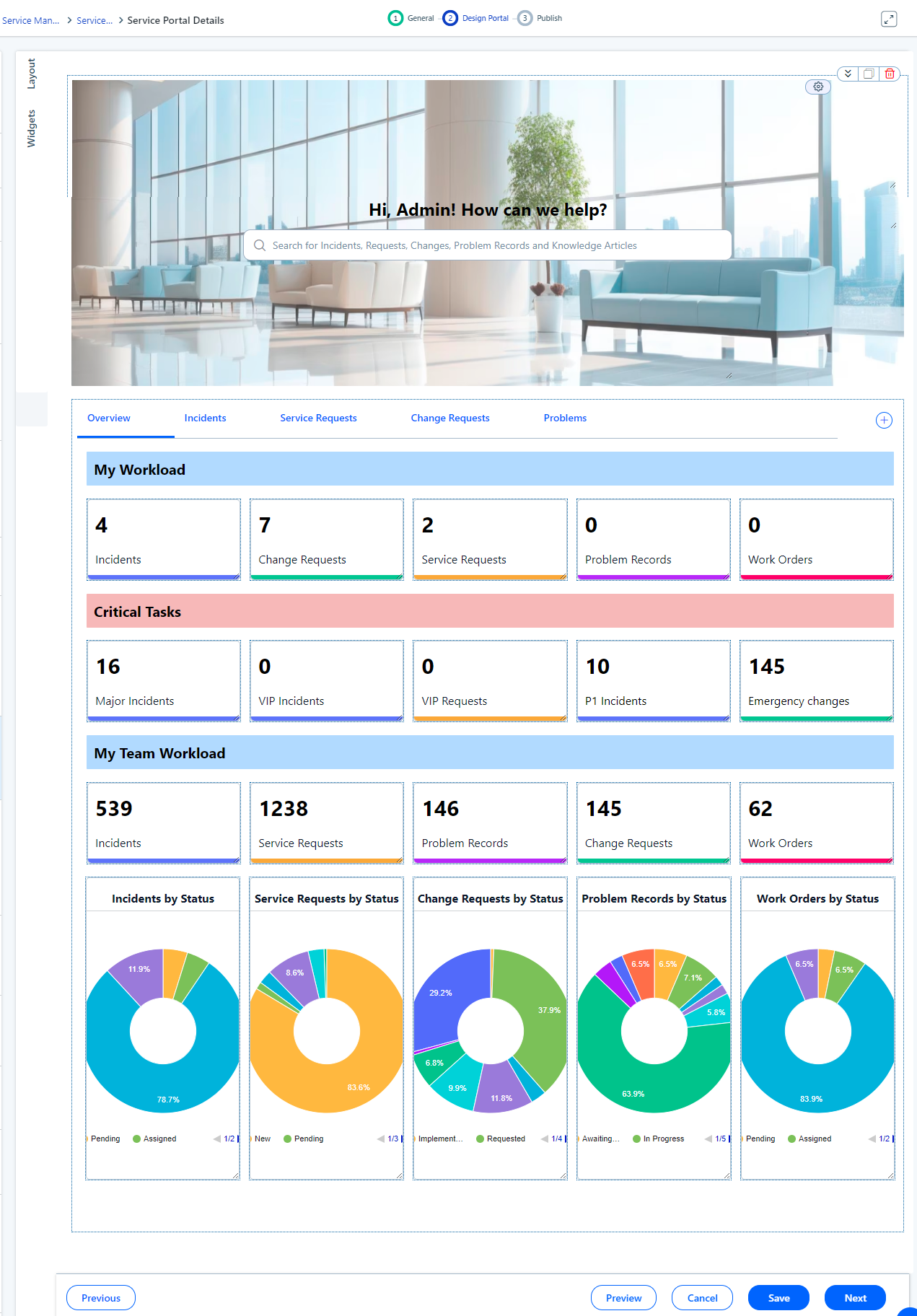 Figure: Design screen
5. Click **Preview** on the Analyst dashboard screen to get a glimpse of the portal. The screen appears as shown below.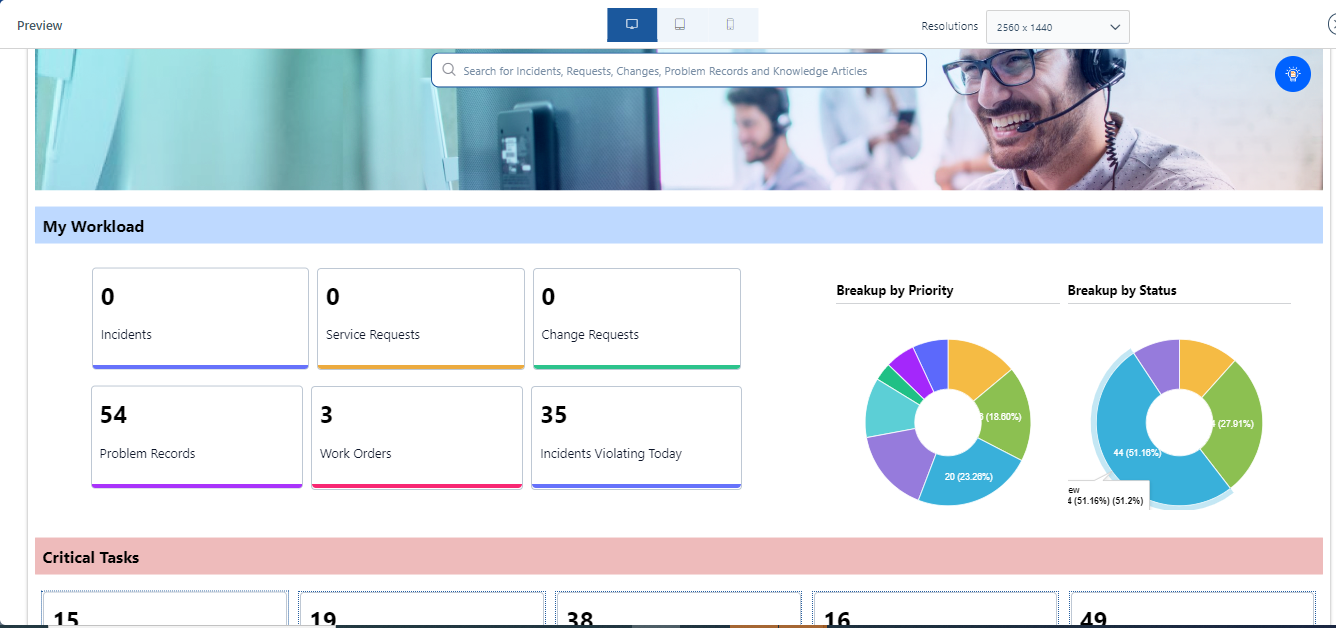Figure: Preview screen
Be it Start from Scratch where the portal has to be designed on a blank canvas or Use Portal where existing widgets and layouts have to be modified, click [here](https://help.symphonysummitai.com/summit-platform/docs/overview-design-portal) to configure or modify the design of the Service Portal.