---
title: "Forms Authentication"
slug: "forms-authentication"
tags: ["Login type", "Access Control Center", "Super Admin"]
updated: 2024-05-08T13:39:11Z
published: 2024-05-08T13:39:11Z
canonical: "help.symphonysummitai.com/forms-authentication"
---
> ## Documentation Index
> Fetch the complete documentation index at: https://help.symphonysummitai.com/llms.txt
> Use this file to discover all available pages before exploring further.
# Forms Authentication
**Form Authentication** is used in applications where users are required to enter their credentials (such as username and password) into a form provided by the application in order to authenticate and gain access to secured resources.
### Default Login
**To add a new** **Authentication****, perform the following steps:**
1. Navigate to **Platform Studio** > **Access Control Center** > **Authentication** > **User Authentication Details**. You can click **Add Authentication** to add it to the instance. The Authentication list page is displayed.
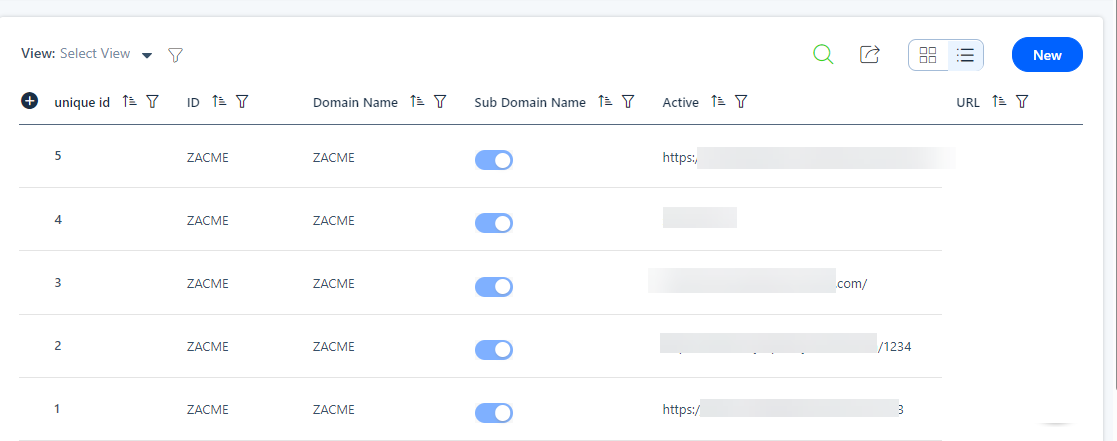Figure: Add Authentication
2. You can define the basic information such as **Domain**, **Sub Domain**, and **URL** for the selected fields.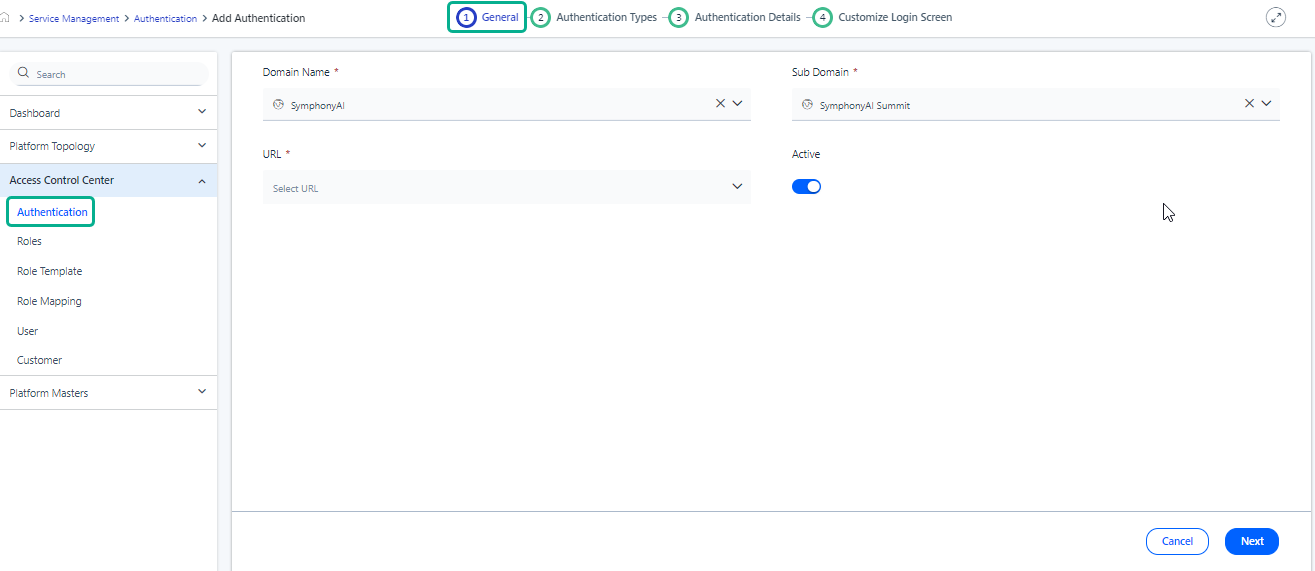Figure: Details page
Refer to the Field Description for more details.
**Field Description**
| **Field** | **Description** |
| --- | --- |
| **Domain*** | Select the **Domain** from the drop-down list. |
| **Sub Domain*** | Based on **Domain** selection, choose the **Sub** **Domain** from the drop-down list. |
| **URL*** | Select unique **URL** configured for **Domain** and **Sub Domain**. If you click **Save** and a valid **URL** is not entered in the text box, then the following validation message appears **Please enter all mandatory information**. If you enter an invalid **URL**, then a validation message **Not a valid URL** appears*.* You can also view the configured **URL** by clicking the **ID**. The respective configuration opens in edit mode under a new tab. |
| **Active** | Enable the switch  to make the Authentication **Active**. Activating authentication configurations allows for immediate testing and validation of the setup. This helps ensure that the authentication mechanisms are functioning as intended and that any issues can be identified and addressed promptly. |
3. Click **Next** to select **Forms** from the **Authentication Type**. 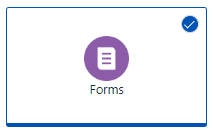Figure: Form Login
4. Configure **Forms** Authentication if you want to authenticate the user using a username and password.
5. Navigate to **Default Login** tab and click **Login Type**.
Figure: Login Type
The following table contains a brief description of **Login Type**.
Table
| Login Type | Description |
| --- | --- |
| **Password Based** | If the **Password** option is selected, the user must enter the **Password** for logging in to the application.Figure: Login Type |
| **OTP Based** | If **OTP via SMS** is checked, the system generates a temporary and single-use code, and it is sent to the user's mobile phone as an SMS. 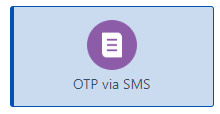Figure: OTP via SMS For **O****TP via Email** option, a temporary and single-use code is generated and sent to the user's registered email address for authentication. 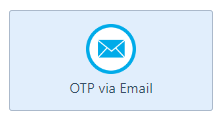Figure: OTP via Email For **O****TP via Voice** option, a system generates a temporary and single-use code, and the code is conveyed to the user through an automated voice message. 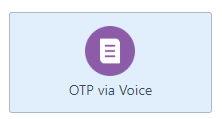Figure: OTP via Voice |
| Specify the **OTP Expiry** time. The expiry time is set to ensure that even if the OTP is intercepted, it becomes invalid after a certain period, enhancing overall security.  Figure: Select OTP Expiry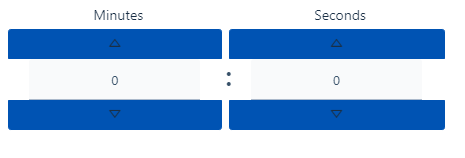Figure: Minutes and Seconds Specify the **Minutes** and **Seconds** under this field. |
| Specify the Resend OTP Timespan.  Figure: Resend OTP Select the time from the drop-down list. 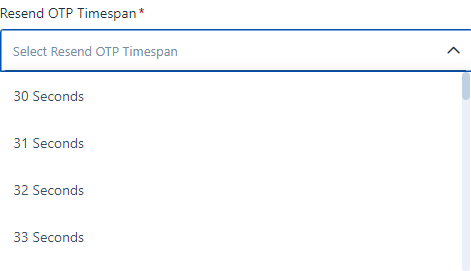Figure: Timespan |
6. Click **Next** to navigate to the **Authentication** **Details**.
### Two-factor Authentication
When you enable the **Two-factor** **Authentication,** the following screen view is displayed.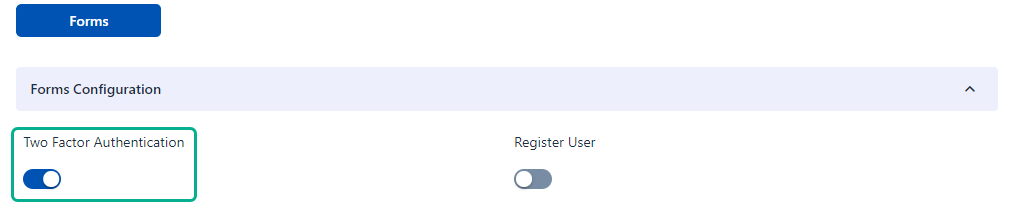
Figure: Two-Factor Authentication
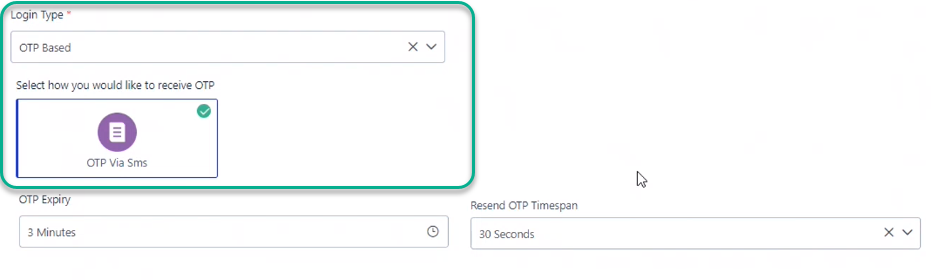
Figure: Login Type-Forms
If **Two Factor Authentication** is enabled, the following list of **Login Type** displays for the configuration. See the field description for more details.
###
Field Description
| Serial # | Login Type | Authentication Details |
| --- | --- | --- |
| 1 | **Password Based** | Select the **Login Type** as **Password Based** for logging to the application. In a **Password-Based** login system, user needs to enter a username or email address along with a secret password to prove their identity.  Figure: Password Based |
| 2 | **OTP Based** | Select **Authentication Type** as **OTP** **Based** on the drop-down list and check OTP via Email or OTP via SMS or OTP via Voice based on the requirements. Figure: OTP Based Enter the **OTP Expiry** and **Resend details** under the column values. This indicates the amount of time a generated OTP is valid. After this period, the OTP becomes invalid for authentication. The screenshot displays the related fields.  Figure: OTP details **Resend details** involve the rules and options for resending OTPs. Users might request a new OTP if the previous one has expired or if they didn't receive it. |
| 3 | **Authenticator App** | Select **Authentication Type** as **Authenticator App** from the drop-down list. It generates one-time passwords (OTPs) or authentication codes for two-factor authentication (2FA) that require users to enter a temporary code generated by the authenticator app in addition to the regular password. See the screenshot for more details.  Figure: Authenticator App |
Click **Next** to navigate to **Customize Login Screen** for **Form Authentication**.
---
NoteTwo-factor authentication is disabled always by default.
### New User Registration
If the user's basic details are available but the password is unset, the user will be prompted to register by answering questions. Upon successful completion, a system-generated password will be sent to the registered email-ID.
There is an option to enable the Register User toggle, which opens or closes the menu when clicked, facilitating the generation of passwords for existing users. Enabling this option will provide a Click here to register with us link on the Apex platform login page. The decision to enable the Register User option is optional and depends on your specific requirements. Refer to the screenshot for more details.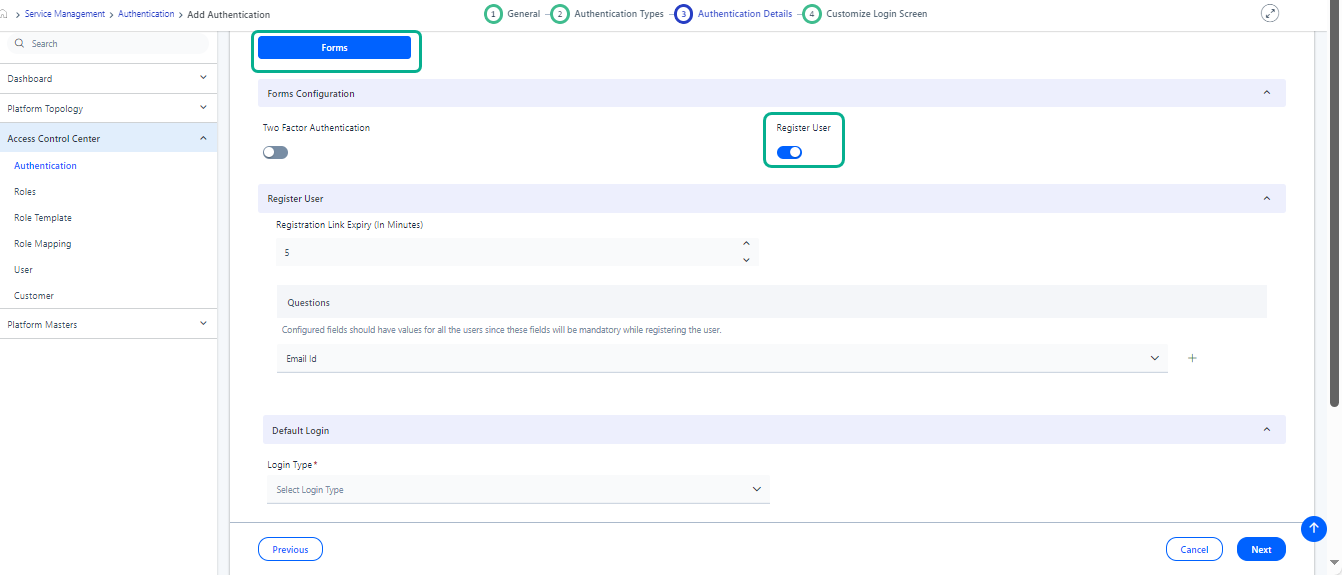Figure: Register User See the table below for more **Request User**-related configuration. Table
| Field | Description |
| --- | --- |
| **Registration Link Expiry (In Minutes)** | Specify the expiry time in minutes. Figure: Registration Link Expiry |
| **Questions** | Add the fields under **Questions** for User Registration. Figure: Field values Click **+** icon to add more field details. The values in configured **Question** fields must be present for all users, as these fields are mandatory during the user registration process. See the screenshot for values available under drop-down list. 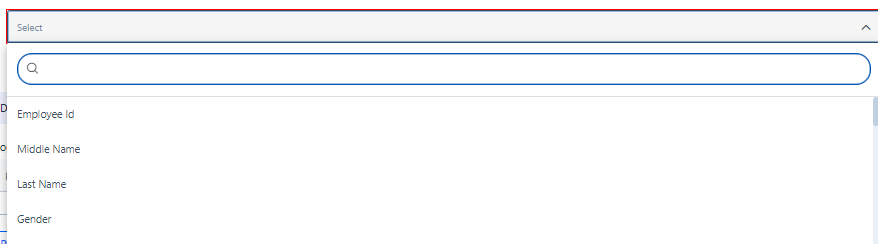Figure: QuestionsNoteThe configured user login page appears as shown below: Figure: User login screen If End User clicks , pop-up screen for registering user details appears as shown below. 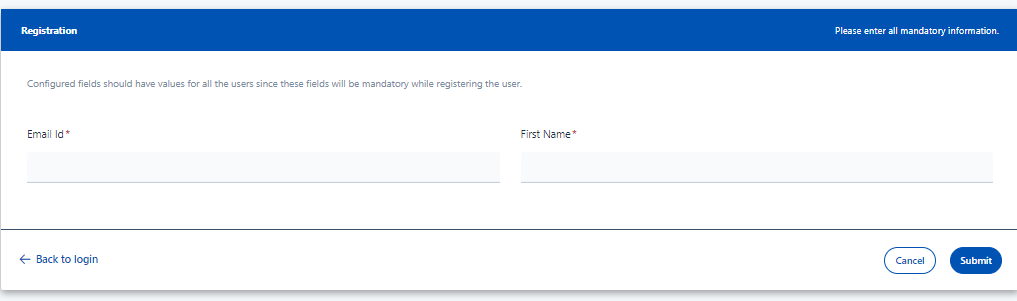Figure: Registration screen |