---
title: "Publish"
slug: "publish-prelude"
updated: 2024-10-23T11:32:30Z
published: 2025-12-17T09:27:42Z
canonical: "help.symphonysummitai.com/publish-prelude"
---
> ## Documentation Index
> Fetch the complete documentation index at: https://help.symphonysummitai.com/llms.txt
> Use this file to discover all available pages before exploring further.
# Publish
It is the last step of Form Designer. The primary purpose of this section is to configure the status of a form and to decide if the form is published, under maintenance or retired. It allows you to maintain the effective form lifecycle management. Manage the availability and usability of the forms by configuring different status such as Published, Maintenance and Retired, as needed.
Let's explore the following use-case.
| **Use Case** **User Persona: Application Designer** | **Solution** |
| --- | --- |
| The Application Designer, Sam wants to create an interface for their application where a form named **Employee Performance Evaluation** should be visible in the active list of forms as per requirement. And, once done with evaluation there should be a provision to hide it from the active list of forms. The interface should allow the Employee Performance Evaluation form to be archived when it is no longer required to reduce the clutter and enhanced user experience. | To make the **Employee Performance Evaluation** form available in the list of forms, it can be published with status as **Published**. And, once done with the evaluation and to hide it, change the status to **Maintenance.** The form can be achieved using Publish Status as Retired. |
## Configure Publish Form
To configure the Publish Form, perform the following steps:
1. Navigate to **Design Studio** > **Form Designer****.**
2. After configuring all steppers in Form Designer**,** the **Publish** tab gets enabled for a new form. You can directly navigate to the **Publish** tab for an existing form. 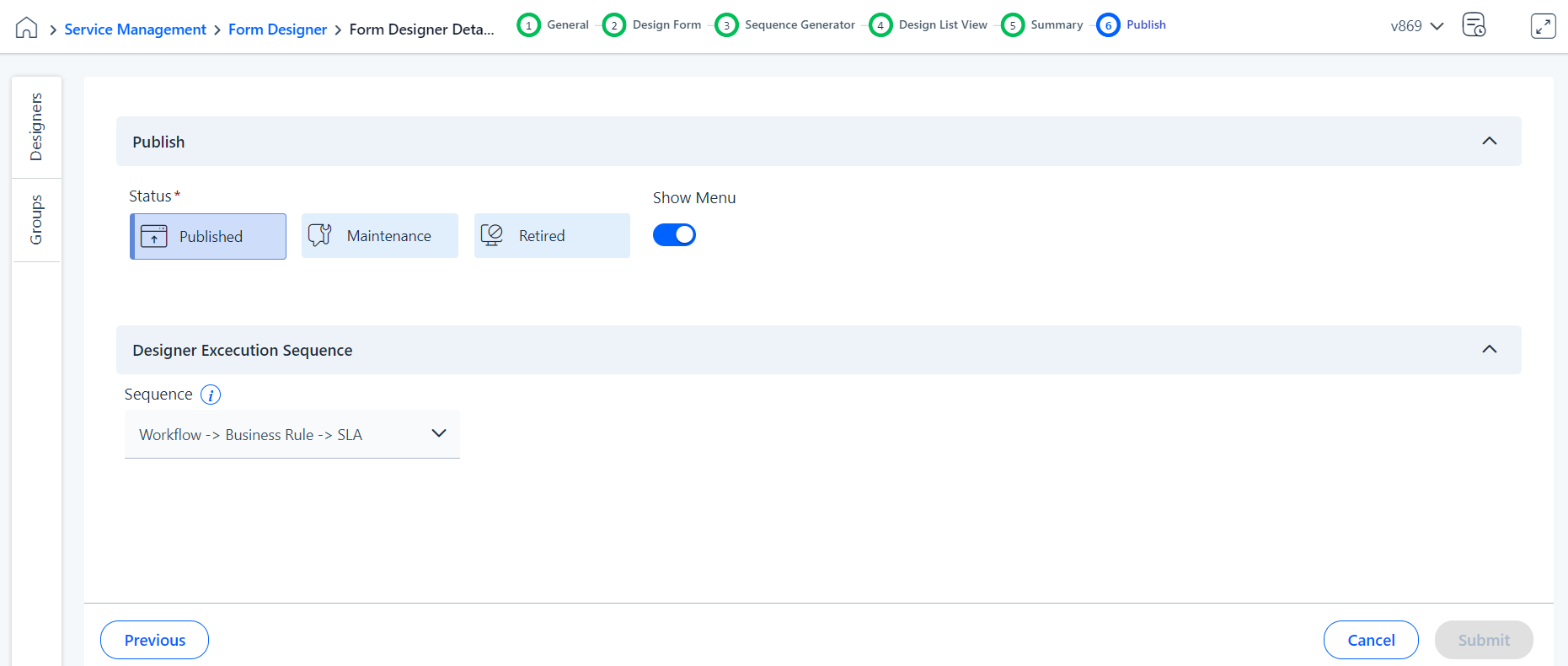Figure: Publish - Main Form
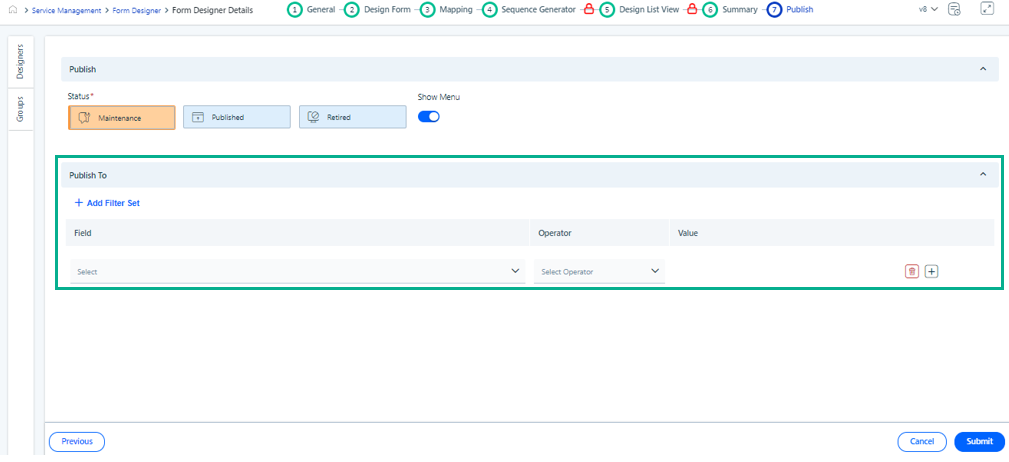Figure: Publish - Sub Form - Publish To component
**Field Description**
The following table contains a brief description on **Publish** tab fields.
| Field Name | Description |
| --- | --- |
| Publish | |
| Status* | Select the published status of the form. Available options are as follows: - **Published -** If the publish status is selected as Published, then the form is accessible to its users to utilize it. - Maintenance - If the publish status is selected as Maintenance, then the form is not accessible to its users to utilize it. - **Retired** - if the publish status is selected as Retired, then the form is permanently deleted and no more accessible to its users. We have provided different color coding for the above statues. The sample screenshots are shown below: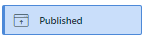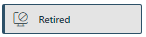 |
| Publish To | It provides you the flexibility to make the form available to a specific set of people or to everyone based on different criteria.NoteThe **Publish To** component is available only for Sub Forms. |
| Add Filter Set | **Field** - Specify the publishing component to be published to a targeted audience based on the criteria selected in **Field**. **Operator** - Specify the operator based on which the publishing should takes place. The options are displayed based on the option specified in **Field**. **Value** - Specify the values based on the which the publishing should take place. The options are displayed based on the option specified in **Field** and **Operator** field and role access of the Application Designer. For more information on available Field, Operator and Values, refer the **Publish To** section below. |
| + | Add multiple conditions using + symbol. |
| - | Delete any condition using - symbol. |
| Sequence | Select the sequence execution order for publishing for the Business Rule Designer, Workflow Designer and SLA. With that, Apex provides the flexibility to customize their publishing options by configuring the execution order for Business Rule, Workflow and SLA. Available options are as following: - **Asynchronous** - Select this option to publish the form without any execution order - **Business Rule > Workflow > SLA** - Select this option to publish the form with executing first the Business Rule, followed by Workflow and finally the SLA. - **Workflow > Business Rule > SLA** - Select this option to publish the form with executing first the Workflow, followed by Business Rule and finally the SLA. S Screenshot: 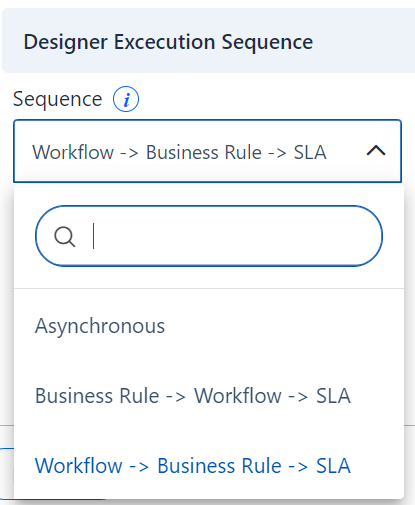Figure: Designer Execution Sequence |
### **Publish To**
Publishing a Sub Form based on the field, operator and value allows users to dynamically control the form accessibility.
The following table provides more insight on field, operator and values.
| **Field** | **Operator** | **Value** |
| --- | --- | --- |
| Email Id | Is | Publish the form to a specific email ID or multiple email IDs. |
| Gender | Is | Publish the form to the users belonging to a specific gender. |
| Department | - Is - Is One Of | Publish the form to a specific department or multiple departments. |
| Manager | - Is - Is One Of | Publish the form to a specific manager or multiple managers. |
| Employee Type | - Is - Is One Of | Publish the form to a specific employee type or multiple employee types. |
| Designation | - Is - Is One Of | Publish the form to a specific designation or multiple designations. |
| Grade | - Is - Is One Of | Publish the form to a specific grade or multiple grades. |
| Category | - Is - Is One Of | Publish the form to a specific category or multiple categories. |
| Customer | - Is - Is One Of | Publish the form to a specific customer or multiple customers. |
| Location | - Is - Is One Of | Publish the form to a specific location or multiple distinct locations. |
**Relationship between Conditions**
Define relationship between conditions using AND or OR operators. Let's consider few use cases for better understanding of the same.
The following use case describes functionality using AND conditions.
Let's explore the following use-case.
| **Use Case** **User Persona: Application Designer** | **Solution** |
| --- | --- |
| Sam wants to publish a sub form only to the users belongs to the Design department in Bangalore location for a customer named ACME C. | To achieve this functionality, he can compose the following 3 conditions and combine them using AND operator from the drop-down. 1. **Field** - Location, **Operator** - =, **Value** = Bangalore AND 2. **Field** - Department, **Operator** - =, **Value** = Design AND 3. **Field** - Customer, **Operator** - =, **Value** = ACME C **Output:** ******Field** |
The following use case describes functionality using OR conditions.
Let's explore the following use-case.
| **Use Case** **User Persona: Application Designer** | **Solution** |
| --- | --- |
| Sam wants to publish a sub form only to the users belongs to the Design department in Bangalore location for a customer named ACME C. | To achieve this functionality, he can compose the following 3 conditions and combine them using OR operator from the drop-down. 1. **Field** - Location, **Operator** - =, **Value** = Bangalore OR 2. **Field** - Department, **Operator** - =, **Value** = Design OR 3. **Field** - Customer, **Operator** - =, **Value** = ACME C **Output:**  |
Let's explore the following use-case.
| **Use Case** **User Persona: Application Designer** | **Solution** |
| --- | --- |
| Sam wants to publish a sub form only to the users belongs to the Design department in Bangalore location for a customer named ACME C. | To achieve this functionality, he can compose the following 3 conditions and combine the first two conditions with AND operator and third condition with OR operator from the drop-down. 1. **Field** - Location, **Operator** - =, **Value** = Bangalore AND 2. **Field** - Department, **Operator** - =, **Value** = Design OR 3. **Field** - Customer, **Operator** - =, **Value** = ACME A **Output:**  |
**Group with Conditions**
Provision to group multiple conditions using the checkbox with AND or OR operator. It allows you to configure multiple conditions together.
Let's understand grouping of conditions with the different scenarios for the following data set.
| **Scenario** | **Output** |
| --- | --- |
| Location = Chennai **AND** (Department = Engineering **AND** Customer = ACME A) |  |
| Location = Chennai **AND** (Department = Engineering **OR** Customer = ACME A) |  |
| Location = Chennai **OR** (Department = Engineering **AND** Customer = ACME A) |  |
| Location = Chennai **OR** (Department = Engineering **OR** Customer = ACME A) |  |
## Design List Page - Publish Status
The Publish status can be changed from the in the Status column on the Design List page. The Status field displays the status of the record. You can change the status using the arrow next to the status. The status can be changed accordingly.
**Maintenance to Published**
The status can easily be changed from Maintenance to Published.
To change status of the form from **Maintenance** to **Published,** perform the following steps:
1. On the form design list page, click the arrow next to **Maintenance** status and select the status as **Published**.
2. Once the status is changed from **Maintenance** to **Published**, the **Publish Status - Summary** page is displayed with **Publish** stepper content.
**Published to Maintenance**
The status can easily be changed from Published to Maintenance to add mandatory updates.
To change status of the form from **Published** to **Maintenance,** perform the following steps:
1. On the Form Design list page, click the arrow next to **Published** status and select the status as **Maintenance**.
The system displays the following confirmation message:
"The *Designer* will not be available for use to the consumer when moved to Maintenance. Do you still wish to proceed?"
You will also get the following message on the top of the page with each stepper except the last stepper.
"To edit the record change the publish status from Published to Maintenance. Change Status."
Click **Change Statu****s** hyperlink and the a popup is displayed with relevant options of status to select. Click **Save Changes** after selecting the required status.