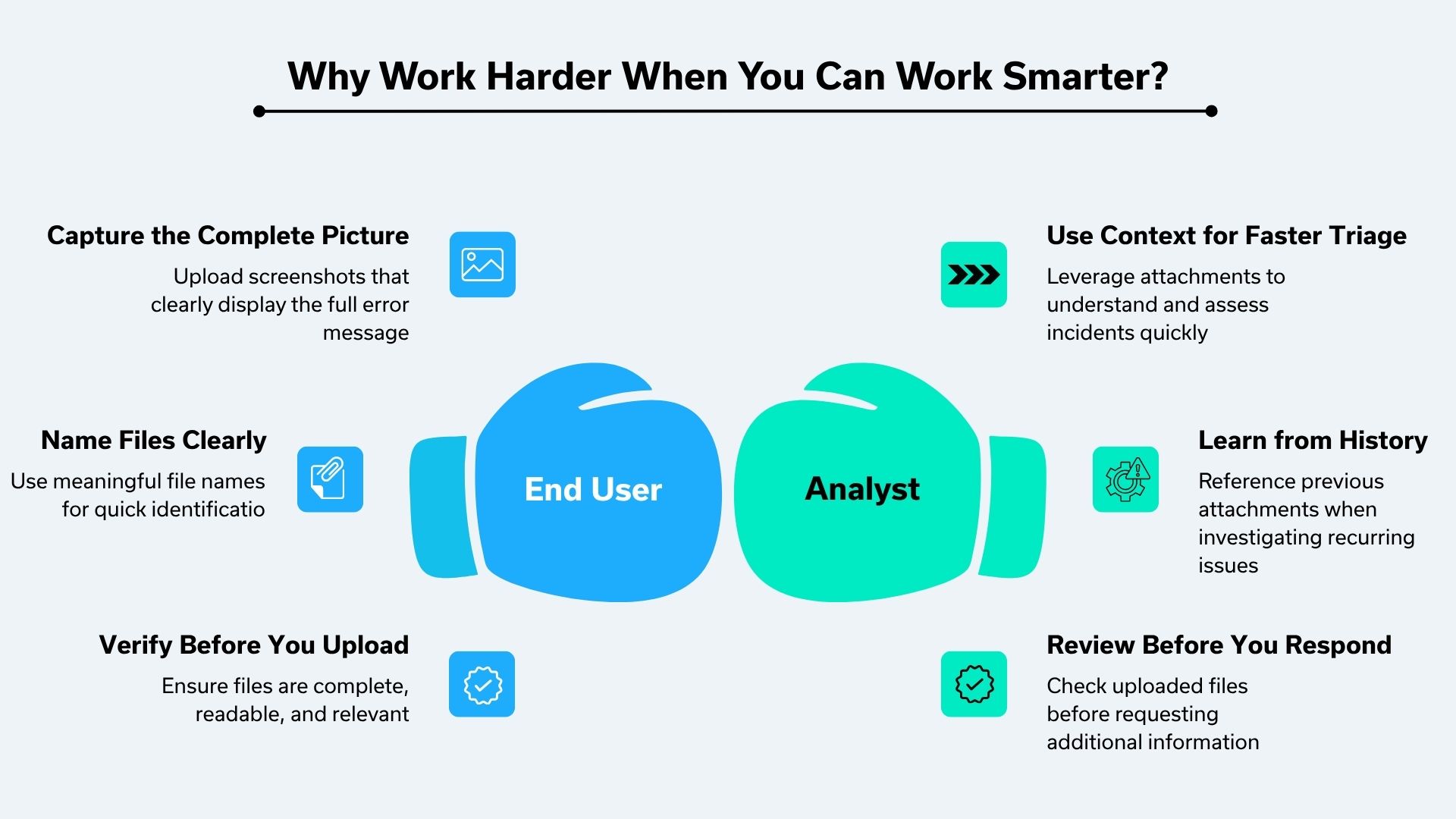
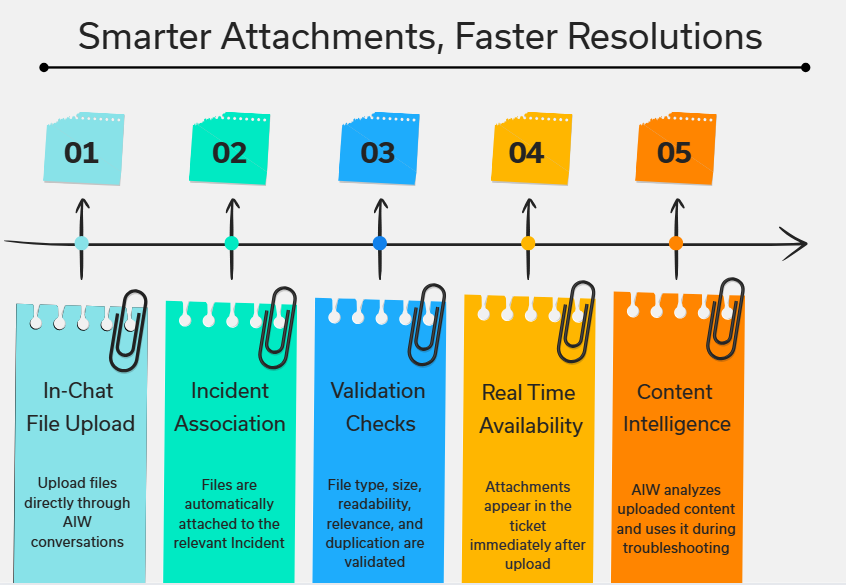
The AIW Agent now enables users to upload files directly through the conversational interface while creating or updating Incident tickets. This capability enhances issue reporting by allowing users to share supporting evidence such as screenshots, log files, documents, and reports without leaving the chat experience.
The uploaded attachments are validated, analyzed by the AIW agent, and linked to the corresponding Incident ticket, providing richer context for troubleshooting and faster issue resolution.
The following infographic depicts the key capabilities of this feature.
Use Case
Scenario: Application Login Failure
An End User is unable to access an application and receives an unexpected error message.
User Action
The user initiates a conversation with AIW and uploads a screenshot of the error.
AIW Response
The AIW agent:
Reads the screenshot.
Identifies the visible error message.
Associates the attachment with the Incident.
Uses the information to assist with troubleshooting.
Outcome
The support analyst reviewing the Incident immediately sees:
The screenshot.
The user-reported issue.
Relevant troubleshooting context.
This eliminates the need to request the screenshot separately and accelerates diagnosis.
Supported File Types
The AIW agent supports the following file formats for attachment:
Category | Supported Extensions |
|---|---|
Images | .jpg, .jpeg, .png |
Word | .docx |
PowerPoint | .pptx, .ppsx |
Excel | .xlsx |
Web/Markup | .html, .xml |
Note
File Attachment Support is available only for Incident Management module.
File Upload Functionality
Log in to the Application as an End User.
Click on the AIW Chat icon.
Attach a file while creating the incident or updating an existing incident.
Example: I need to update the Incident ID 287. Updating the error screenshot.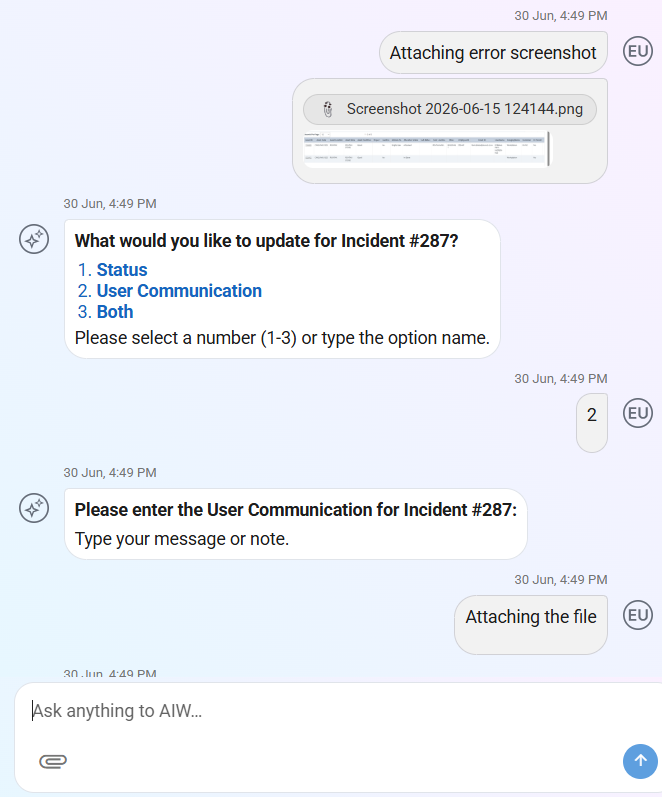
Figure: Upload AttachmentAIW displays the following message once the attachment is uploaded.
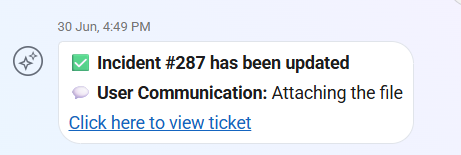
Figure: Attachment Uploaded
Note
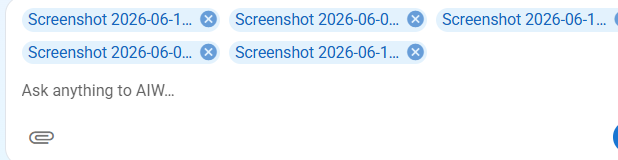
Users can upload up to 5 attachments at a time
Screenshot
Figure: 5 Attachments
The maximum allowed file size per attachment is 4 MB.
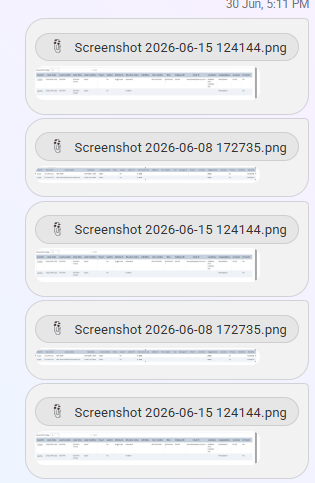
Duplicate attachements are allowed.
Screenshot
Figure: Duplicate attachements
Error Handling
A smarter upload experience starts with better validation.
The system validates the attachment limit and displays an error message if a user attempts to upload more than 5 attachments at a time, ensuring the allowed upload limit is not exceeded.
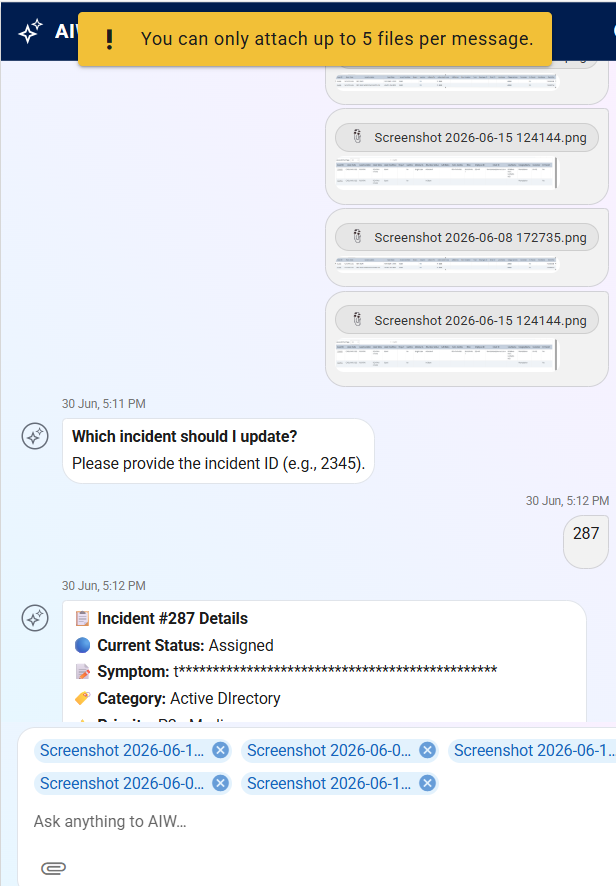
Figure: Maximum File Attachment Error
Uploading large files is now easier to manage. Users receive an immediate error message if a file exceeds the permitted size limit, allowing them to take corrective action without confusion.
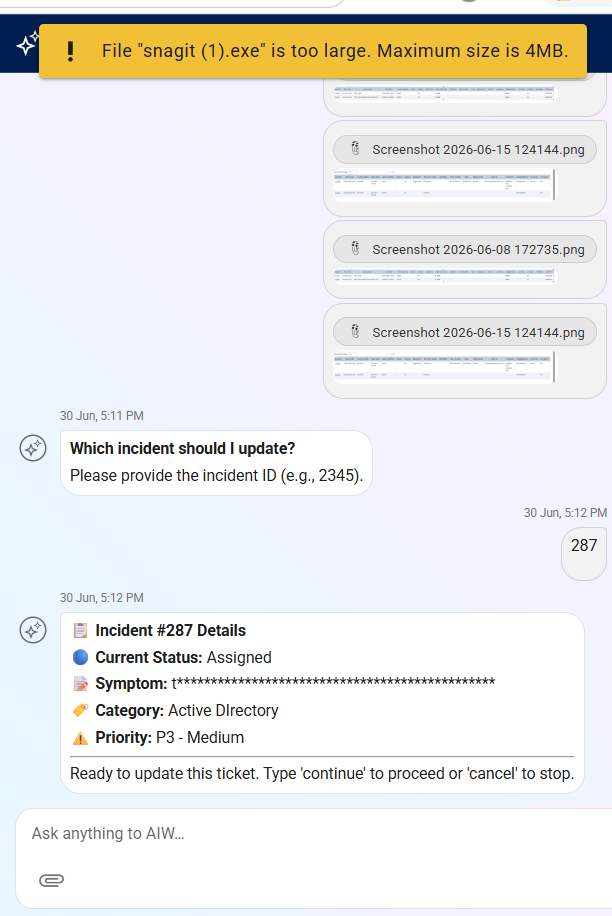
Figure: File Size Exceeds
Best Practices
For optimal results, follow these best practices