Access key tasks directly from the moment you log in through configurable quick links tailored to your organization's needs. By bringing frequently used actions to the forefront, the feature simplifies navigation, minimizes repetitive clicks, and helps you start working more efficiently.
Whether you're raising requests, managing incidents, or handling any issue, the most relevant entry points are available immediately, allowing you to begin your work without unnecessary clicks.
Note
Administrators can configure the quick links displayed to users immediately after a fresh login.
Use Case
Scenario: Application Login Failure
An End User often perform the same set of support tasks or look for help on common issues immediately after logging in.
User Action
The End User logs in to the application.
AIW Response
The AIW agent displays organization-configured quick links that provide one-click access to frequently used actions and common support needs, such as:
Create an Incident
Check or Update an Existing Incident
Raise a Service Request
Reset Password
VPN Not Working
Outcome
Users can quickly access the tasks or solutions they need most without navigating through multiple menus, enabling them to resolve common requests faster and begin their work more efficiently.
This eliminates the need to manually search for commonly used support actions, reducing clicks and improving productivity.
Quick Links Functionality
Log in to the Application as an End User/Analyst.
Click on the AIW Chat icon.
The AIW chat window opens and displays the configured Quick Links at the bottom of the chat interface (if enabled for the Tenant).
Refer to the sample screenshot below for an illustration of the Quick Links displayed in AIW.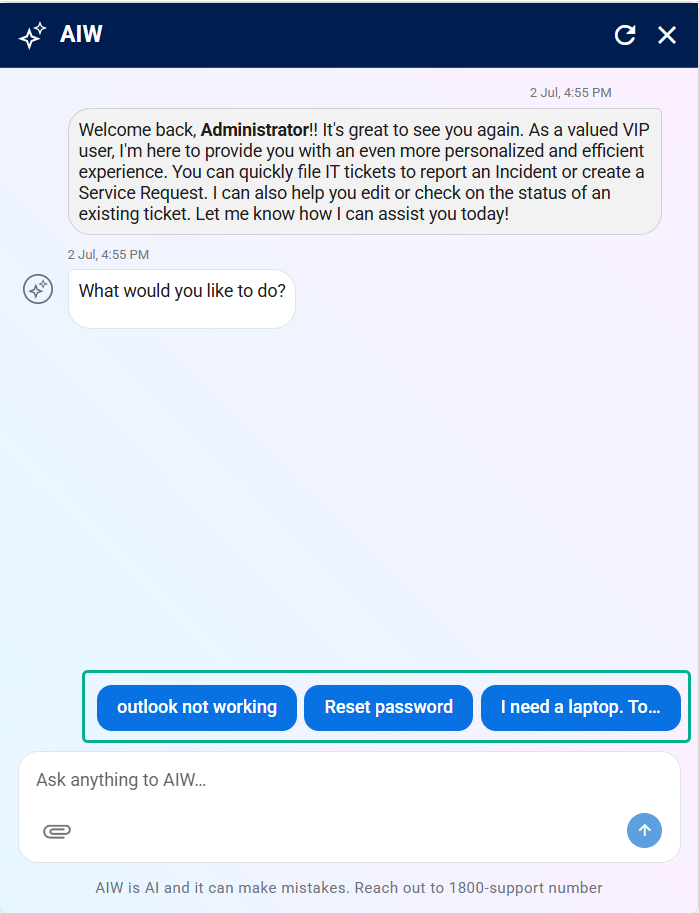
Figure: Quick Links
When a Quick Link label is too long to be displayed completely within the available space, the text is truncated with an ellipsis (...). Hovering over the Quick Link displays a tooltip containing the full text, allowing users to view the complete label without affecting the layout of the AIW chat interface.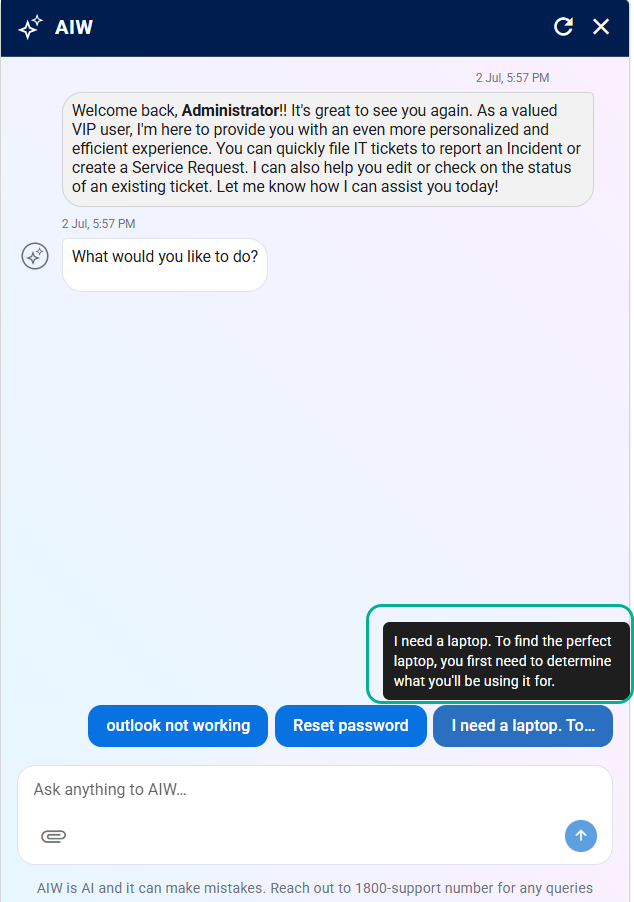
Figure: Quick Links TooltipClick the required Quick Link, such as "Outlook Not Working".
AIW displays the relevant troubleshooting information or guidance associated with the selected Quick Link, enabling users to quickly access the required support.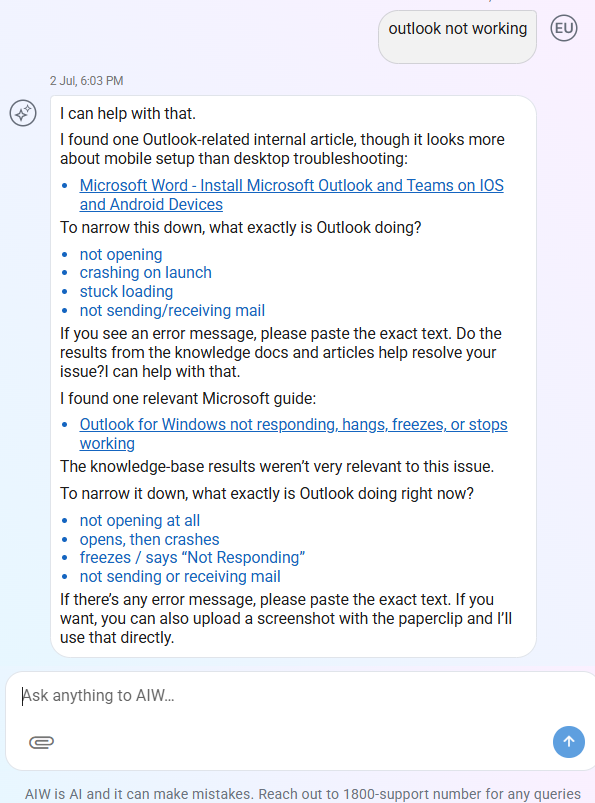
Figure: Outlook not working - information
The configured Quick Links provide users with one-click access to common support requests, such as resolving Outlook issues, resetting passwords, and requesting a laptop, enabling faster assistance and reducing manual effort.