The Ingestion Jobs interface allows authorized administrators to manually trigger, review, and track ingestion pipelines for a Tenant. These pipelines synchronize enterprise content and operational data with the systems used by AIW for search, retrieval, analytics, and AI-generated responses.
Administrators can trigger the following jobs:
Prerequisites
Before accessing the interface, verify that:
You have administrator access to the applicable environment.
You can run jobs for the tenant.
Note
Run ingestion jobs only for tenants and environments you administer.
What Is an Ingestion Pipeline?
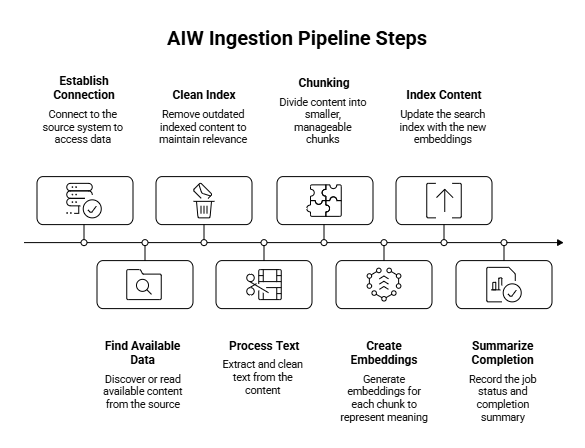
An ingestion pipeline reads information from a source system, processes the information, and sends it to a destination where AIW can use it.
Access the Admin Console
Log in to the Instance.
Open AIW Chat on the instance.
Navigate to Admin > AI > AIW Configuration.
The interface displays Knowledge Sync with all jobs.
 Figure: Knowledge Sync
Hover on the Job card to run the job and to view it’s history.
 Figure: Job Card Details
Click any source to view the Jobs for the Source. The application displays Job Status page.
 Figure: Knowledge articles job status
Field
Description
Run
Display the date and time when you initiated the sync run. Includes a View Details link to access more information about the run.
Status
Display the result of the sync run, such as Succeeded or Failed.
Progress
Display the current state of the sync run, for example Completed or Failed. For more information refer Job Statuses.
Started
Display the date and time when the sync run started.
Updated
Display the date and time when the sync run was last updated or completed.
Started By
Identifies what triggered the sync run, such as Manual or an automated process.
Summary
Provides a summary of the sync run, including the number of records found and processed, the number of chunks created, and the number of rows ingested.
Click view details on the run time to view the full job details.
 Figure: Run Details
Field
Description
Source
Display the name of the Data source associated with the ingestion run.
Progress
Display the current state of the ingestion run, such as Completed, In Progress, or Failed. For more information, refer Job Statuses
Started By
Identifies how the ingestion run started, for example, Manual or Scheduled process.
Started
Display the date and time when the ingestion run began.
Updated
Display the date and time when the ingestion run was last updated or when processing completed.
Completed
Display the date and time when the ingestion run finished.
Summary
Provides a summary of the ingestion run, including the number of items found, successfully processed items, generated chunks, and files ingested.
Status
Display the total result of the ingestion run, such as Succeeded or Failed.
Note
Before running a job, always verify the environment and tenant. Running a full-refresh job for the wrong tenant can replace that tenant’s existing indexed content.
Run an Ingestion Job
Log in and navigate to AIW configuration to view the Knowledge Sync Jobs page.
Click Run now by hovering on the job card. When the job starts running, the system displays Running as an action until the job completes.
Track the status until it changes to Succeeded or Failed.
 Figure: Running Job
Note
Most jobs run inside the agent process but, for Landscape Intelligence jobs run remotely.
After triggering a job, use the status displayed in the UI to determine its progress. A successful run ends with Completed .
Available Jobs
Knowledge Articles
The Knowledge Articles job synchronizes Apex Enterprise knowledge articles.
After the job completes, AIW can retrieve these articles when answering user questions.
To run the Knowledge Articles job, perform the following steps:
Select Knowledge Articles.
Select Run now.
Track the job until it reaches Succeeded or Failed state.
The tenant’s knowledge articles become searchable through AIW’s RAG Workflow.
SharePoint
The SharePoint job synchronizes files from a SharePoint or OneDrive drive.
To run the SharePoint jobs, perform the following steps:
Select SharePoint.
Select Run now.
If supported by the UI, provide a root folder or individual file identifier.
Track the job until it reaches Succeeded or Failed state.
Supported SharePoint and OneDrive documents become searchable in AIW to fetch the details.
Confluence
The Confluence job synchronizes Confluence wiki content. This allows AIW to search and retrieve Confluence information as enterprise knowledge.
Select Confluence.
Verify that you selected the correct tenant.
Select Run now.
Track the job until it reaches Succeeded or Failed.
Review the completion summary, when available.
While the UI displays a running state, the pipeline can be performing one or more of the following operations:
Discovering content: The pipeline crawls configured Confluence spaces or retrieves a specific page. It counts the discovered pages, attachments, and images.
Removing outdated content: The pipeline deletes existing content before it indexes the new content. This is a full-refresh behavior for Confluence content.
Preparing content: The pipeline retrieves page HTML and supported attachments, identifies semantic structures, and divides the content into searchable chunks.
Indexing content: The pipeline inserts or updates content.
Completing the job: The pipeline records processing statistics and the final job status.
What gets ingested
The Confluence pipeline can ingest:
Classic Confluence pages
Blog posts
Headings, Paragraphs, Tables, Ordered and unordered lists, Code sections, Panels, Expandable sections and Tasks
Supported file attachments and PDFs
Supported images through OCR
The ingestion process skips unsupported or non-text media, such as ZIP archives and video files.
AIW retrieves the indexed copy rather than calling Confluence for every chat message.
Incident Records
The Incident Records job ingests closed Apex incidents. The indexed records can support similarity searches, analytics, AIW features, and landscape intelligence.
The job runs inside the agent process. Command-line and scheduled Multi-Tenant execution paths can also be available outside the Admin UI.
To run the Incident Records job, perform the following steps:
Select Incident Records.
Select Run now.
If the UI exposes a mode or time-window parameter, select the applicable incremental or backfill option.
Track the job until it reaches Succeeded or Failed state.
Historical incident vectors become available for similarity analysis and downstream landscape intelligence processing.
Landscape Intelligence
Landscape intelligence analyzes incident information to produce clusters, keywords, labels, and reports.
Unlike the other jobs, this is not primarily a document ingestion pipeline. The agent sends a trigger request to the Landscape Intelligence service, which starts a separate worker job.
Landscape trigger→ remote AI-Predictive service and worker
The worker generates analytical outputs in Landscape Intelligence.
Note
The main processing runs remotely in the Landscape Intelligence service.
To run Landscape Intelligence job, perform the following steps:
Select Landscape Intelligence.
Select Run now.
Track the extended analysis stages.
Wait for the remote worker to report Succeeded or Failed.
What happens during the job
The agent records INITIATED in Couchbase.
The agent sends the tenant, job, run, mode, and trigger information to the Landscape Intelligence API.
The API starts a worker job.
The worker processes the available incident information.
The worker clusters incidents.
The system generates keywords and labels.
The worker saves the results.
The system generates and publishes Landscape reports.
The worker updates the shared job status.
The agent does not mark the job as completed. The remote Landscape Intelligence worker handles the later stages and final status.
Landscape intelligence generally depends on incident data already being available.
The workflow produces clusters, keywords, labels, and reports. Landscape Intelligence stores these outputs in its data stores or Couchbase rather than following the standard document-ingestion model used by Confluence, SharePoint, and Knowledge Articles.
Job Comparison
Admin UI label | Internal job name | Execution location | Source and destination |
|---|---|---|---|
Knowledge articles | kbsql_ingestion | Agent process | Apex SQL knowledge base |
SharePoint | sharepoint_ingestion | Agent process | Microsoft Graph drive |
Confluence | confluence_ingestion | Agent process | Confluence REST API |
Incident records | im_records_ingestion | Agent process | Closed Apex incidents |
Landscape intelligence | landscape_intelligence | Remote service and worker | Trigger request to Landscape Intelligence processing |
Job Statuses
The UI converts internal pipeline stages into administrator-friendly status labels.
Internal stage | UI label | Meaning |
|---|---|---|
INITIATED | Started | The system accepts the request and initializes the job. |
AUTHENTICATED | Connecting | The pipeline authenticated with the source system. |
DISCOVERED | Discovering content | The pipeline identified pages, files, or other source items. |
DATA_READ | Reading data | The pipeline retrieves source records. |
ROWS_FETCHED | Fetching articles | The system retrieves knowledge article rows from SQL. |
STALE_DELETED | Removing outdated content | The pipeline removes existing content for the source before a full refresh. |
CLEANED | Cleaning data | The pipeline cleans and removes records. |
DOCUMENTS_BUILT | Building documents | Transforms source records into indexable documents. |
CHUNKED | Preparing content | Divides documents into smaller searchable sections. |
EMBEDDED | Preparing search index | Generates embeddings. |
INGESTED | Indexing content | Adds processed content to the destination index. |
UPSERTED | Updating index | Writes new or updates. |
CLUSTERED | Clustering | Landscape intelligence groups related incidents. |
KEYWORDS_EXTRACTED | Extracting keywords | Identifies keywords from incident clusters. |
LABELED | Labeling | Assigns descriptive labels to clusters or results. |
PERSISTED | Saving results | The system saves analysis results. |
REPORT_LOADED | Loading report | Loads the Existing report information. |
REPORT_GENERATED | Generating report | Creates Landscape reports. |
REPORT_PUBLISHED | Publishing report | Publishes generated reports. |
COMPLETED | Completed | The job finished successfully. |
FAILED | Failed | The job stopped because of an error. |