The HTTP Request node enables you to send HTTP requests to external applications or web services from an integration flow. It supports standard HTTP methods and allows you to configure request headers, query parameters, request body, and authentication to exchange data with external systems.

Configure the HTTP Request
Configure the HTTP Request node by selecting the HTTP method, specifying the endpoint URL, and providing the required request parameters, headers, and body.
To configure HTTP request, perform the following steps:
Click
 (Add Step) and navigate to Apps > HTTP Request.
The HTTP Request App Action page is displayed.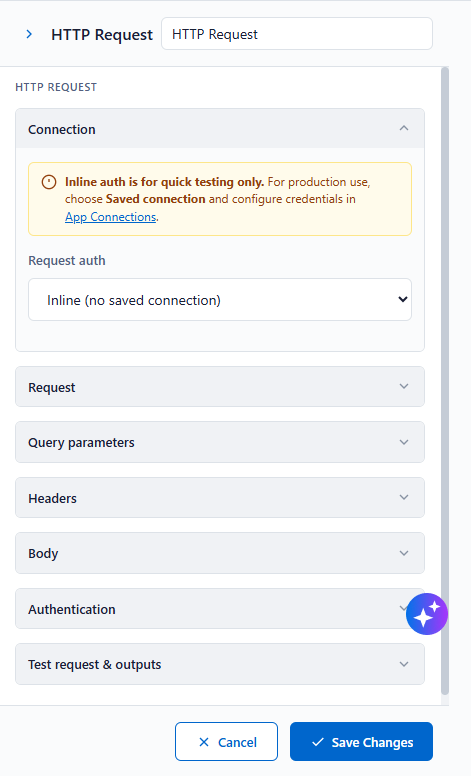
Figure: APEX Create ActionEnter the required details in the sections as described in the following table and click Save Changes.
Connection
The HTTP Request connection enables the Integration Platform to securely communicate with external REST APIs and Web Services. Once configured, the connection can be reused across multiple HTTP Request nodes.
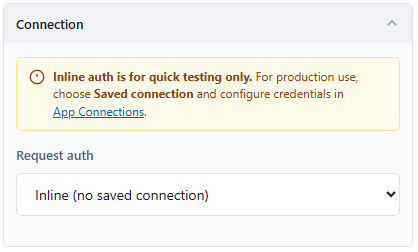
Figure: ConnectionSelect the configured HTTP connection from the list.
Request
Select the HTTP method to perform the required operation on the target API, such as retrieving, creating, updating, or deleting data.
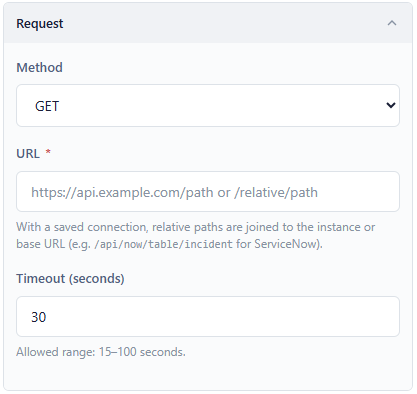
Enter the required details as described in the following table:
Field
Description
Method
Specifies the HTTP method used to send the request to the target API.
Field
Description
GET
Retrieves information from the target API.
POST
Creates a new resource or submits data to the target API.
PUT
Replaces an existing resource with the provided data.
PATCH
Updates one or more fields of an existing resource.
DELETE
Removes an existing resource from the target API.
URL
Specify the endpoint URL of the target API. When using a configured connection, you can enter a relative path, which is automatically appended to the connection's base URL (for example, /api/now/table/incident for ServiceNow).
Timeout (seconds)
Specify the maximum time, in seconds, that the system waits for a response before the request times out.
Query Parameters
Query Parameters enable you to append key-value pairs to the request URL. You can specify static values or map variables from previous steps in the integration flow.

Enter the required details in the sections as described in the following table and click Save Changes.Field
Description
Name
Specifies the name of the query parameter to include in the request URL.
Value / ${Variable}
Specifies the value of the query parameter. You can enter a static value or map a variable from a previous workflow step.
+ (Add)
Adds a new query parameter.
✕ (Remove)
Removes the selected query parameter.
Headers
Headers specify the HTTP request headers that are sent with the API request. You can configure standard or custom headers by providing a name and value.

Enter the required details in the sections as described in the following table and click Save Changes.Field
Description
Name
Specifies the name of the HTTP request header.
Value / ${Variable}
Specifies the header value. You can enter a static value or map a variable from a previous workflow step.
+ (Add)
Adds a new request header.
✕ (Remove)
Removes the selected request header.
Body
The Body section specifies the data sent to the target API as part of the HTTP request.
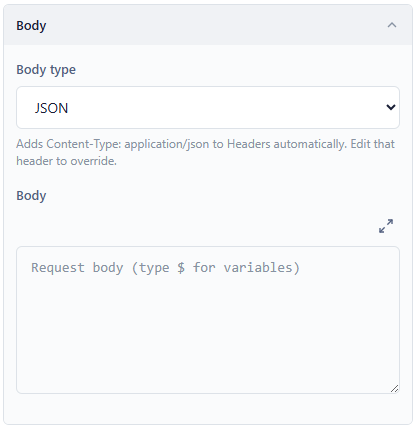
Figure: Body
Enter the required details in the sections as described in the following table and click Save Changes.
Field
Description
Content Type
Specifies the format of the request body, such as JSON, XML, or Plain Text.
Body Content
Specifies the request payload. You can enter static content or reference variables from previous workflow steps.
Authentication
The Authentication section defines the credentials required to securely access the target API. Select the appropriate authentication method and provide the required authentication details.
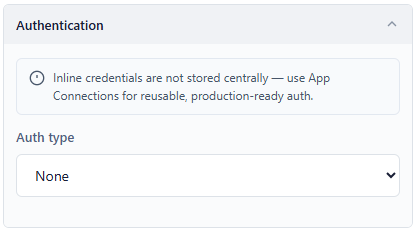
Select the authentication method required to access the target API.
Basic - Authenticates the request using a username and password.
Bearer Token - Authenticates the request using a bearer access token.
API key header - Authenticates the request using an API key.
Test request & outputs
Use the Test Request option to validate the configured HTTP request and verify that the target API returns the expected response.
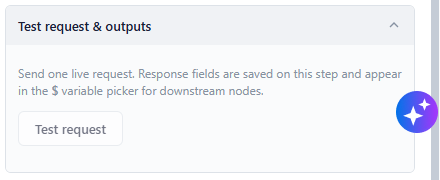
The Outputs section displays the response returned by the target API after the request is executed. The returned values can be referenced in subsequent steps of the integration flow.