Overview
Aspen Apex now displays Knowledge Record IDs with the prefix KB followed by the record ID. For example, a Knowledge Record that was previously displayed as 23 is now displayed as KB23.
This enhancement applies to the Knowledge Management module and improves how Knowledge Records are displayed, searched, and linked with Service Request module.
Previously, Knowledge Records were displayed and searched only by their numeric ID, such as 23 or 1270. With this enhancement, Aspen Apex supports both formats:
Search format | Example | Result |
|---|---|---|
Numeric ID only | 1270 | Finds Knowledge Record KB1270 |
KB prefix with ID | KB1270 | Finds Knowledge Record KB1270 |
Lowercase KB prefix | kb1270 | Finds Knowledge Record KB1270 |
The search is case-insensitive, so KB1270 and kb1270 return the same result.
This change brings Knowledge Record identification in line with other Aspen Apex modules, such as Service Request, where records are displayed with a prefix such as SR233.
Key Benefits
The KB prefix enhancement provides the following benefits:
Consistent record identification
Knowledge Records now follow a consistent ID format similar to Service Request IDs. For example:
|
|
|---|---|
Service Request |
|
Knowledge Record |
|
This makes Knowledge Records easier to recognize across the application.
Key benefits of KB Prefix are:
Improved search experience
Users can search for Knowledge Records using either the numeric ID or the prefixed KB ID. For example, both 1270 and KB1270 return the same Knowledge Record.
Case-insensitive searching
Search works regardless of whether the KB prefix is entered in uppercase or lowercase. For example, KB1270 and kb1270 both return KB1270.
Easier linking with other modules
When linking Knowledge Records to other modules, such as Incidents, users can search and identify Knowledge Records using the full KB-prefixed ID.
Reduced ambiguity
The prefix clearly indicates that the record belongs to the Knowledge Management module, which helps users distinguish Knowledge Records from records in other modules.
Where the KB Prefix Appears
The KB prefix is displayed and supported in the following areas of Aspen Apex:
Area | Description |
|---|---|
Knowledge Record list page | Knowledge Records display with the format KB, such as KB23 |
Knowledge Record details page | The Knowledge Record ID displays with the KB prefix |
Knowledge search | Users can search using either 23 or KB23 |
Global search | Users can search Knowledge Records using numeric ID or KB-prefixed ID |
Local search | KB-prefixed search is supported in Knowledge-related search areas |
Relationship linking | Users can search and link Knowledge Records to other modules using the KB-prefixed ID |
Linked records | Linked Knowledge Records display with the KB prefix |
View the KB Prefix on the Knowledge Record List Page
Use the Knowledge Record list page to view Knowledge Records with the new KB-prefixed ID format.
Steps
Log in to Aspen Apex.
Select Workspace as ITSM.
Click Knowledge > Knowledge Record List.
The Knowledge Record list page is displayed.
 Figure: Knowledge Record List page with Prefix KB
In the list, locate the Knowledge Record ID column.
Verify that the Knowledge Record ID is displayed with the KB prefix.
Example:
A record that was previously displayed as 23 is now displayed as KB23.
View the KB Prefix on the Knowledge Record Details Page
When you open a Knowledge Record, the record ID is displayed with the KB prefix on the details page.
Steps
From the Knowledge Record list page, click on the KB ID of the respective Knowledge Record, which you want to open.
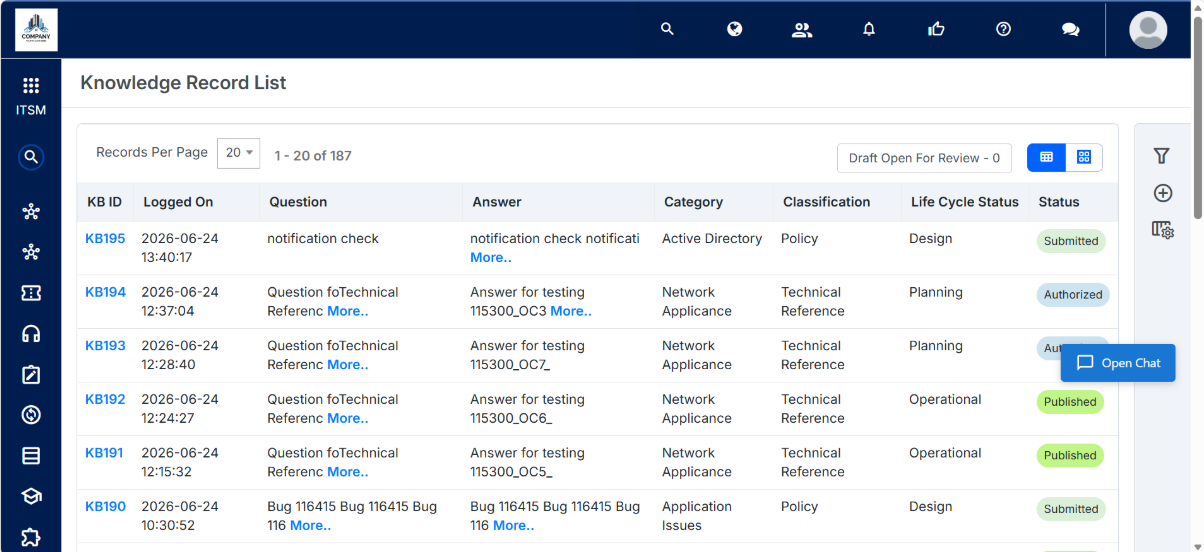
Figure: Knowledge Record List page with Prefix KB On the Knowledge Record details page, verify that the record ID includes the KB prefix.
 Figure: Knowledge Record Details page with KB Prefix
Search for a Knowledge Record Using the Numeric ID
You can continue to search for Knowledge Records using only the numeric ID in the Filters quick search available in the Knowledge Record List page.
Steps
Open the Knowledge Management module.
Click the Filter icon on the action panel.
A Filter dialog box is displayed.
 Figure: Knowledge Record List page
Enter the From and To, KB IDs for Knowledge Records in the Filter criteria.
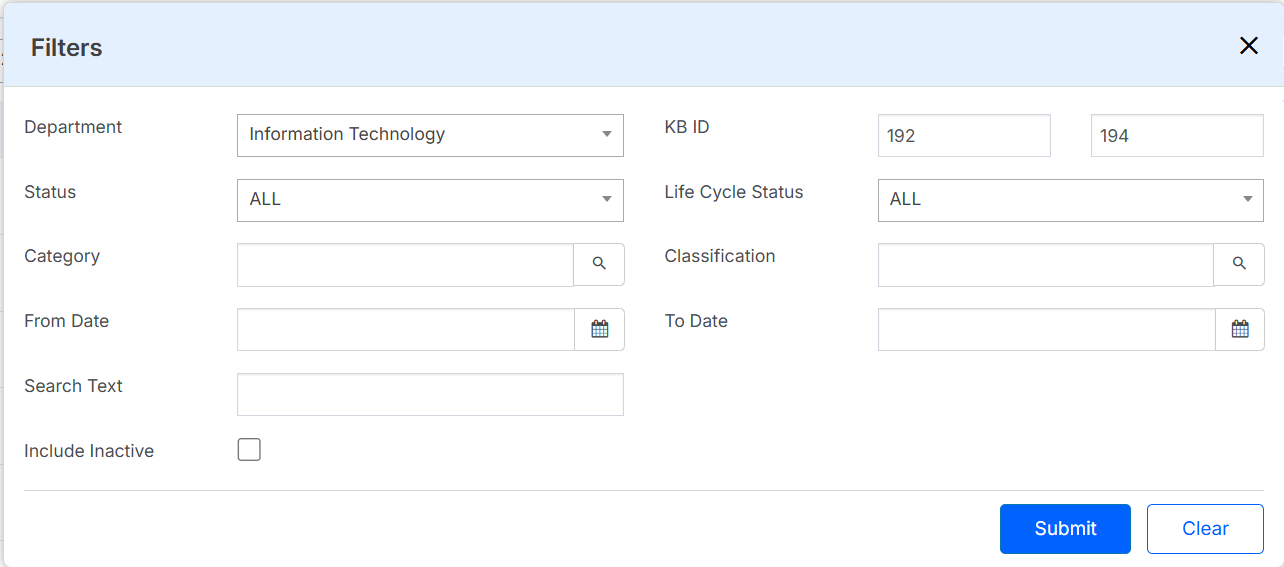
Figure: Filter Knowledge RecordsClick Submit.
The filtered Knowledge records are displayed, as shown in the following figure with KB IDs as the first column.
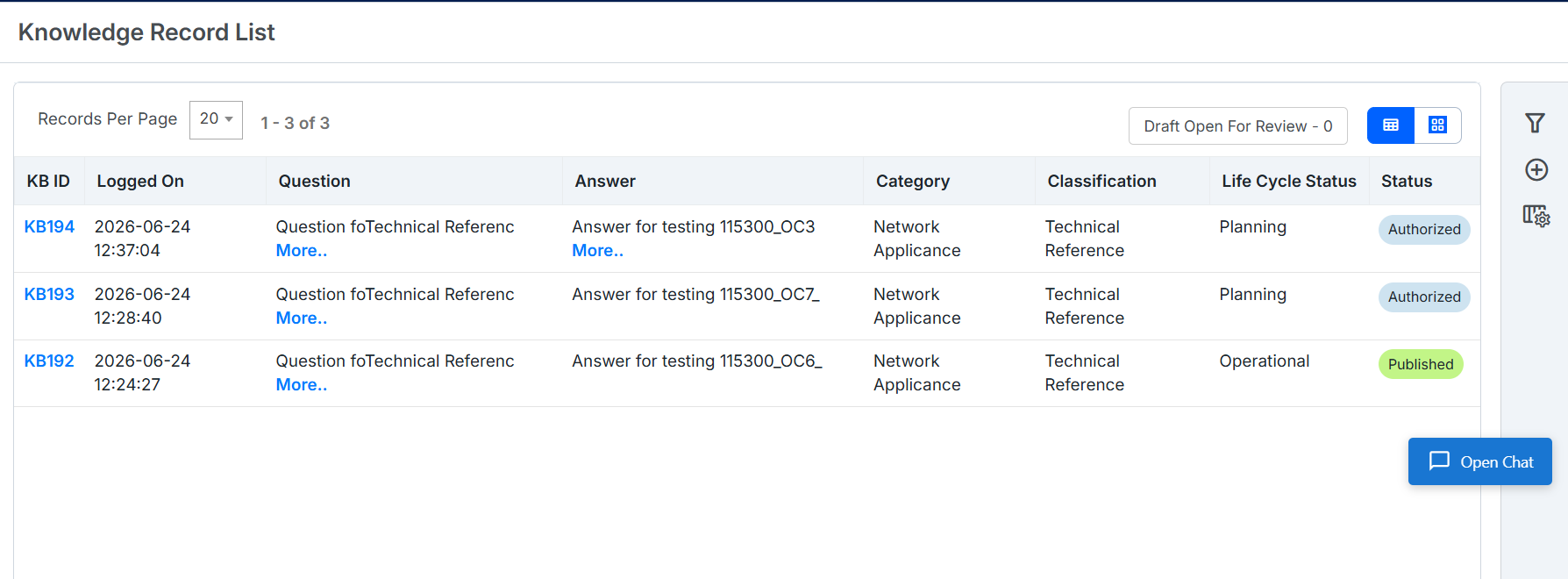
Figure: Filtered KB IDs
Search for a Knowledge Record from Global Search
You can use Global Search to find Knowledge Records by entering either the numeric ID or the KB-prefixed ID.
Steps
Click the Global Search icon on the top navigation panel.
A dialog box is displayed with two options to filter the User or select the Module using Global.Click Global drop-down and select Knowledge check box.
Specify the KB ID in the format: KBID or just the ID and click Search icon.
Example: KB11 or 11.The filter result displays the search results for the filtered KBID as shown in the following figure.
It displays the Knowledge ID, Logged Time, Question and Answer for the KB article.
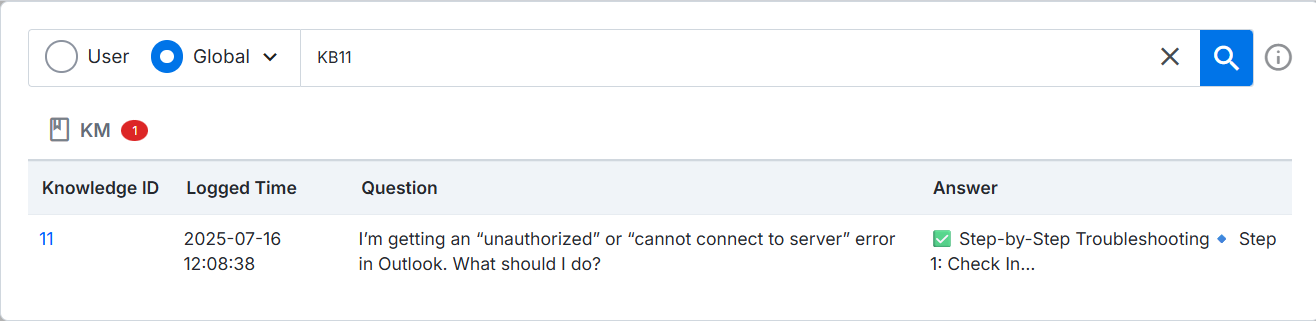
Figure: Filter KB article using KB IDClick the KB ID to open the respective knowledge record.
As shown in the following figure, the KB article displays the KBID as well now, example KB11 at the top of the page.
Search term | Expected result |
|---|---|
11 | Finds KB11 |
KB11 | Finds KB11 |
kb11 | Finds KB11 |
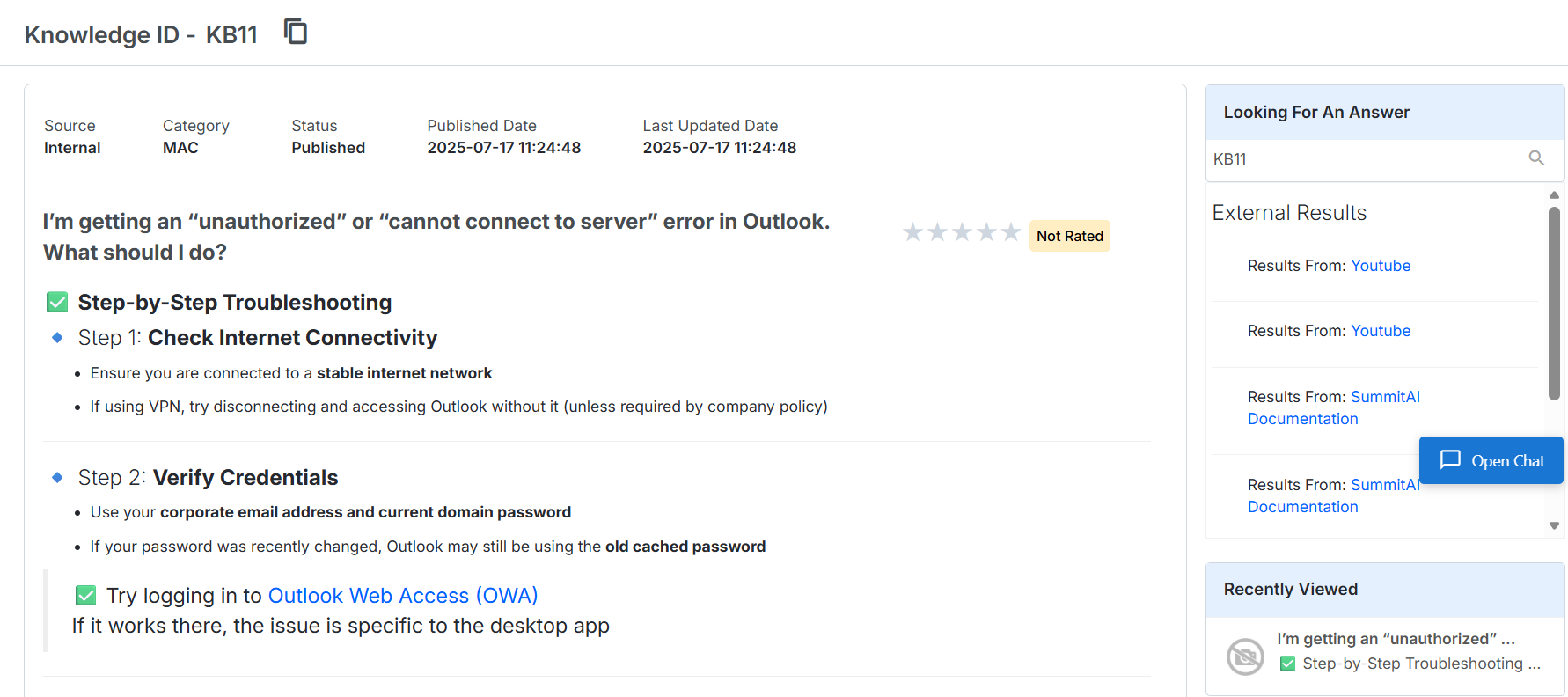
Figure: Knowledge Article with KB Prefix
Link a Knowledge Record with KB Prefix to a Module
You can link a Knowledge Record to respective modules (Incident, Service Request, etc…) by searching for the Knowledge Record using the KB-prefixed ID.
Steps
Open the Incident record where you want to link a Knowledge Record.
Go to the Relationship tab.
Click Link dropdown and select Knowledge Base.
 Figure: Link knowledge Base to Incident
Relationship dialog box is displayed.
Specify the KB ID From and To numeric value, which you want to search to link KB and click Search.
 Figure: Search KB in Relationship
The KB articles with respective IDs as mentioned in search criteria is displayed. The first column is the KB ID, which was earlier called as ID.
 Figure: List of KB searched articles
Select the respective KB ID check box and click Link.
The selected KB Article with IB Prefix is now linked to the Incident as shown in the following figure.
 Figure: Linked KB article with Prefix KBID
Click Submit.
The KB with KB as a prefix, is linked with the Incident ID successfully.
Key Points to Remember
Knowledge Records now use the format KB, such as KB23.
Users can search using either the numeric ID or the KB-prefixed ID.
Search is case-insensitive, so KB1270 and kb1270 both work.
The KB prefix is visible on the Knowledge Record list page, details page, search results, and linked record sections.
This enhancement improves consistency with Service Request module.