Projects allow you to organize the Integration flows for better management and visibility. Each project can include multiple projects, descriptions, and color coding for easy identification.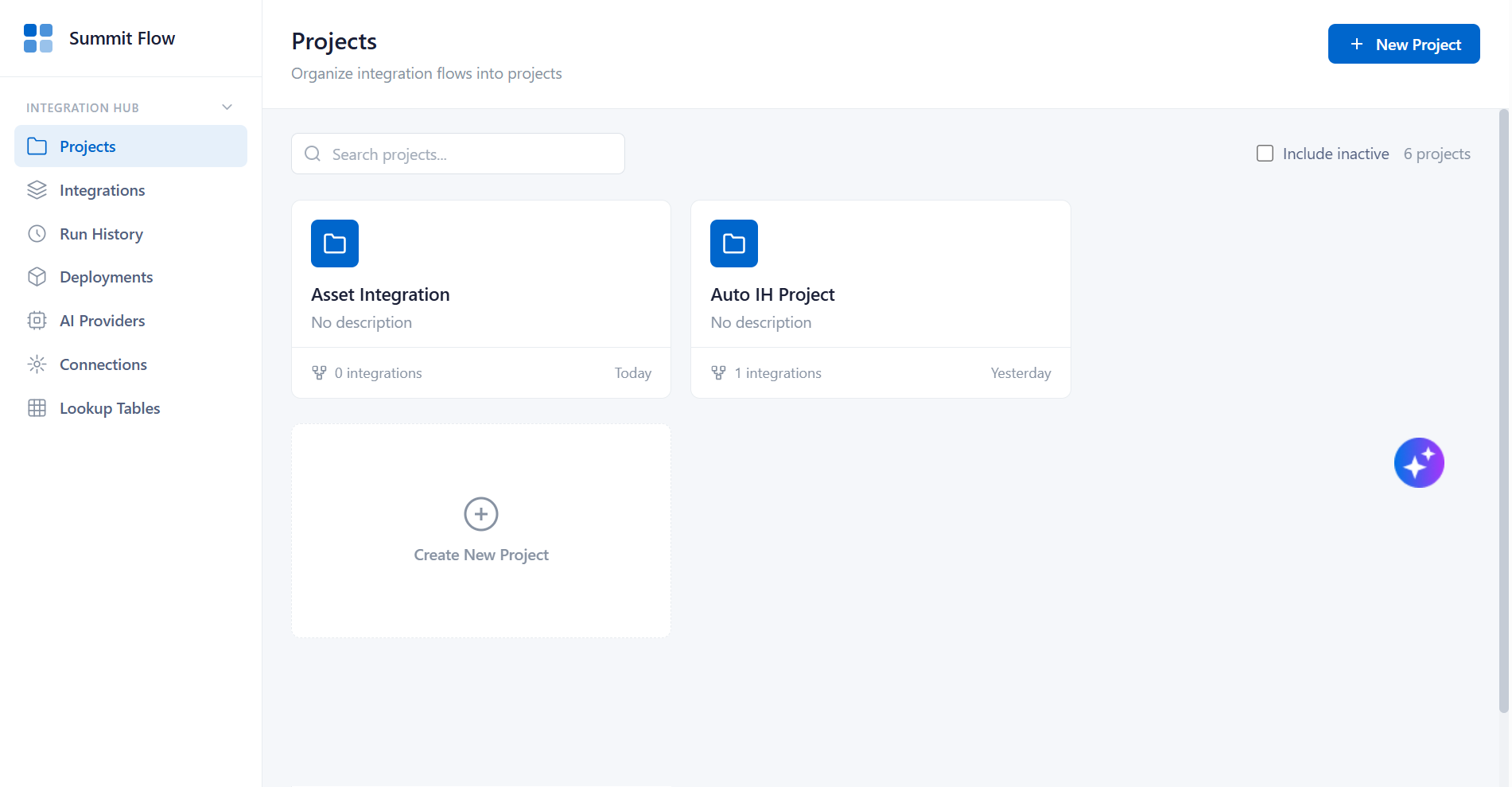
Figure: Projects
Project widget
The Project widget enables you to create and manage flows associated with a specific project. It allows you to group and organize all related flows under a single project for better visibility and management. Each project widget displays key details, including the project icon, project name, a brief description, the number of associated flows, and the last updated date.
Click Project widget to view the list of flows created for the selected project.
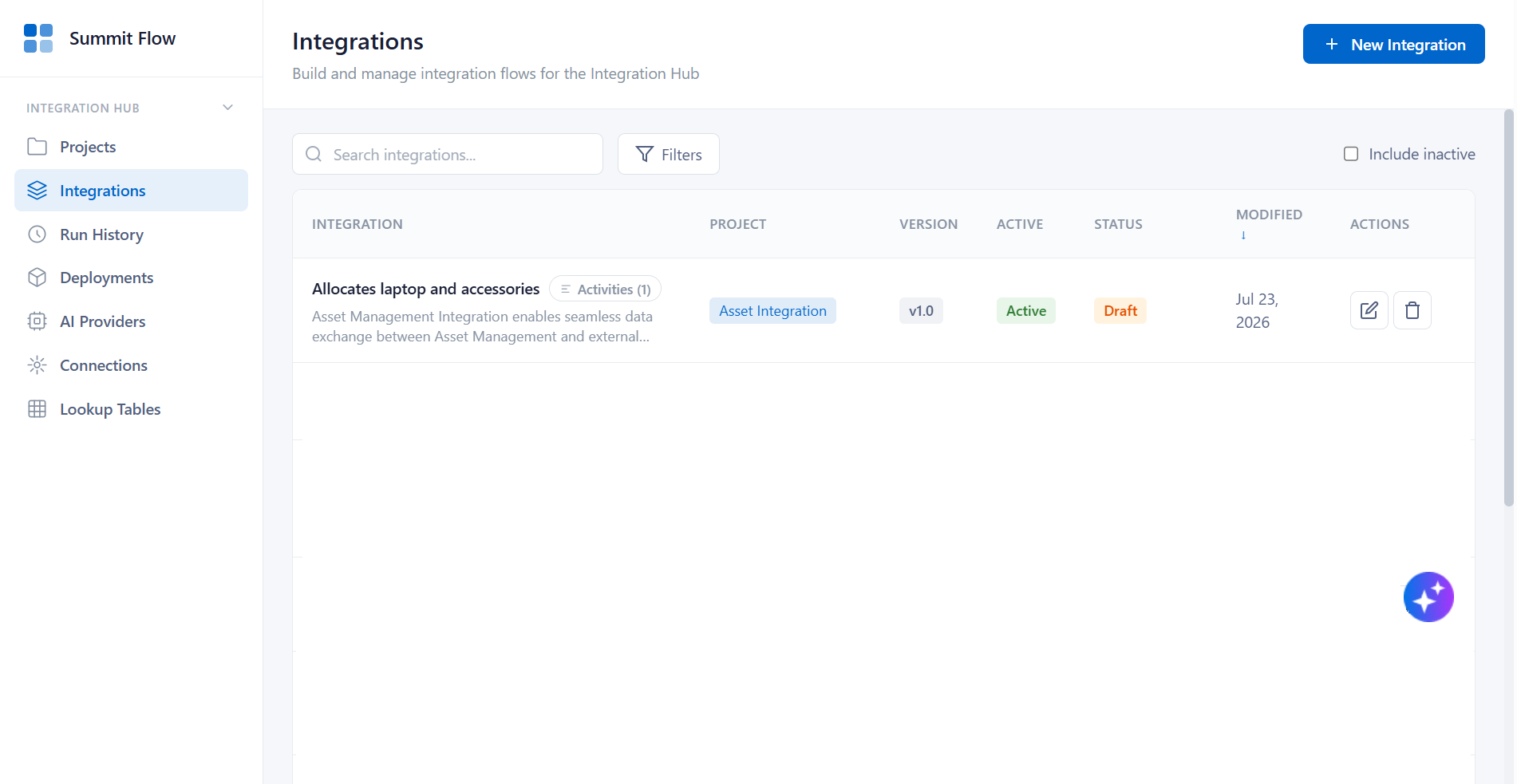
Figure: Integration Flow list
You can perform the following actions in the Project widget:
Edit
Editing a project allows you to update its details to ensure accuracy and reflect changes in scope, workflows, or business requirements.
To edit a project, perform the following steps:
Hover over the Project widget.
Click
 (Edit) icon.
The Edit Project page is displayed.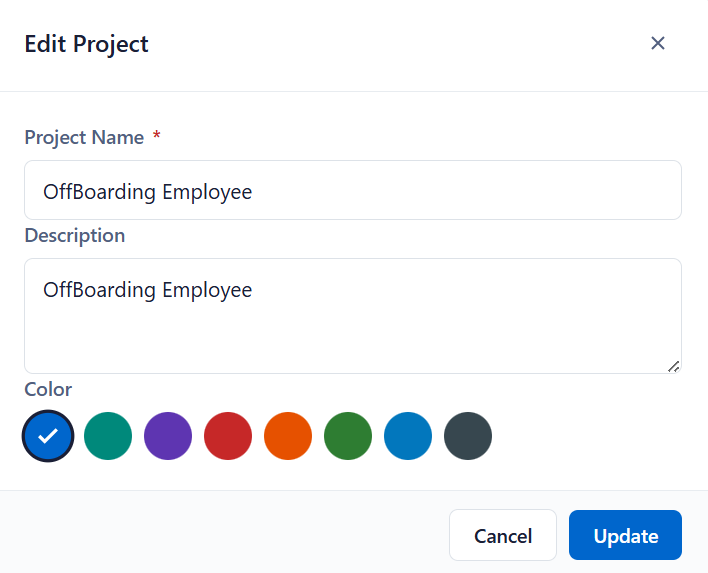
Figure: Edit ProjectUpdate the required fields and click Update.
Project Updated Successfully message is displayed.
Delete
Deleting a project permanently removes it from the Projects list.
To delete a project, perform the following steps:
Hover over the Project widget.
Click
 (Delete) icon.
Confirm the deletion when prompted.
Note
Deleting a project may affect associated flows. Ensure the project is no longer required before deletion.
Activities
Displays the activities (nodes) configured in the Integration Flow, providing an overview of the components used to build the integration.
Click View Activities corresponding to the Integration Name to view the list of configured activities.
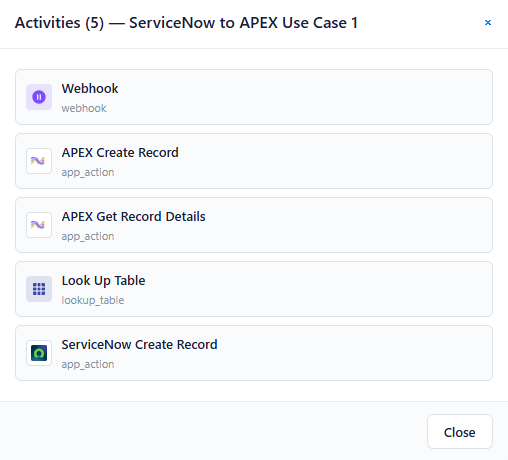
Figure: Activities
The following table describe the label listed in the Integration Flows list page:
Label | Description |
|---|---|
INTEGRATION | Displays the Integration name and a brief description of its purpose. It also shows the number of configured activities within the integration. |
PROJECT | Displays the project to which the integration belongs. Projects are used to organize related integrations and workflows. |
VERSION | Displays the current version of the flow. |
ACTIVE | Indicates the flow is active and eligible for execution based on trigger conditions. |
STATUS | Shows the current state of the low (Draft, Published, etc.), indicating readiness for deployment. |
MODIFIED | Displays the date when the integration was last updated. |
ACTIONS | Provides actions to manage the integration, such as Edit or Delete. |
Create New Project widget / + New Project
You can create a project using either of the following options:
Option 1: Using the New Project button
Click + New Project.
The Create Project page page is displayed.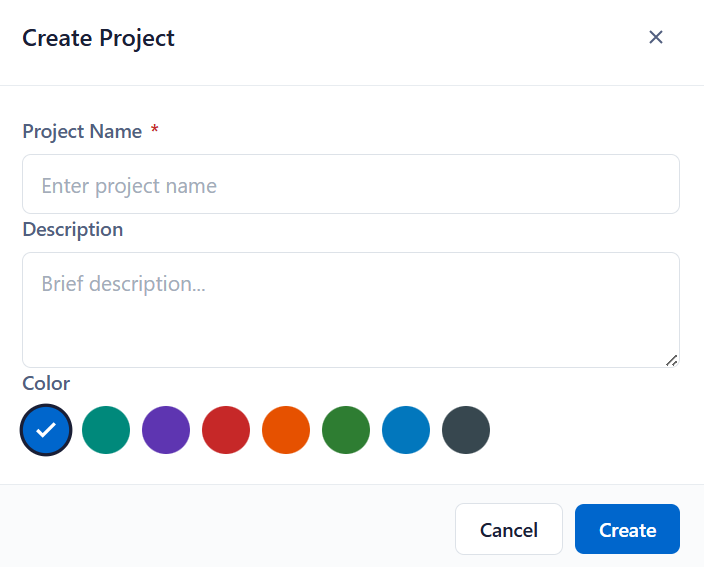
Figure: Create ProjectEnter the required project details as described in the following table and click Create.
Field
Description
Project Name
Enter a unique and meaningful name for the project (mandatory).
Description
Provide a brief summary of the project’s purpose or scope.
Color
Select a color to visually identify and differentiate the project
Option 2: Using the Create New Project widget
Click the Create New Project tile.
The Create Project page page is displayed.
Figure: Create ProjectEnter the required project details and click Create.
Project Search
Use the Project Search field to quickly locate projects by entering relevant keywords. The project list dynamically updates to display matching results as you type. This helps users efficiently access specific projects without manually browsing the list.

Filters
Use Filters to narrow the list of integrations based on specific criteria, such as Project and Status. Applying filters helps you quickly locate relevant integrations without browsing the entire list.
Click Filters to view the filter options:

Figure: Filters
Select the details as described in the following table:
Field | Description |
|---|---|
PROJECT | Select a project to display only the integrations associated with the selected project |
STATUS | Select an integration status to display integrations that match the selected status, such as All Status, Draft, or Published |
Click Clear All Filters to remove all applied filters and display the complete list of integrations.
Note
Select Include inactive to display inactive projects and integrations in the list. Clear the checkbox to display only active projects and integration.