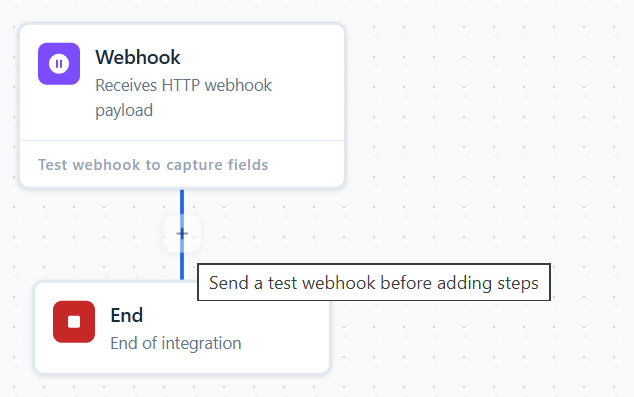
The Webhook trigger initiates an integration flow when it receives an HTTP POST request from an external application. During configuration, you can test the webhook by capturing a sample request payload and use the captured data in subsequent integration activities.
Benefits
Real-Time Integration – Automatically initiates integration flows when external applications send HTTP POST requests, enabling immediate processing of incoming data.
Flexible Data Processing – Captures incoming request payloads, allowing you to map and use dynamic data throughout the integration flow.
Simplified Testing – Provides a test URL and token to validate webhook requests, helping ensure the integration is configured correctly before deployment.
Configure Webhook
To configure Webhook, perform the following steps:
Click Webhook component or Right-click and select Properties.
The Webhook parameter section is displayed.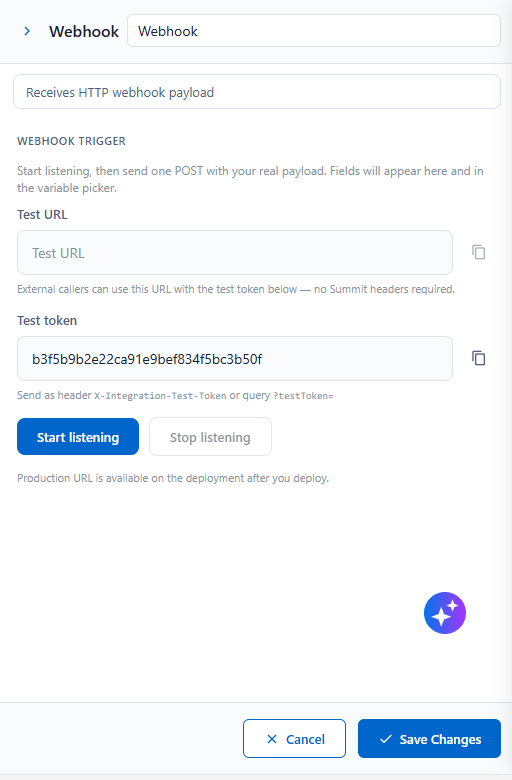
Figure: WebhookEnter the required details as described in the following table and click Save Changes.
Field
Description
Webhook
Enter the configured webhook trigger name for the integration.
Description
Enter a brief description of the webhook trigger. By default, the webhook trigger receives HTTP webhook payloads from external applications
Test URL
Displays the temporary webhook URL that external applications can use with the generated test token to send test requests. No Summit-specific headers are required.
Test Token
Displays the unique token used to authenticate test webhook requests. Include this token in the request header (
X-Integration-Test-Token) or as thetestTokenquery parameter when sending a test request.Start Listening
Click the Start Listening to starts the webhook listener and waits for an incoming HTTP POST request. Once a request is received, the payload is captured and made available for mapping in the integration flow.
The following message is displayed on clicking Start Listening
Note
If you click Start Listening again before the integration mapping is captured or before the current session expires, the following message is displayed.

Stop Listening
Stops the webhook listener from accepting additional test requests
Click Save Changes to saves the webhook configuration.
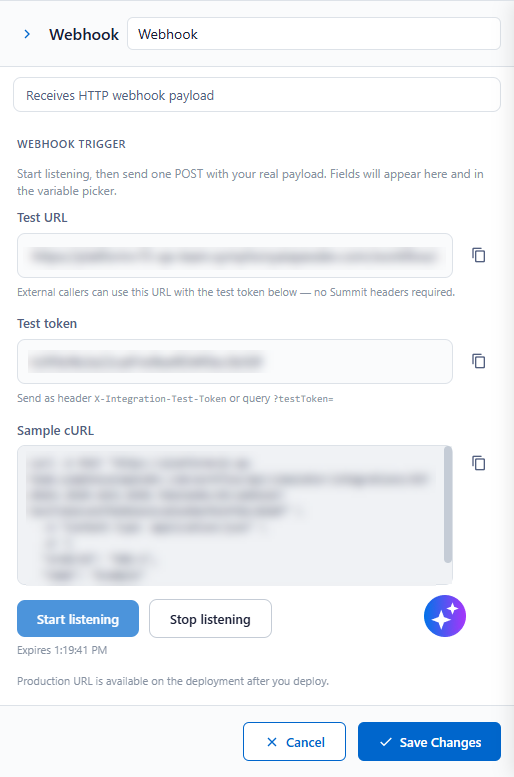
Figure: Webhook
When the Add Step option is disabled, a tooltip is displayed prompting you to test the webhook before adding steps. After the payload is received from the HTTP POST request, the Apex integration flow is captured and mapped, enabling you to add steps to the flow.
On hover over the  (Add Step), the following message is displayed.