This feature improves the perceived responsiveness and transparency of the AIW agent experience by providing real-time visual feedback while the agent is processing, responding, or executing background tasks.
Instead of showing a static waiting state or delaying the full response until processing is complete, the interface provides:
Streamed response rendering
Agent responses appear progressively, word-by-word or token-by-token, as they are generated.Background task transparency
Multi-step operations display live, plain-language progress updates so users understand what the agent is doing.Typing indicator
A visible processing signal appears immediately after the user sends a message and before the first response token is rendered.Purposeful micro-animations
Subtle animations provide feedback when messages arrive, statuses change, or tasks complete.
Experience the conversational AIW in the following graphic.
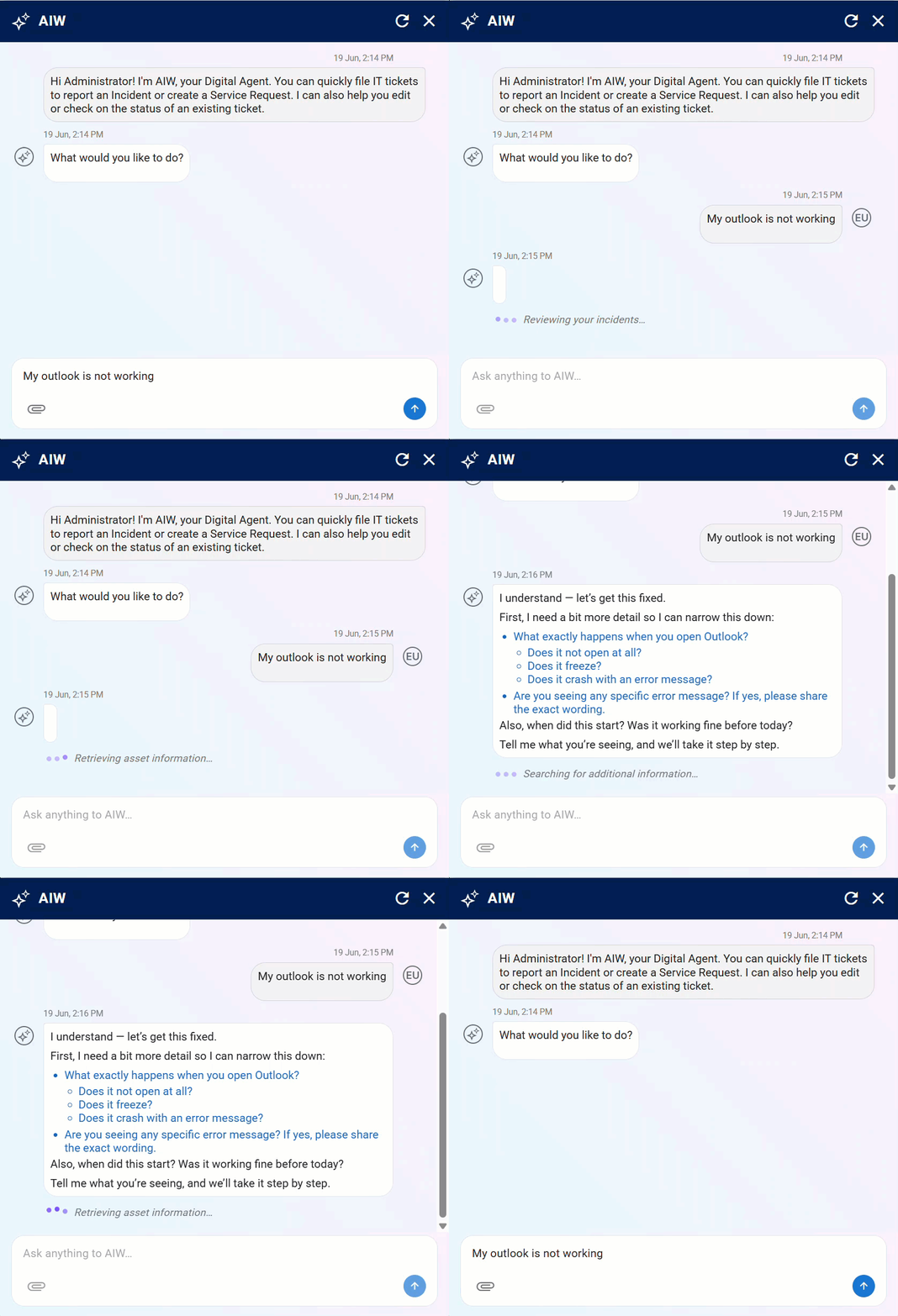
Conversational Response Feedback is appliable to the below channels.
Applicable Channels |
|---|
Web App |
MS Teams |
Streamed Response Rendering
Streamed response rendering allows the agent’s reply to appear progressively as it is being generated, instead of waiting for the full response to be completed before displaying anything. This creates a more natural conversational experience because the user can begin reading immediately, rather than staring at a blank waiting state.
The response is displayed incrementally within a single message container. As the language model generates text, the UI updates the message in place so the user sees the answer unfold in real time. This is especially useful for longer answers, guidance steps, summaries, or explanations, where users often do not need to wait for the full response before gaining value from it.
Example:
User: “How do I reset my VPN password?”
Bot: … Understanding your request… (Conversational, keeping user informed about what it is performing at the moment.)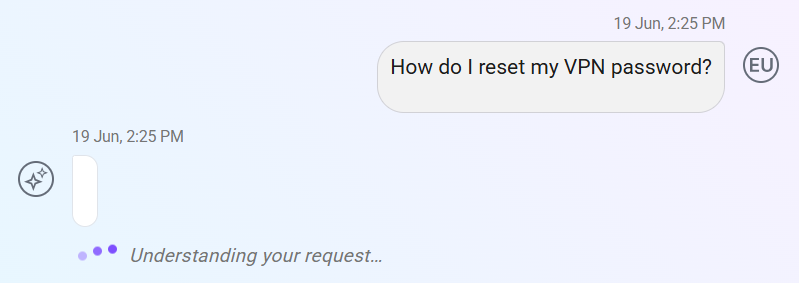
Rather than waiting several seconds for a full answer to appear at once, the user starts seeing the first instruction almost immediately while the remainder continues to render.
Background Task Transparency
Background task transparency ensures that when the agent performs a multi-step action in the background, the user can clearly see what is happening at each stage of the operation. Rather than showing a generic spinner or leaving the interface static while the system works, the experience provides live, plain-language status updates that explain the current step being performed. This gives users confidence that their request has been received, that progress is being made, and that the system has not stalled.
Where a workflow has a known number of steps, the status message includes a progress counter such as “Step 2 of 4” to provide a clearer view of how far along the process is.
Example:
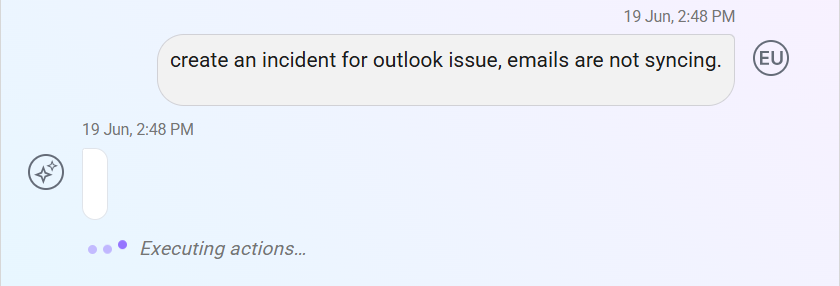
User: “Create an Incident for outlook issue, emails are not syncing.”
Bot: … Executing Actions… (Conversational, keeping user informed about the action).
Other example status messages
Understanding your request...
Searching the knowledge base...
Creating your incident in Apex...
Pulling your last 5 incidents...
Typing Indicator
The typing indicator provides immediate visual feedback that the agent has received the user’s message and has begun processing it. It appears in the short interval between the moment the user submits a message and the moment the system is ready to either begin streaming a response or display a task-related status update. This helps reassure the user that their message was successfully sent and that the agent is actively working on it, rather than leaving them to wonder whether the system is delayed, unresponsive, or frozen.
The indicator appears immediately after message submission and remain visible only until a more informative state becomes available. For example, it must disappear as soon as the first streamed response text begins to render, or when a background task status message such as “Searching the knowledge base...” or “Creating your incident...” is shown. It is not intended to be a long-running loading mechanism, but rather a lightweight transitional state that confirms the system is processing the request.
Example:
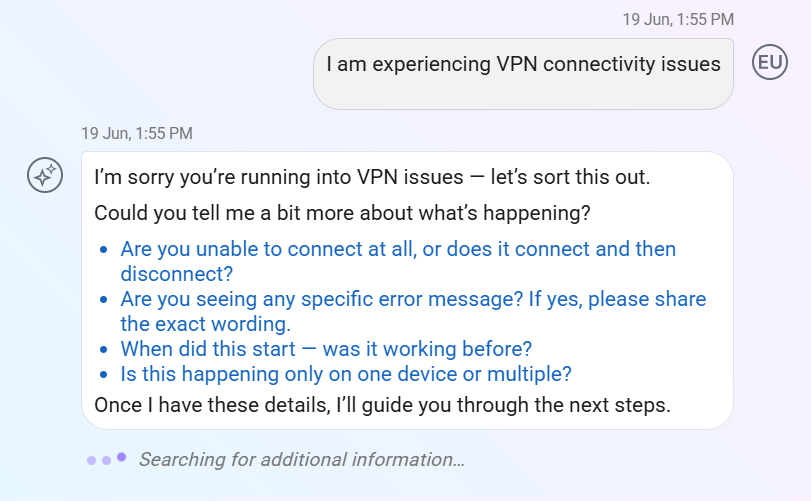
User: I am experiencing VPN connectivity issues
Bot: [partial response with guide you further message]
…Searching for additional information…
Micro-animations
Micro-animations are subtle visual cues that help communicate that the system is active, responsive, and transitioning between states. These animations serve a functional role in the user experience by drawing attention to important interaction moments such as when a message is sent, when the agent begins responding, when a background task changes status, or when an action completes successfully or fails. Their purpose is to make these moments feel acknowledged and easier for the user to notice without overwhelming the interface.
Moment | Animation | Purpose |
|---|---|---|
New message arrives | Slides-in from bottom, fades to full opacity | Confirms message was received and placed in thread |
Agent response completes (task) | Brief pulse or glow on the final message bubble | Signals that a multi-step task has finished |
Status message update (5.5) | Smooth text crossfade in place | Prevents jarring text jumps during status transitions |