AIW now displays organization-specific names for the AI assistant and the live support representative, providing a more familiar and intuitive experience. For example, the Human Agent option may appear as Live Agent, while the AI assistant can be displayed using a customized name such as AIW.
The banner is always visible within the AIW panel—it remains fixed and does not scroll away with the conversation. It serves as a passive information display and does not affect the conversation flow or AIW's behavior.
Note
Administrators can configure the custom banner displayed to End Users and Analysts.
Use Case
Scenario: Organization Information Always at Hand
User Action
An End User or Analyst opens the AIW panel to seek assistance with an IT-related request.
AIW Response
Instead of displaying the default agent names, AIW presents the organization-configured names consistently throughout the interface. For example:
AIW is displayed as IT Assist
These personalized names appear across the AIW chat window, conversation headers, support options, and agent handoff prompts, providing a consistent and familiar support experience.
Outcome
Both End Users and Analysts interact with support using terminology that aligns with their organization's branding and internal communication standards. Familiar agent names improve recognition, reduce confusion, and make it easier for users to identify whether they are interacting with the AI assistant or a live support representative, resulting in a more intuitive and cohesive support experience.
This eliminates confusion caused by generic agent names, making it easier for users to identify AI assistance and live support while providing a more familiar and branded support experience.
Viewing Custom Agent Name
Log in to the Application as an End User/Analyst.
Click on the AIW Chat icon.
The AIW chat window opens and displays the configured Custom Agent Name at the top of the chat interface (if enabled for the Tenant).
Refer to the sample screenshot below for an illustration of the Custom Agent Name displayed in AIW.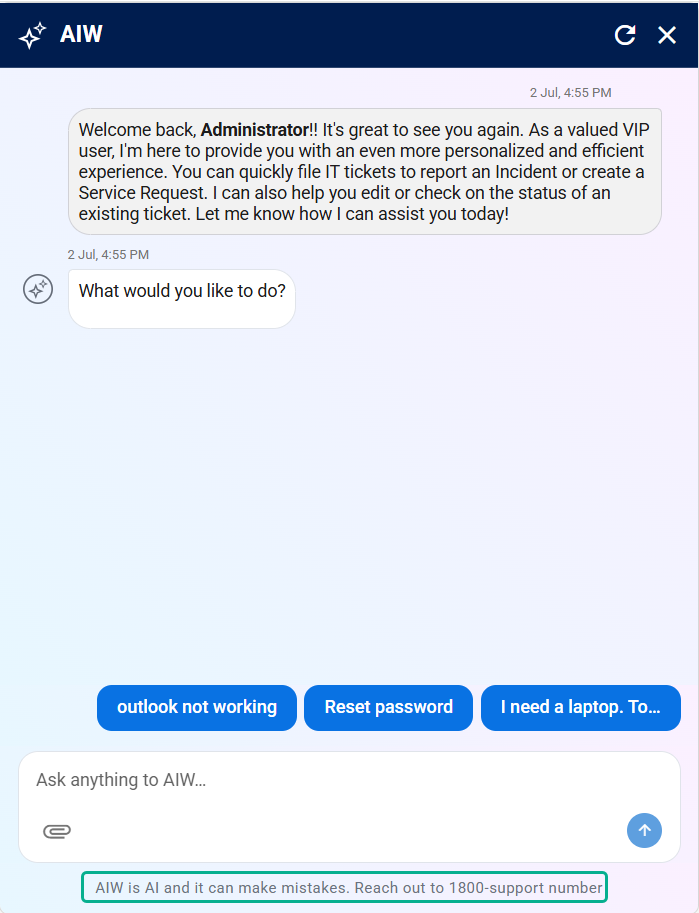
Figure: AIW Name
It is in sync with the organization's branding and support terminology, creating a consistent user experience..png?sv=2026-02-06&spr=https&st=2026-11-07T16%3A22%3A03Z&se=2026-11-07T16%3A33%3A03Z&sr=c&sp=r&sig=2vD06xp0ufSbm1pNpZFcrhxqod%2FGLjKOES%2FWCiHjZWY%3D)
Figure: Custom Agent Name