Connections enable you to create and manage reusable connections to external applications and services. Each connection securely stores the authentication details required to access an application, allowing integration flows to communicate with external systems without repeatedly configuring credentials.
Once configured and authenticated, connections can be reused across multiple integration flows and activities, simplifying integration management and ensuring secure access.
Benefits
Centralized Connection Management – Configure authentication details once and reuse the connection across multiple integration flows.
Simplified Integration Development – Select an existing connection within integration activities instead of manually configuring authentication for every request.
Use-case
An organization integrates Apex with ServiceNow to synchronize incident records. An administrator creates separate connections for both Apex and ServiceNow by configuring their authentication details. Flows can then reuse these connections in integration activities to create incidents,
Configure Connections
Configure a connection by specifying the target application and its authentication details. After the connection is created, it becomes available for selection in supported integration activities.
To configure Connections, perform the following steps:
Navigate to Integration Platform > Connections.
The Connections list page is displayed.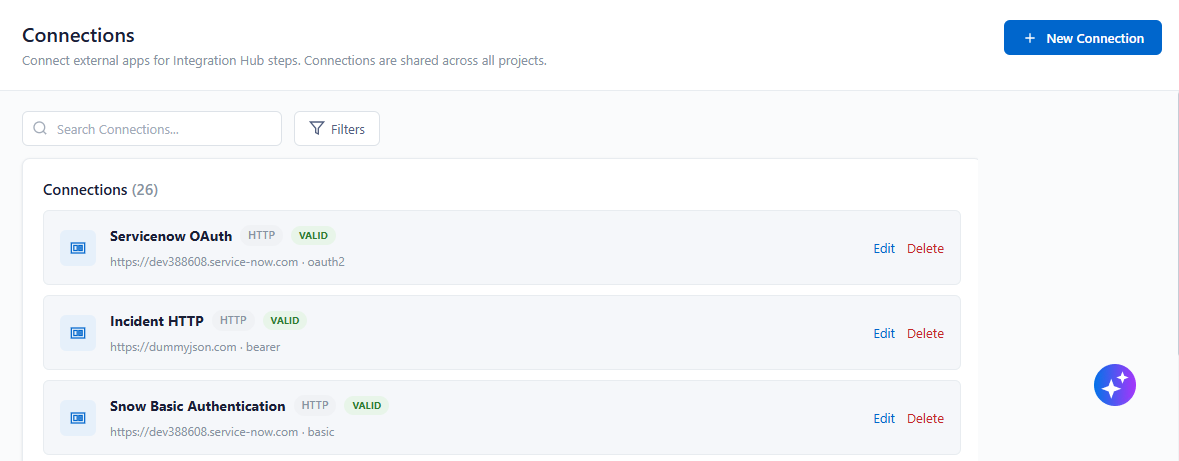
Figure: ConnectionsClick + New Connection to configure the apps.
The Connection app list is displayed.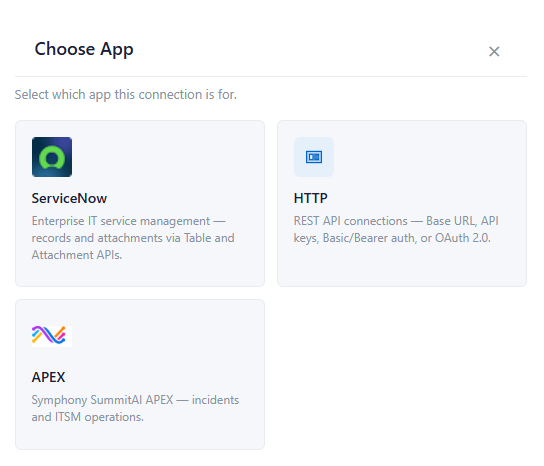
Figure: Connection AppsThe following Apps are displayed to configure the connections:
ServiceNow
Configure a ServiceNow connection to securely access records and attachments using the ServiceNow Table and Attachment APIs.
To configure ServiceNow connection, perform the following steps:
Navigate to Integration Platform > Connections.
Click + New Connections to configure a new connection.
Click ServiceNow widget from the list.
The New Connection parameters are displayed.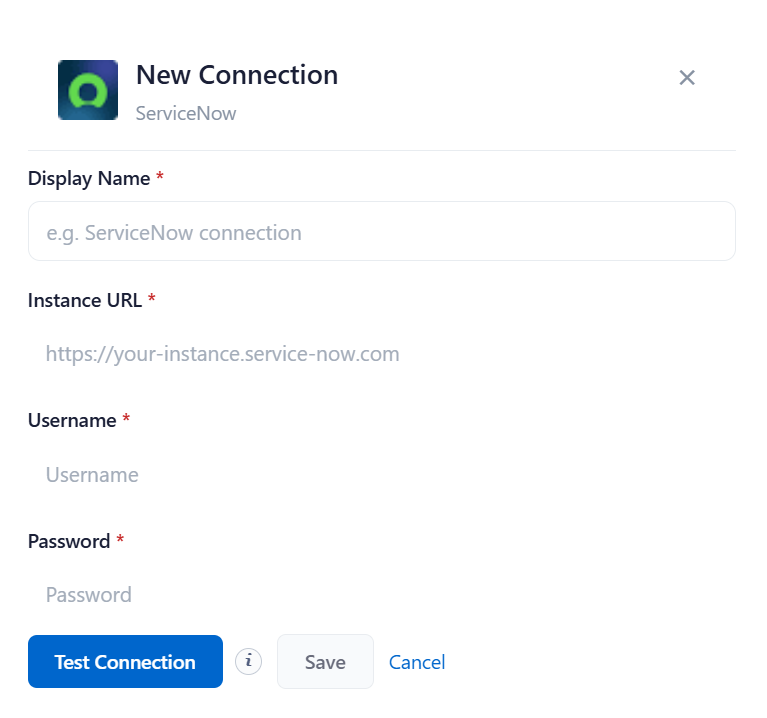
Figure: New ConnectionEnter the required parameters and click Test Connection. On success, click Save to save the details.
HTTP
HTTP Connection enables you to connect to any REST-based web service by configuring the required endpoint URL and authentication details. Once configured, the connection can be reused across multiple integration flows to perform HTTP requests and exchange data with external applications.
To configure HTTP connection, perform the following steps:
Navigate to Integration Platform > Connections.
Click + New Connections to configure a new connection.
Click HTTP widget from the list.
The New Connection parameters are displayed.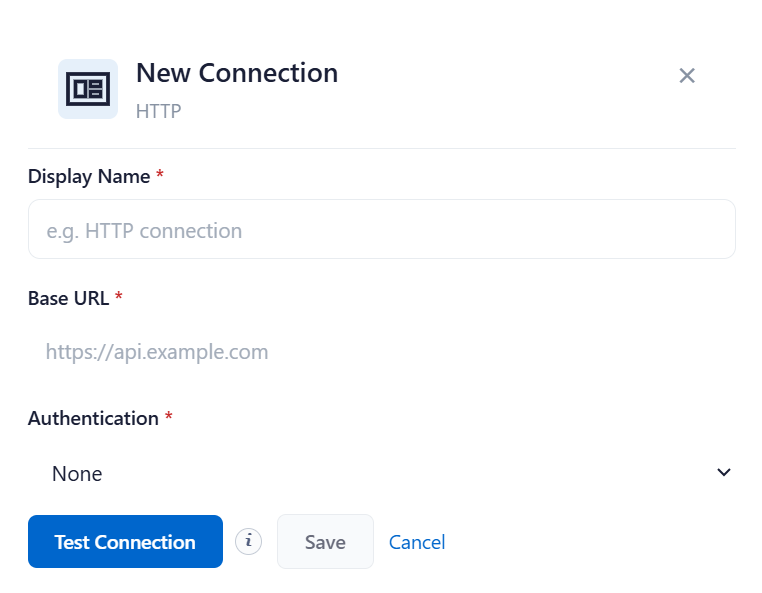
Figure: HTTP Parameters
Enter the required parameters and click Test Connection. On success, click Save to save the details
APEX
APEX Connection enables you to securely connect to an instance by configuring the required authentication credentials. Once configured, the connection can be reused across multiple integration flows to perform supported actions, such as creating and updating records, retrieving record details, and managing attachments.
To configure APEX connection, perform the following steps:
Navigate to Integration Platform > Connections.
Click + New Connections to configure a new connection.
Click APEX widget from the list.
The New Connection parameters are displayed.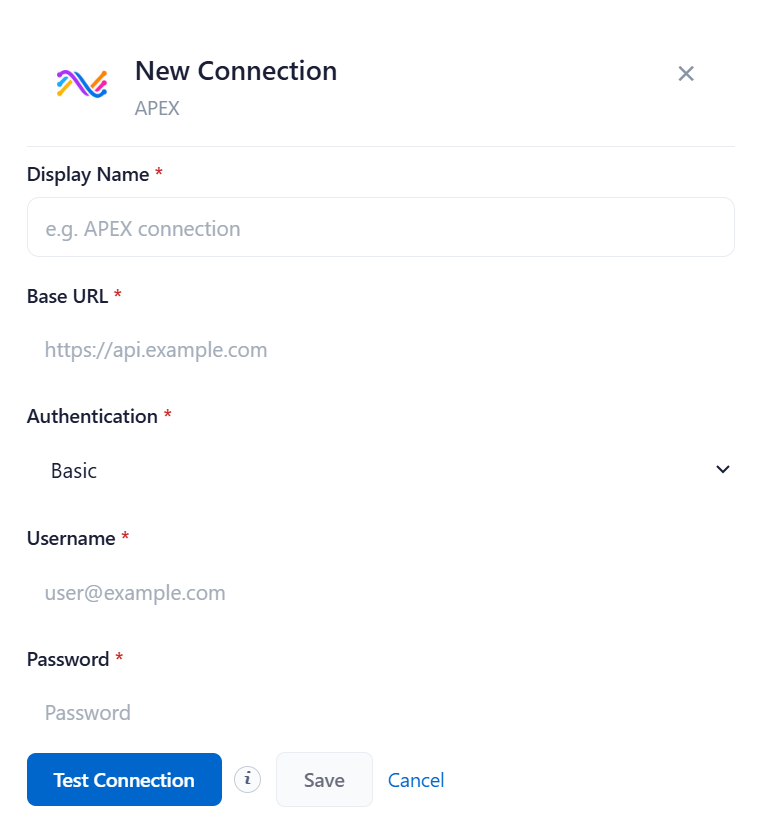
Figure: HTTP Parameters
Enter the required parameters and click Test Connection. On success, click Save to save the details