The AI Providers enables Integration Hub administrators to configure and manage AI service providers that can be used within integration flows. An AI provider stores the connection details required to access supported AI models and makes them available to AI activities in Integration Hub.
Currently, Integration Hub supports Azure OpenAI as the AI provider. After the provider is configured and the connection is validated, the AI models available through your Azure OpenAI subscription become accessible for use in AI activities within integration flows.
Note
Only users with access to Integration Hub can configure AI providers.
Prerequisites
An active Azure OpenAI subscription.
Required Azure OpenAI API credentials.
Permission to access the Integration Hub module.
Benefits
Centralized AI Configuration – Configure Azure OpenAI once and reuse it across multiple integration flows.
Secure Credential Management – Store API credentials securely without exposing sensitive information to users.
Reusable AI Models – Make Azure OpenAI deployments available to AI activities, eliminating the need to configure AI credentials for every integration.
Use case
An organization wants to automatically classify incoming support tickets based on their descriptions. An administrator configures an Azure OpenAI provider in Integration Hub. Workflow designers can then select the configured provider in an AI activity to classify incidents, summarize ticket descriptions, or extract key information without managing API credentials in each integration.
Configure an AI Provider
Configure an AI provider by specifying the Azure OpenAI connection details and validating the connection. After the connection is established successfully, the AI models available through the configured Azure OpenAI subscription become available for use in AI activities.
To configure an AI Provider, perform the following steps:
Navigate to Integration Platform > AI Provider.
The AI Providers list is displayed.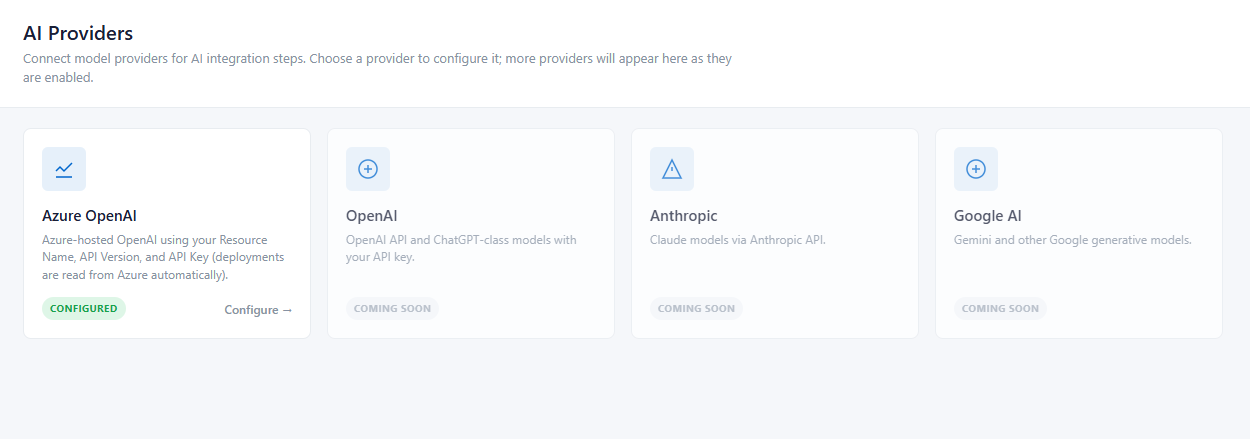
Figure: AI ProvidersThe configured AI providers are displayed with Configured tag.
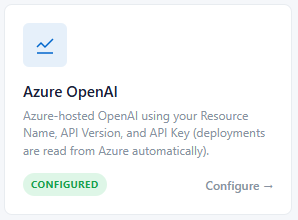
Figure: Azure Open AIClick the configured Azure Open AI widget to view the configured parameters.
The Azure Open AI parameters are displayed.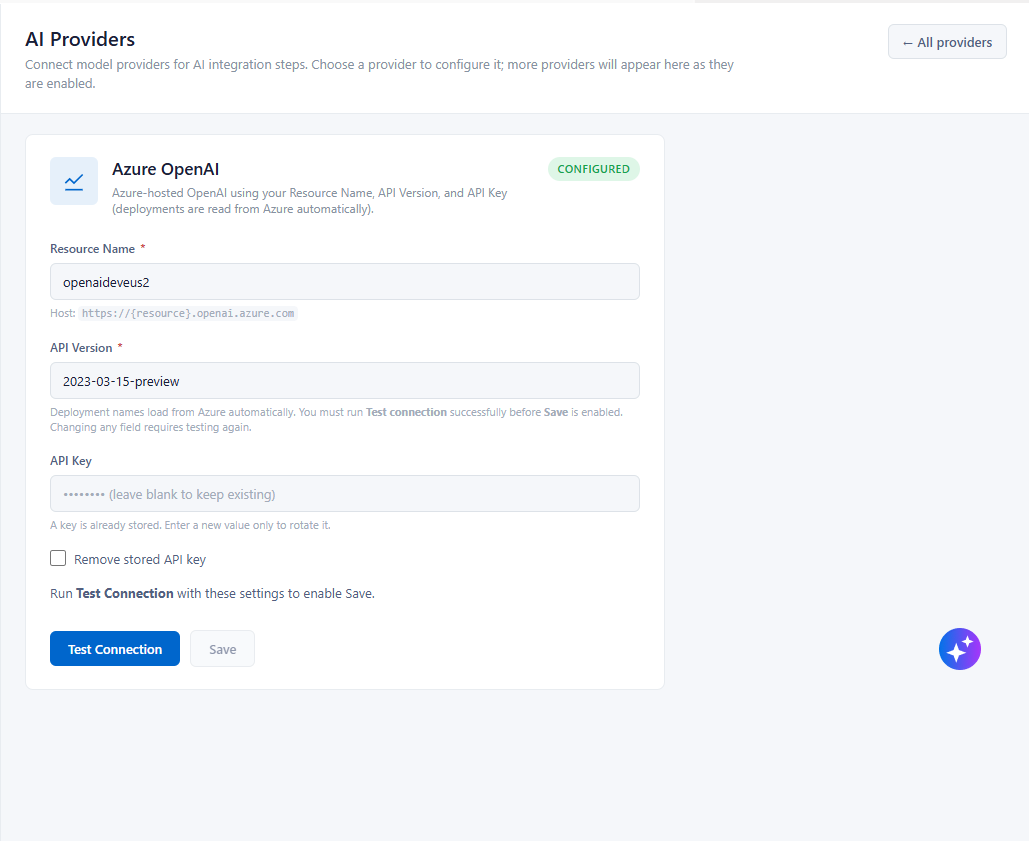
Figure: Azure Open AI - ParametersEnter the required details as described in the following table and click Test Connection to validates the configured Azure OpenAI connection and confirms whether the connection is successful and Save to save the parameters.
Field
Description
Resource Name
Specifies the Azure OpenAI resource name used to establish the connection.
API Version
Specifies the Azure OpenAI REST API version used for communication.
API Key
Specifies the API key used to authenticate requests to Azure OpenAI.
Remove Stored API Key
Removes the stored API key from the configuration. After the key is removed, a new API key must be provided before the provider can be used again.