Enables you to view and manage deployments at a project level. It provides a centralized view of all available projects, along with Integration flow and deployment counts, allowing users to quickly navigate and initiate deployment activities.
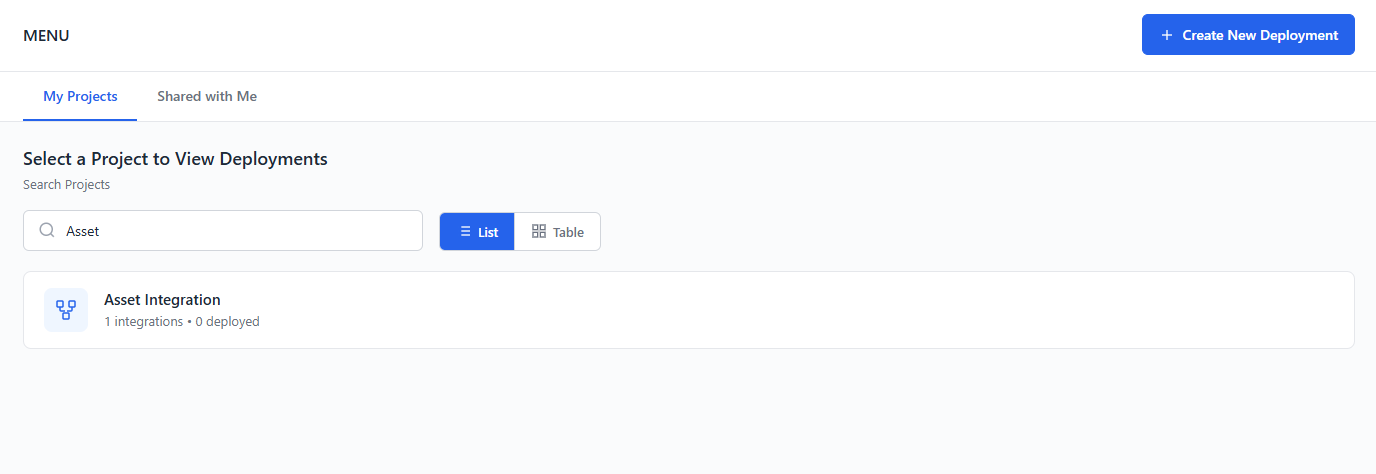
Figure: Deployments
You can view the projects in the My Project tab owned or managed by the logged-in user, while Shared with Me displays projects shared with the user for collaboration or review.
Click  to initiates the deployment process for Integration flow within a selected project. Users can configure and deploy Integration flows to the target environment.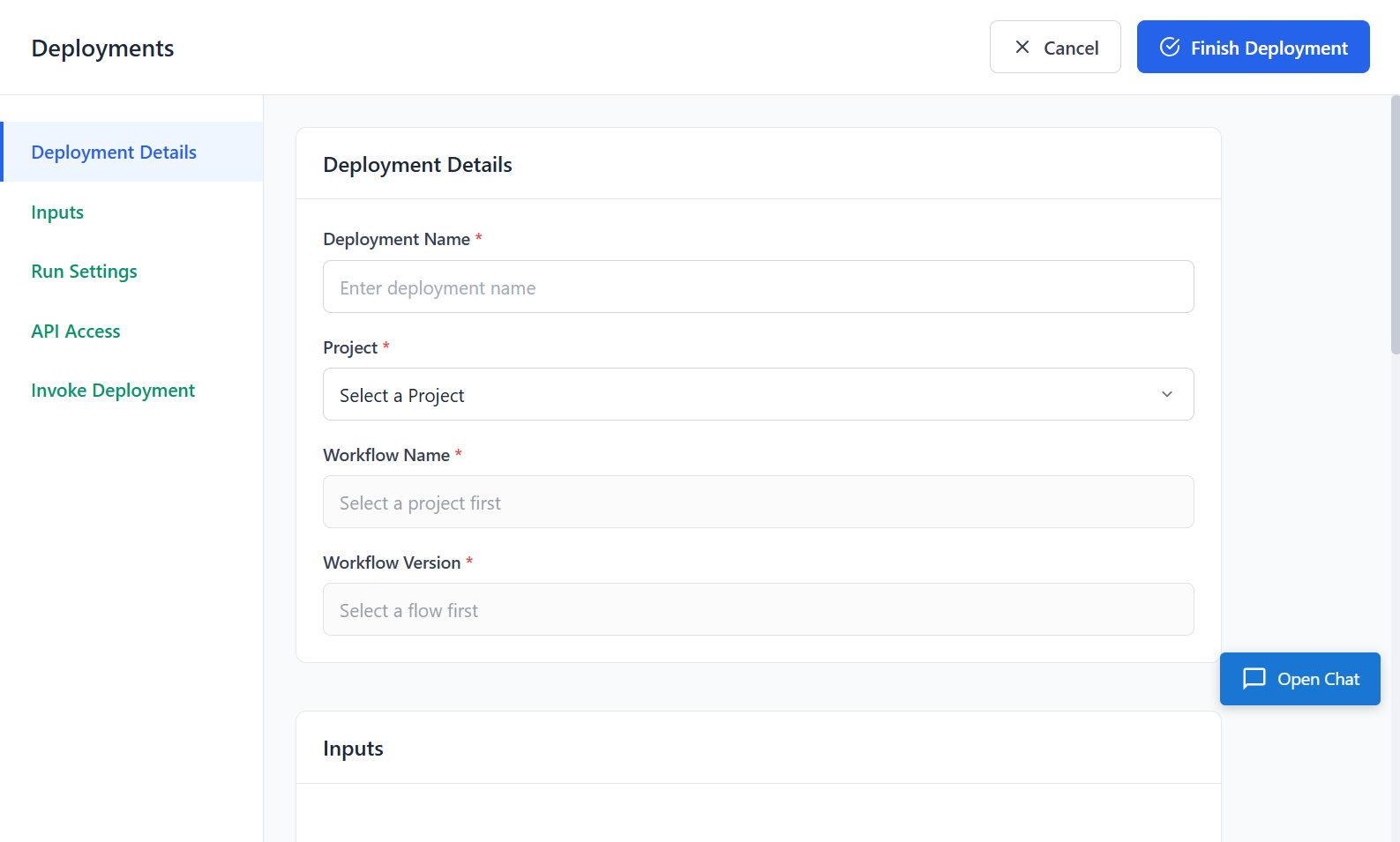
Figure: Create Deployment
The create deployment page comprises following sections:
After the enter the required details, click Finish Deployment.
Deployment Details
The Deployment Details page provides a structured view to configure and initiate Integration flow deployment with preselected context, ensuring accurate and controlled deployment of a published Integration flow version.
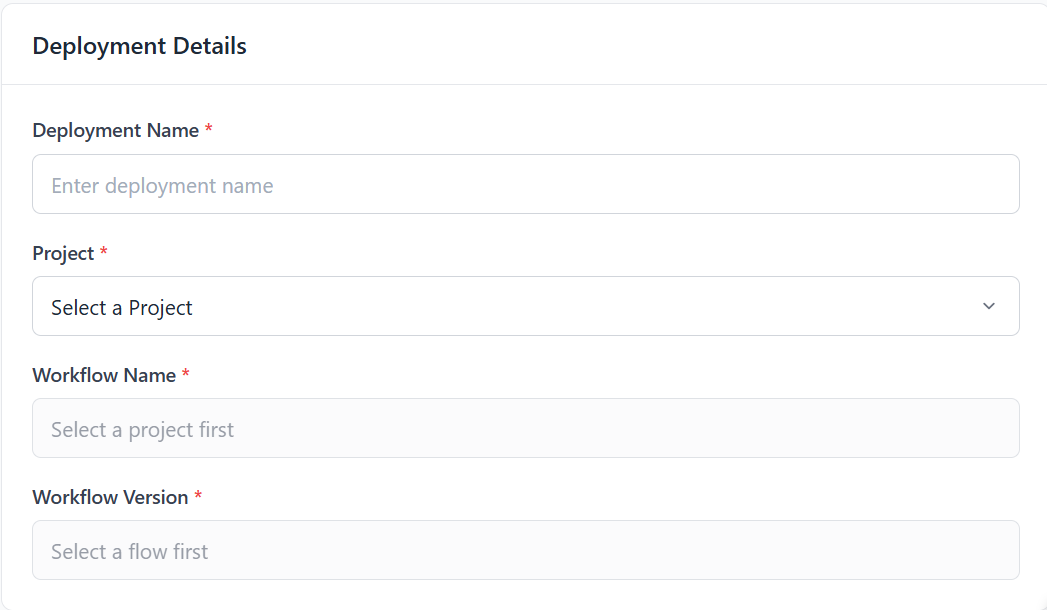
Figure: Deployment Details
Enter the required details as described in the following table:
Field | Description |
|---|---|
Deployment Details | Specifies a unique name for the deployment. This helps identify and track the deployment instance |
Project | Selects the project under which the workflow is deployed. This determines the scope and context of the deployment. |
Workflow Name | Select the workflow for deployment based on the chosen project. This field is dependent on the selected project. |
Workflow Version | Specifies the version of the workflow to be deployed. Only published versions are available for selection. |
Inputs
Displays the input parameters required by the selected Integration flow during deployment. These inputs are used to pass data into the workflow at runtime.

Figure: Inputs
Run Settings
The Run Settings defines how and when the deployed Integration flow is executed. It allows administrators to configure execution mode and enable diagnostic logging for monitoring and troubleshooting.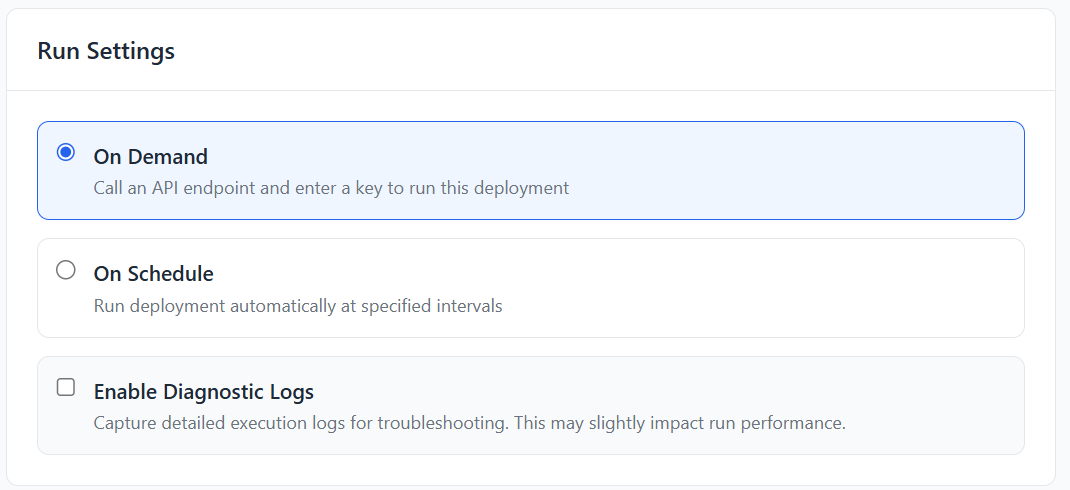
Figure: Run Settings
Select the require options as described in the following table:
Field | Description |
|---|---|
On Demand | Executes the workflow manually through an API endpoint using a generated key. Suitable for event-driven or integration-based execution. |
On Schedule | Executes the workflow automatically at defined intervals. Suitable for recurring or time-based processes. |
Enable Diagnostic Logs | Enables detailed execution logging for troubleshooting and analysis. May slightly impact performance due to additional logging. |
API Access
The API Access provides the required details to trigger workflow execution programmatically. It includes the endpoint, authentication key, and tenant information needed to invoke the deployed Integration flow securely.
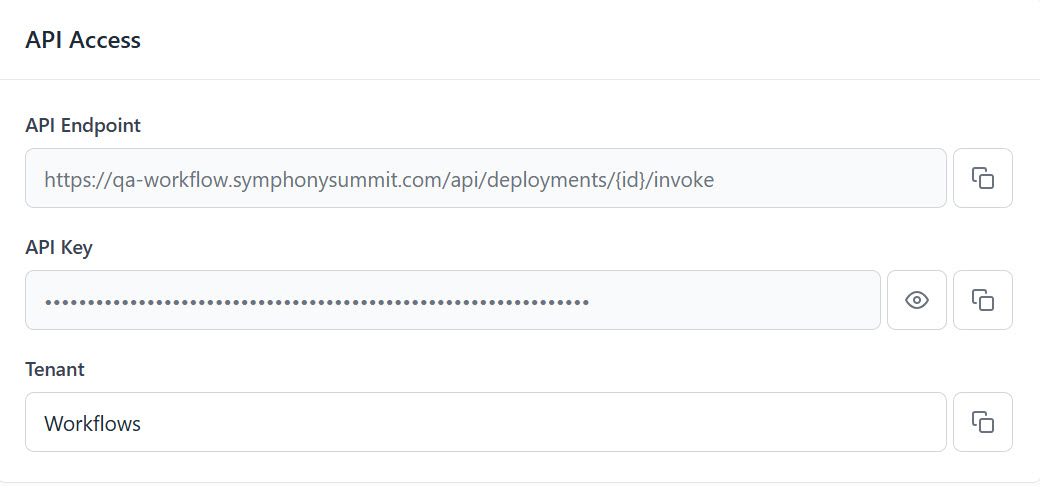
Figure: API Access
Defines the following key parameters required to securely invoke the deployed workflow through API:
Field | Description |
|---|---|
API Endpoint | Displays the endpoint URL used to invoke the deployed workflow. This endpoint is used in API calls to trigger workflow execution |
API Key | Provides the authentication key required to securely access the API endpoint. This key must be included in the request to authorize execution. |
Tenant | Displays the tenant or environment context under which the workflow is deployed. This ensures the API call is routed to the correct environment. |
Click
 to view the API key, it is used for secure viewing.
Click
 to copy the API Endpoint, API Key, or Tenant value for use in external integrations.
Invoke Deployment
The Invoke Deployment provides a ready-to-use API request for triggering the deployed workflow. It enables administrators and external systems to execute workflows programmatically using standard HTTP requests.
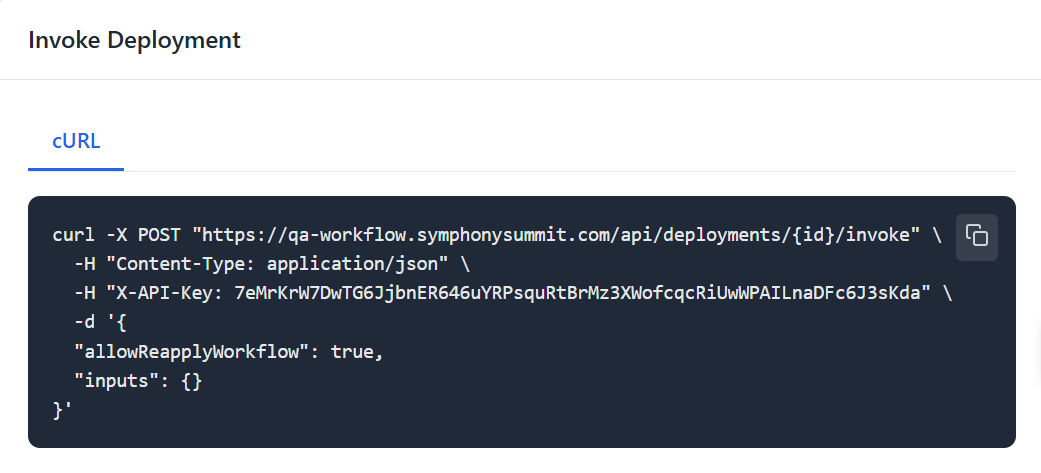
Figure: Invoke Deployment