Asset Mapping is the configuration layer that converts discovery results into meaningful asset records in the application. It defines how administrators classify a discovered device, such as a laptop, desktop, server, or network device, match it to an asset category, and populate the correct fields before it becomes usable inventory.
This feature is important because discovery by itself only identifies devices and collects their technical information. Without mapping, the discovered records remain disconnected from the asset model and the organization cannot treat them as managed assets. Asset Mapping closes that gap by aligning the discovery attributes with the asset categories, business fields, and rule logic used by the organization.
This article describes the purpose of Asset Mapping, the configuration page, how to build mapping rules, and how discovery data moves into the asset inventory lifecycle.
Scope: Asset Mapping applies to asset categories under IT-Fixed and IT-CI. It does not apply to accessories, consumables, or other non-fixed inventory. Depending on your ALM setup, administrators may place categories such as Desktop, Laptop, Network, and Server under these asset classes.
The Asset Mapping feature allows administrators to define a mapping between:
Asset category in ALM, such as Desktop, Laptop, Network, or Server
Discovery source, such as Network, Active Directory, or another supported discovery method
Discovery method, such as WMI, SSH, or SNMP
Dondition or rule used to match a discovered record to a specific asset category
Fields to copy or map from discovery attributes to asset attributes
Once administrators configure the mapping, the system can qualify discovered devices and either associate them with an existing asset or create a new asset record using the mapped values.
Key Benefits
Classify discovered devices into the correct asset categories.
Match discovered devices to existing assets or configuration items using unique identifiers.
Populate asset fields with mapped discovery values.
Create eligible asset records and identify devices that need manual mapping.
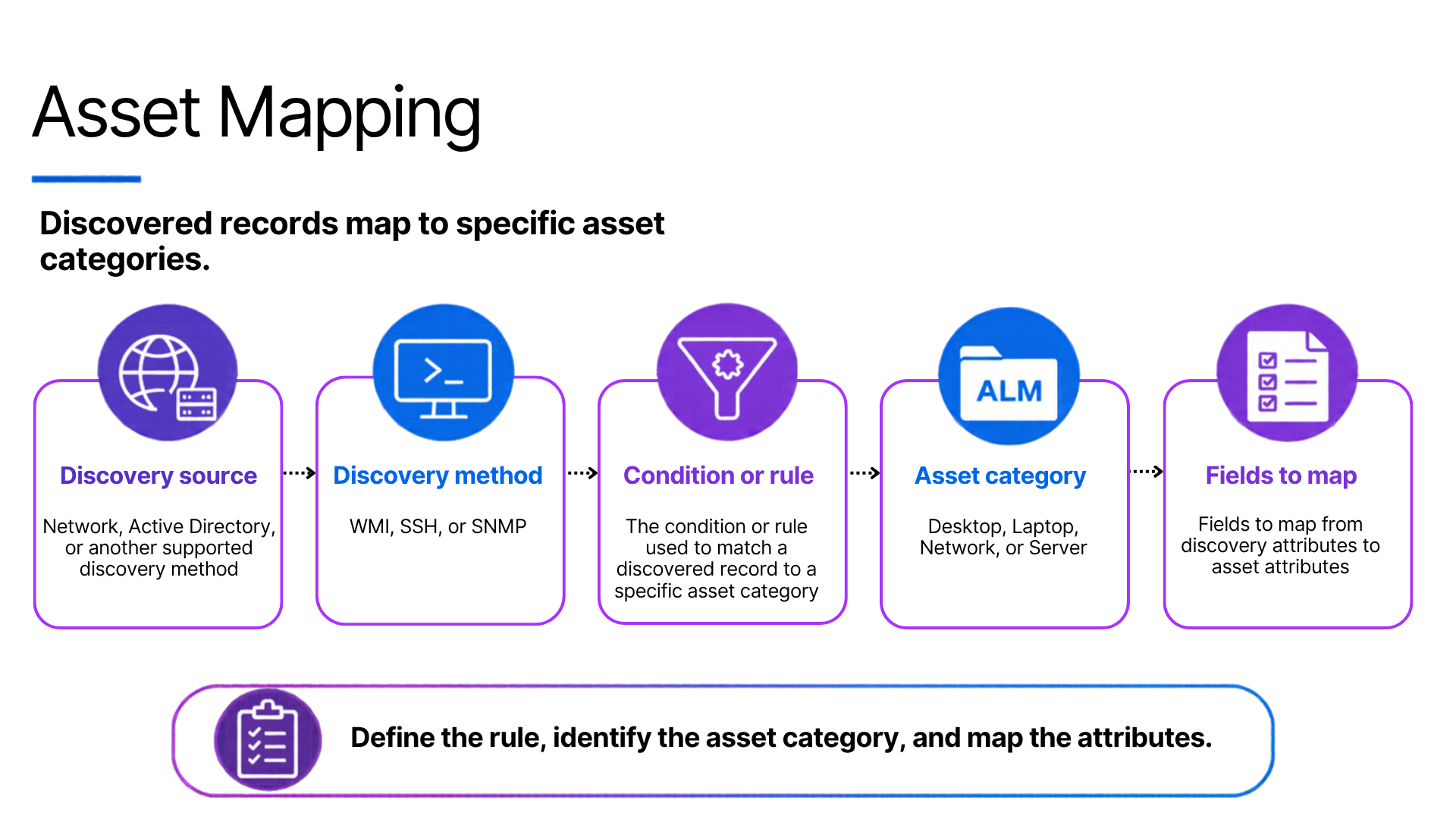
The typical outcome is that a discovered host is not just shown as a raw device record. It becomes part of the managed asset inventory with proper classification, business context, and operational ownership.
Use Case User Persona: Admin | Solution |
|---|---|
NovaTech Technologies operates across departments with different asset categories and financial responsibilities. Its administrator needs to associate discovered devices with the correct asset records and apply consistent business fields. | NovaTech uses Asset Mapping to connect discovery data with its asset categories, reconciliation rules, and field mappings. How NovaTech maps discovered devices and fields?
|
Prerequisites
Create a form to map the fields for different asset categories by using Form Designer. For more information, refer to Form Designer.
Asset Mapping and Reconciliation Rules
When the system discovers a device or resource, it attempts to reconcile it with an existing asset or Configuration Item (CI). The reconciliation process uses discovery-specific unique identifiers, category mapping rules, and configured field mappings to determine whether the system should update an existing asset, create a new asset, or leave the discovered device unmapped.
Mapping Rules
Asset Mapping applies to IT-Fixed and IT-CI records only. It does not apply to accessories, consumables, or other non-fixed inventory. Each mapping belongs to a Discovery (shown as Department in the UI), an asset category, and a discovery type. For one category, administrators can configure a Network mapping for WMI and a separate mapping for Cloud discovery. Each Department + Category + Discovery type combination has one mapping. A category can still have separate mappings for different discovery types, such as Network and Cloud. The optional Discovery method setting can further narrow a mapping to one or more methods.
The system checks each device only against mappings for its own discovery type and, when configured, its discovery method. For example, a WMI device does not qualify against a Cloud mapping. The system uses active mappings only. Changes take effect after an administrator saves the mapping, and Run sync uses the saved version.
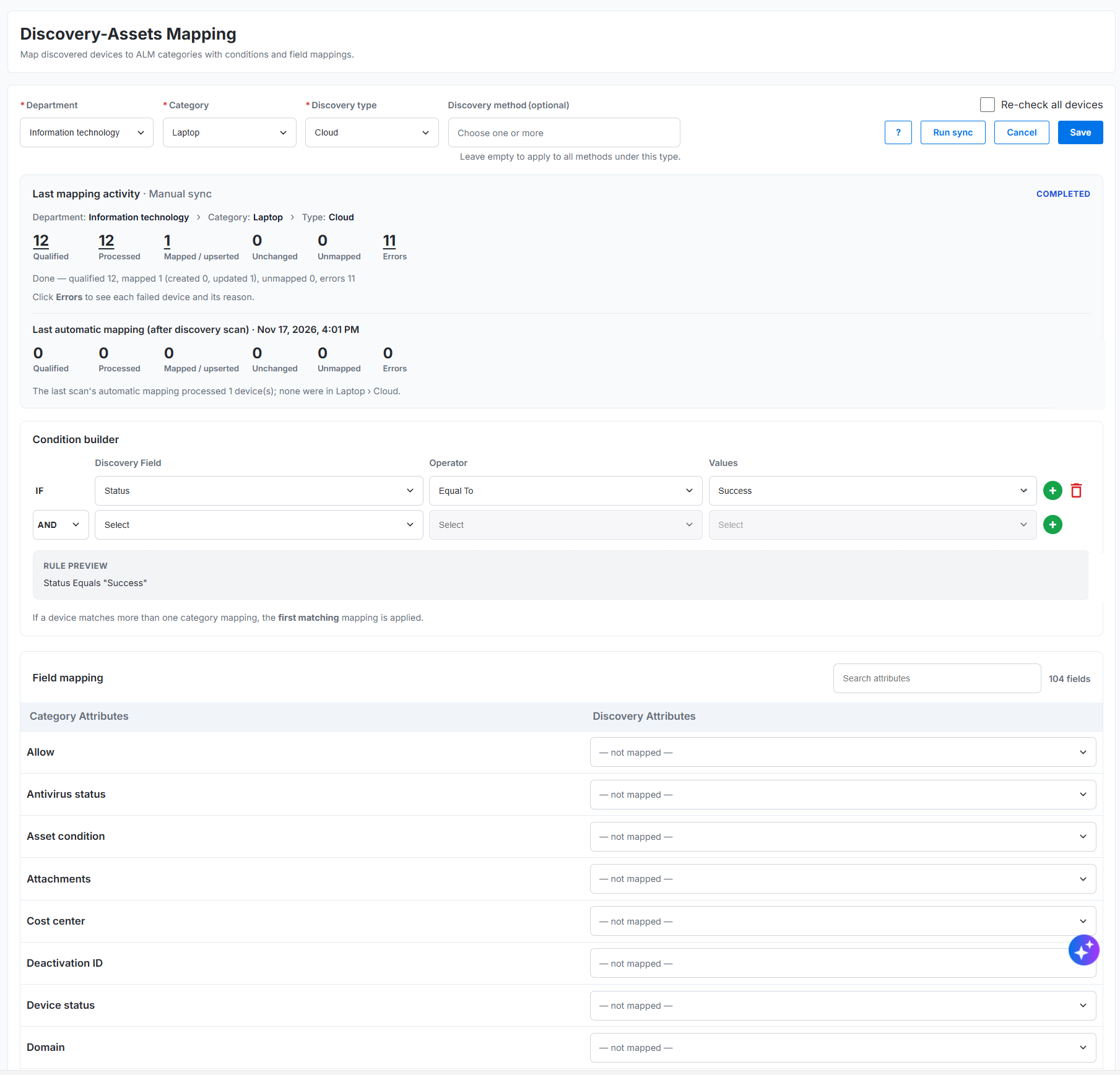
Figure: Asset Mapping
Mapping part | What it holds | Example |
|---|---|---|
Department | The department that owns the assets | IT |
Category | The asset form that receives the discovered device | IT : Fixed : Desktop |
Discovery type | The discovery data class, such as Network, Cloud, Container, Database, Hypervisor, Active Directory, or Network API | Network |
Discovery method | Optional method filter for the selected type | WMI for Network; SSH or SNMP are other examples |
Conditions | Rules a device must pass before this mapping can create an asset | OS Caption contains Windows 11 |
Field mappings | Which discovered values populate which asset fields | Host Name to Asset Name |
Active | Whether the system can use the mapping | On |
Conditions
Conditions determine which devices a mapping can use to create assets. If an active mapping has no conditions, every device that matches its discovery type and method qualifies. Text comparisons ignore letter case. The system evaluates AND before OR, so A AND B OR C means (A AND B) OR C.
First Discovered Date and Last Discovered Date use calendar-day comparisons. Equal To means the selected day; Less Than Or Equal To, Greater Than Or Equal To, and Between compare whole days. Click anywhere in a date field to open its calendar. For Between, enter both From and To values; the comparison includes both ends. The system compares numbers and IP addresses by value.
The condition list contains a smaller set of common device fields than the field-mapping list. Field mappings show the full set of fields available for the selected discovery type and method.
Operator | A device passes when its value… |
|---|---|
Contains | Includes the text. |
Does Not Contain | Does not include the text. An empty value passes. |
Starts With | Begins with the text. |
Ends With | Ends with the text. |
Equal To | Matches the value exactly. |
Less Than Or Equal To | Is at most the value; the system compares numbers as numbers. |
Greater Than Or Equal To | Is at least the value. |
Between | Falls from the From value through the To value, including both. Enter both values. |
How the system matches devices
The system checks each device in the following order and stops when a step resolves its asset. Existing assets take precedence, so the system does not create a second asset for a device that it can link to an existing one.
Order | Check | Result |
|---|---|---|
1 | The device already links to an asset. | The system updates mapped fields using the mapping for that asset’s category. If an administrator deleted the asset in Asset Management, the system clears the link and continues to the next check. |
2 | An asset already has the device’s identity. | The system searches Asset Management for the identity across the Discovery’s categories. If it finds a match, it links the device and updates the asset. If the device’s discovery method does not match a mapping for that category, the system still links the device but does not update fields. |
3 | An active mapping matches the device’s type, method, and conditions. | The system creates an asset under the first matching mapping. The new asset starts with In Store status, and the system marks the device Mapped. |
4 | No existing asset or mapping matches. | The system marks the device Not Mapped. A user can create its asset manually from the + icon on Discovered Devices. |
A manual Run sync started from one category creates assets only in that category. It leaves a device alone if the device already links to an asset in another category. If another sync creates an asset with the same serial number moments before the current sync creates it, the system links the device to that asset instead of failing. When a user creates an asset with the + icon and saves it (not as a draft), the system links the device and marks it Mapped; later syncs update that asset as usual.
Asset Mapping Decision Matrix
Use the following matrix to determine whether the system updates an existing asset, creates a new asset, or leaves the discovered device unmapped.
Asset Category | Discovery Type | Discovery Method | Unique Identifier Match | Condition Builder Match | Action |
|---|---|---|---|---|---|
Laptop | Network | WMI or SSH | Matches | Not evaluated | The system automatically links the discovered device to the existing asset and updates it. The asset category derives from the matched asset record. Fields copy according to the configured category and discovery-type mappings. The device displays as Mapped on the Discovered Device List page. |
Laptop | Network | WMI or SSH | Does not match | Matches | The system creates a new asset. The system uses the matching Condition Builder rule to determine the asset category. The system copies fields based on the configured category and discovery-type mappings. The device displays as Mapped on the Discovered Device List page. |
Laptop | Network | WMI or SSH | Does not match | Does not match | The system does not create an asset automatically. The device displays as Not Mapped on the Discovered Device List page. An admin can create an asset manually from the discovered device record. |
Note
When the unique identifier matches an existing asset or CI, the system does not need to check the Condition Builder. The system uses the existing asset’s category for mapping and field population.
Device identity
Sync writes one identity value to the asset’s Serial Number field and uses that value to find the same asset on later syncs. The identity depends on the discovery type. Do not map another discovery attribute into Serial Number; changing this value can prevent sync from finding the asset again. A device without an identity can still qualify for creation through mapping conditions.
Device type | Unique identifier for the Serial Number field | Sample value |
|---|---|---|
Laptop | Hardware serial number from the SMBIOS/DMI chassis, such as a Dell Service Tag. Use the hardware UUID as a fallback. | 9Bxxxx3 (UUID fallback: 4Cxxxxx4-0xx9-4xx0-8xx8-B7C0xxxxx233) |
Desktop | Use the hardware serial number as for a laptop; use the hardware UUID as a fallback. | JxxxxN2 |
Virtual Machine / Guest | Hypervisor-assigned VM UUID: VMware vCenter instanceUuid, Hyper-V VM GUID, or the instance ID for a cloud-hosted guest. | 52xxxxb4-cxx6-7xxf-9xx2-3xxxxxxxxxxf (BIOS UUID form: 5xxxxx2f-…) |
Hypervisor | Physical host’s hardware UUID from the SMBIOS system UUID. Use the host serial number as a fallback. | 4cxxxxx4-0xx1-4xx0-8xx4-b7xxxxxxxx33 |
Network, Hypervisor, or Network API device | Hardware serial number. For network devices, use the chassis serial number reported by SNMP entPhysicalSerialNum; use the LLDP chassis ID or base MAC address as a fallback where applicable. | FOxxxxxL0GK (fallback: xx:xx:xx:CC:xx:5E) |
Azure resource | Azure resource ID. | /subscriptions/3fxxxxxa-1xx5-4xxe-axx3-7xxxxxxxxxx0/resourceGroups/rg-prod-eastus/providers/Microsoft.Compute/virtualMachines/vm-app-xx |
AWS resource | AWS ARN, or the instance ID when no ARN is available. | arn:aws:ec2:us-east-1:12xxxxxxxx12:instance/i-0a1bxxxxxxxxx7890 |
OCI resource | OCI OCID. Use it when the device represents one instance. | ocid1.instance.oc1.ap-mumbai-1.anxxxxxr5kq2xxxxxxxxx3d4e5f6gxxxxxxxxxmnopqrstuvwxy |
GCP resource | GCP instance ID; the canonical resource name is also an example of a provider identifier. | 4581236xxxxxxxxx321 (or projects/prj-prod/zones/asia-south1-a/instances/vm-app-xx) |
Kubernetes cluster | UID of the kube-system namespace. | bxxxxxe3-1xx2-4xx6-8xx9-7xxxxxxxxxaf |
Active Directory device | Computer object’s GUID. | Computer object GUID |
Docker | Docker Engine Server ID, shown by docker info as ID. | 4axxxxxd-5xxf-7xx1-9xx3-b4xxxxxxx809 (legacy format: Wxx3:DxxP:7xxM:2xxB:…) |
MySQL | Instance name, then service name or endpoint. The MySQL server_uuid is a stronger key when available. | prod-mysql-01:3306 (server_uuid: 3exxxxx7-7xxa-1xx1-9xx3-c80axxxx9562) |
Microsoft SQL Server | Instance name, then service name or endpoint. | SQLPROD01\FINANCE (default instance: SQLPROD01:1433) |
PostgreSQL | Instance name, then service name or endpoint. The pg_control system identifier is a stronger key when available. | pg-prod-01:5432 (system identifier: 731xxxx9034xxxxxx32) |
Identity fallback examples
Use a fallback only when the preferred identifier for that device type is missing or unusable. Follow the order in the table, and use a value that remains stable for the same device or resource. Sync stores the selected value in Serial Number; if a later scan switches to a different identifier, the system may no longer recognize the existing asset as the same one.
Laptop: If the chassis serial number is unavailable, use the hardware UUID, for example 4Cxxxx44-0xx9-4xx0-8xx8-B7Cxxxxx3233.
Network device: If SNMP does not return a chassis serial number, use the LLDP chassis ID; if that is unavailable, use the base MAC address, for example 00:1x:xx:xx:xx:5E.
MySQL: Use the instance name first. If unavailable, use the service name; if that is unavailable, use the endpoint, for example prod-mysql-01:3306. When available, server_uuid is a stronger identifier.
AWS resource: Use the ARN when available. If the device has no ARN, use the instance ID, such as i-0a1xxxxxx5f67890.
Do not substitute a hostname or an arbitrary value when these identifiers are missing. Placeholder values such as unknown and not specified do not identify a device and the system ignores them. A device with no usable identity can still qualify for asset creation through mapping conditions, but the device-to-asset link is then needed for later syncs to update that asset.
The system ignores placeholder serial values so they cannot link unrelated devices: nil, null, none, undefined, n/a, na, unknown, not specified, to be filled by o.e.m., default string, and system serial number. Use UUIDs, MAC addresses, or LLDP chassis IDs only for the device types and fallback cases listed above; do not use a hostname as the device identity.
A device without a usable identity can still qualify for asset creation through mapping conditions. After creation, the system updates it through its device-to-asset link. If someone deletes that asset, the device has no usable identity for finding it again.
Mapping Information for Discovered Devices
The Discovered Device List page shows whether the system successfully mapped each discovered device. For more information, refer Discovered Devices.

Figure: Mapping Details
Every discovered device contains the following mapping fields:
Field | Description |
|---|---|
Mapping Status | Shows the device’s mapping status: Mapped or Not Mapped. |
Mapped Asset | Shows the asset code when the system successfully maps the device. If the device is not mapped, this field displays a Create Asset link. |
Mapped Devices
The system marks a discovered device as Mapped when:
Its unique identifier matches an existing asset or CI.
The system successfully creates a new asset by using a matching Condition Builder rule.
The Mapped Asset field displays the code of the linked or newly created asset.
Unmapped Devices
The system marks discovered device as Not Mapped when:
Its unique identifiers do not match an existing asset or CI.
No Condition Builder rule identifies an appropriate asset category.
For an unmapped device, the Mapped Asset field displays a Create Asset link. An analyst can use this link to create and map the asset manually.
Discovery Information for Assets
Assets created or updated through discovery contain fields that identify their discovery status and the discovery source.
Field | Description |
|---|---|
Discovery Status | Sets to Discovered when the system creates or updates the asset through discovery. Otherwise, the value is Not Discovered. |
Discovered Device | Stores the unique identifier of the discovered device associated with the asset. |
First Discovery Time | Date and time when the asset was first discovered. |
Last Inventory Time | Date and time when inventory information was most recently collected for the asset. |
Discovery Job Name | Name of the discovery job that discovered or most recently updated the asset. |
Discovery Account Name | Name of the discovery account used to discover or update the asset. |
Configure Asset Mapping:
To configure Asset Mapping, perform the following steps:
Navigate to ITAM > Asset > Discovery > Asset Mapping. Administrators use this page to assign categories, discovery rules, and field-level mappings for the asset model.
Select Department, Category and Discovery Type. Selecting Discovery Method for the selected Discovery Type is optional.
Select a Category that belongs to IT-Fixed or IT-CI. Administrators can map Desktop, Laptop, Network, and Server categories when they place them under one of these asset classes.
Based on the selected Department, Category and Discovery Type, the system displays the field-mapping configuration in a table.
The table contains the following columns:
Column | Description |
|---|---|
Category Attribute | Displays the available category attribute as read-only text. |
Discovery Attribute | Provides single-select list of discovery attributes available for the selected discovery type. The list displays only the attribute names |

Figure: Asset Mapping Configuration
Asset Mapping page controls
Use the controls at the top of the page to define the mapping context before configuring conditions and field mappings.
Control | Purpose |
|---|---|
Department | Select the Department whose devices and assets the mapping covers. The page shows the department selected for the mapping activity. |
Category | Select the eligible IT-Fixed or IT-CI asset category that receives the discovered device. Select a category before configuring field mappings; until then, the Field mapping area prompts you to select a category and shows no fields. |
Discovery type | Select the kind of discovery data the mapping accepts, such as Network, Cloud, Container, Database, Hypervisor, Active Directory, or Network API. The system checks a device only against mappings for its discovery type. |
Discovery method (optional) | Narrows the mapping to one or more methods supported by the selected discovery type, such as WMI, SSH, or SNMP. Leave this field empty to apply the mapping to all methods under that type. |
Re-check all devices | Request a full check of all applicable devices when you run a sync, including devices the system would otherwise skip because their data and configuration have not changed. |
Help (?) | Open the Mapping Help guidance for setting up conditions and field mappings. |
Run sync | Start a manual mapping run using the saved mapping and the selected department, category, discovery type, and optional method. Select Re-check all devices first when the run must process every applicable device. |
Cancel | Exit the current edit without using it to start a sync. Save the mapping before running sync if you want the run to use the current configuration. |
Save | Save the mapping configuration. A sync uses the saved version, so save changes before starting Run sync. |
Two types of mapping sync
Important: Asset Mapping has two sync types. Automatic sync starts after a discovery job and queues every device that the job discovers or updates for mapping. Manual sync starts only when an administrator selects Run sync on the Asset Mapping page and processes devices in the selected saved mapping scope. Both sync types use the saved mapping configuration; queueing a device does not guarantee that it will map, since the system still applies identity matching, category, discovery type, method, and conditions.
Sync type | How it starts | Devices sent for mapping |
|---|---|---|
Automatic sync | Starts after a discovery job completes. | Every device the job discovers or updates enters the mapping queue. The system then applies the matching and mapping rules to each queued device. |
Manual sync | An administrator selects Run sync on the Asset Mapping page. | Devices that match the selected department, category, discovery type, optional method, and saved mapping configuration. Select Re-check all devices to process devices that the system would otherwise skip as unchanged. |
Last mapping activity
The Last mapping activity panel summarizes the latest run for its department, category, discovery type, and method. It identifies whether the run was a Manual sync or another mapping activity, displays its status (such as Completed), and shows the selected context. Use the counts to open and review the devices in each result group.
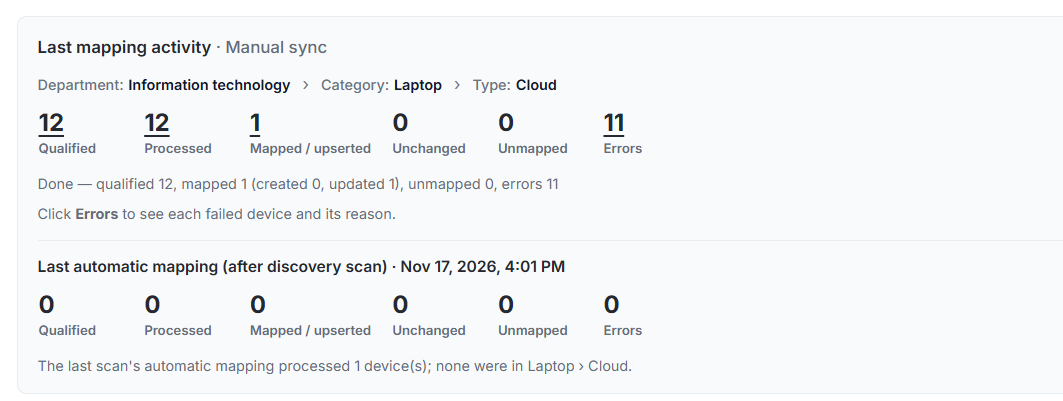
Figure: Last Mapping
Displayed value | Meaning |
|---|---|
Qualified | Number of devices that met the selected mapping scope and conditions and entered the run. With no conditions, all devices for the selected discovery type and method qualify. |
Processed | Number of qualified devices for which the system completed a mapping attempt. |
Mapped/upserted | Number of devices linked to an existing asset or used to create or update an asset. The activity summary can further distinguish created and updated counts. |
Unchanged | Number of devices the system skipped because their mapped data, mapping, and category form version had not changed since the last sync. A full re-check can process these devices again. |
Unmapped | Number of processed devices that did not match an existing asset or an eligible mapping. |
Errors | Number of devices the system could not process because of a validation, configuration, data, or technical error. The error details give the reason. |
Completion summary | A sentence below the counts summarizes the run, for example: qualified, mapped (created and updated), unmapped, and errors. |
The Completed status means that the run ended; it does not mean every device mapped. Review the Unmapped and Errors counts as well as the mapped count to understand the result. Select any count in the last mapping activity summary to open the devices included in that result. For errors, review the listed reason to identify what needs correction.
Save the mapping configuration before you select Run sync. The sync uses the saved version. After the run, the page displays a completion message and a summary of its results. For example:
Done — qualified 12, mapped 1 (created 0, updated 1), unmapped 0, errors 11
In this example, 12 devices qualified and the sync attempted to process them. It updated one existing asset, created no new assets, left no devices unmapped, and recorded errors for 11 devices. Completed means the sync finished running; it does not mean every device succeeded. Select Errors in the activity summary to open the affected devices and review each reason.
Condition builder controls
Use the Condition builder to optionally limit which discovered devices can create assets under the selected category. Each condition row contains these controls:

Figure: Condition Builder
Control | Purpose |
|---|---|
IF | Marks the start of the condition rule. Add further conditions with the green + control. |
Discovery Field | Selects a discovered-device field to test, such as OS Caption or IP Address. The available fields depend on the discovery type and method. |
Operator | Selects how to compare the field with the supplied value, such as Contains, Equal To, or Between. See the operator table in Conditions. |
Values | Enters or selects the comparison value. The control adapts to the selected discovery field and operator; date fields open a calendar. |
+ | Adds a condition row. |
Remove icon | Deletes the condition row. |
AND / OR | From the second row onward, chooses how that row joins the row above. The system evaluates AND before OR. |
Rule preview | Shows the grouping and meaning of the rows. With no conditions, the preview indicates that all devices match. Review the preview before saving. |
If more than one category mapping matches a device, the system applies the first matching active mapping. Configure overlapping conditions carefully so a device receives the intended category.
Field mapping controls
Choose a category to load its attributes. The Field mapping area then lists those category attributes and lets you choose a corresponding discovery attribute for each one. Before you choose a category, the page can show 0 fields and the prompt Select a category to load category attributes. If you leave an attribute unmapped, sync does not change that asset field.
The Mandatory tag identifies fields that the category requires. You can save the mapping without assigning discovery attributes to mandatory fields; during sync, the system fills any still-empty mandatory field with the category’s default value.
Build the condition using the condition builder which is optional. This will help you to map matching discovered devices to asset categories.
Perform the field mapping between discovery attributes and asset attributes, by selecting the required options from the dropdown.
 Figure: Field Mapping
Click Save for the changes to take effect will you sync the mapping.
Click help icon to refer to Mapping Help guide. This guide provide details into how you set the conditions before you run sync.
Click Run Sync for the mapping to happen.
Note
In the ALM the device status must not update if already exists in IT-Fixed or IT-CI. If the discovered device maps to IT-On Premises CI or IT-On Cloud CI assets, the status will be Operational.
The following image illustrates the overall flow addressed by the screen.

After a discovery job completes successfully, the system automatically starts the synchronization process. This process maps the discovered devices to new or existing IT-Fixed, IT-On Premises CI, or IT-On Cloud CI assets.
Location Mapping Rules
The system applies location to every device kind during both automatic and manual sync. It sets Location only when it creates the asset, and later syncs never overwrite an existing asset’s location. Administrators cannot set Location through field mapping; after creation, they can change it in Asset Management. This preserves location information that an analyst entered or updated manually.
IP Location Details
The system retrieves the discovered device’s IP address and compares it with the ranges configured in Location Master. For more information, refer to Platform Masters.
If the IP address falls within a configured range, the system assigns the corresponding location. If no range matches, the system assigns the location named Others.
If the IP address falls within a configured range, the system assigns the corresponding location. If no range matches, the system assigns the location named Other.
A new or changed Location Master range applies to new assets within five minutes and does not require a service restart.
When mapping runs
Trigger | Devices processed | Notes |
|---|---|---|
Automatic sync after a discovery job | Every device the job discovers or updates enters the mapping queue. | The system applies the saved mappings and matching rules to queued devices. A queued device may map, remain Not mapped, or produce an error. |
Run sync on the mapping page | Devices that match the saved category, discovery type, and method. | Only one manual sync can run per Discovery at a time. If one is already running, the system refuses another request and displays its name. |
+ on Discovered Devices | The selected device. | The user creates the asset manually. When the user saves it (not as a draft), the system links the device and marks it Mapped. |
Before a manual Run sync, save the mapping so the system uses the latest configuration. An administrator can select Re-check all devices to process unchanged devices as well.
The system skips a device when its mapped data has not changed since the last sync and its mapping and category form version still match the versions used for that sync. Even when the data has not changed, the system checks the device again after 30 days so that it can detect assets that someone deleted or created manually in Asset Management.
A sync ends with Completed, Failed, or Cancelled status. If it does not start within 30 minutes or stops making progress for 20 minutes, the system ends it as Failed and displays an action message. Assets that the sync already mapped remain linked. If one device fails, for example because another asset already holds its serial number, the system counts that device under Errors with the reason and continues processing the rest of the sync.
Mapping Activity Summary
The top of the page includes a Last Mapping Activity summary card. The card shows the result of the latest mapping run for the selected Department, Category, Discovery Type, and optional Discovery Method.
Mapping Activity Counts
Count | Description | When the system increments the count | Expected action or result |
|---|---|---|---|
Qualified | Shows the number of discovered records that meet the selected mapping criteria and qualify for processing. | A discovered record matches the selected Department, Category, Discovery Type, Discovery Method, and Condition Builder rule. If the Condition Builder does not contain a rule, all records within the selected configuration qualify. | The system adds the record to the mapping population. |
Processed | Shows the number of qualified records that the mapping job has finished processing. | The system completes the mapping attempt for a qualified record, regardless of the result (mapped, not mapped, or an error). | The record contributes to the Mapped, Not mapped, or Errors count. |
Mapped | Shows the number of records that the system linked to an existing asset or used to create or update an asset. | The system finds a matching asset or CI and links or updates it, or creates an asset by using the configured mapping rule. | The discovered device receives the Mapped status and references the mapped asset. This count includes created and updated assets. |
Unchanged | Shows the number of devices the system skipped because their mapped data, mapping, and category form version have not changed since their last sync. | The system compares the device’s current data and configuration with the values from its last sync. | Select Re-check all devices before a manual sync to process unchanged devices again. |
Not mapped | Shows the number of processed records that the system could not map to an asset or CI. | The system does not find a matching asset or CI and cannot create an asset by using the configured rule. | A user can review the mapping configuration or create the asset manually. |
Errors | Shows the number of records that the system could not process because of a technical, validation, or data-related error. | An error prevents the system from completing the mapping attempt. Examples can include invalid mapping configuration, missing required data, conflicting matches, or a system error. | The system records the error and makes the record available for review and correction. |
Relationship Between the Counts
The counts represent different stages and outcomes of one mapping activity:
Qualified represents the records selected for mapping.
Processed represents the qualified records for which the system completed a mapping attempt.
Each processed record contributes to one of the following outcomes: Mapped, Not mapped, or Errors.
For a completed mapping activity, the counts should normally fulfill the following relationship:
Processed = Mapped + Not mapped + Errors
While a mapping activity is in progress, Processed can be lower than Qualified.
Processed <= Qualified
The difference between the two counts represents records that are waiting for processing or currently getting processed.
Pending = Qualified - Processed
The following example explains how the counts can appear after a completed mapping activity:
Count | Example value | Interpretation |
|---|---|---|
Qualified | 1,000 | The mapping criteria selected 1,000 discovered records. |
Processed | 1,000 | The system completed a mapping attempt for all qualified records. |
Mapped | 920 | The system successfully mapped, created, or updated 920 asset records. |
Not mapped | 65 | The system could not find or create an asset for 65 records. |
Errors | 15 | The system could not complete the mapping attempt for 15 records. |
In this example:
1,000 processed = 920 mapped + 65 not mapped + 15 errors
Mapping Activity Status
The card displays the status of the latest mapping activity. The status appears in the upper-right corner of the card.
Status | Description |
|---|---|
Queued | The system accepted the mapping request and placed it in the processing queue. |
In Progress | The system is processing the qualified records. |
Completed | The system finished processing the mapping activity. The activity can still contain unmapped or error records. |
Failed | The system could not start or complete the mapping activity. |
Cancelled | A user or the system stopped the mapping activity before it completed. |
Example configuration
This example applies because Desktop is an eligible IT-Fixed or IT-CI category in the organization’s ALM setup.
Suppose the organization wants to map network-discovered Windows desktops to the Desktop asset category.
Department: Information Technology
Category: Desktop
Discovery Type: Network
Method: WMI
Condition: IP Address = xx2.xx8.4.xx
The rule states: if a discovered device has the IP address 192.168.4.226 and the discovery data came through WMI, then the system treats it as a Desktop asset and maps it to the Desktop category.
This is a simple but effective example of how a discovered network record becomes a valid asset record.
Condition builder and matching logic
The condition builder is one of the most important parts of Asset Mapping. It determines whether the system should classify a discovered record as part of the selected category.
How the system evaluates the rule
The system evaluates each condition against the discovered device. A matching condition qualifies the device for that mapping. A non-matching condition rules out that mapping; another active mapping for the same discovery type and method can still qualify the device. If no mapping qualifies and the system cannot find an existing asset, the device remains Not mapped.
Administrators can combine conditions with logical operators such as AND or OR.
The following example is typical for a network-based discovery rule:
Field: IP Address
Operator: Equal To
Value: 1xx.1xx.x.xx6
This creates a rule that targets one specific device or one specific range of devices depending on the value used.
A more general example could be:
Field: Select
Operator: Select
Value: Operating System = Windows
This rule would match all Windows-based devices discovered through the selected method.
The page also shows a rule preview, giving administrators a quick validation of how the system interprets the condition before saving.
Rule preview behavior
The rule preview helps prevent configuration errors. As the administrator creates a condition, the page can show a preview such as:
IP Address Equals “1xx.1xx.x.xx6”
This gives immediate feedback that the mapping logic aligns with the expected discovery values. It also helps administrators check the rule before they apply it in production.
Field mapping examples
The Field Mapping section allows administrators to map discovery attributes to ALM category attributes. The mapping does more than identify assets; it also defines which values move forward into the asset repository.
The table typically displays a two-column layout:
Category attributes
Discovery attributes
For each attribute row, an administrator selects the corresponding discovery field to populate the asset attribute. If a field is not required, it can remain unmapped.
Example field mapping table
Asset Category Attribute | Discovery Attribute | Purpose |
|---|---|---|
Host Name | Host Name (System Details) | Populates the asset name when available; the system determines device identity separately using the rules in Device identity. |
Asset Condition | Device Condition / Discovery Status | Carries the current health or condition to the asset. |
Business Service | Service Mapping / Discovered Service | Links the asset to the business service it supports. |
Cost Center | Cost Center / Inventory Metadata | Maps the asset to the correct cost center. |
Domain | Domain Name | Identifies the asset’s network domain. |
Device Status | Availability or Health Status | Surfaces the current availability or health state of the device. |
These examples show that mapping is not limited to basic identification fields. It supports operational and governance data as well.
Field mapping behavior
On asset creation, the system fills each mapped field and the applicable system-managed fields. On update, it writes only a mapped value that differs from the discovered value. An empty discovered value never clears an asset field. The system converts values to the destination field’s type, such as a number or date; if conversion fails, it skips that field and continues processing the asset.
The Mandatory tag identifies category-required fields. You can save the mapping without assigning discovery attributes to these fields. During sync, the system fills any still-empty mandatory field with the category’s default value. Asset Management checks fields that become required only through a form condition; sync does not fill them automatically.
Asset field or field group | On create | On update |
|---|---|---|
Mapped fields | Fill from the discovered value. | Change only when the discovered value differs. |
Asset Name (description) | Use Host Name; if unavailable, use FQDN; if that is unavailable, use IP address. | Fill only when the asset field is blank. |
Serial Number | Use the device identity described in Device identity. | Do not change through sync. |
Location | Use the IP range configured in Location Master, as described in Location mapping rules. | Do not change through sync. |
Status | Set to In Store. | Do not change through sync. |
Required fields with a form default | Use the form default only if the field is still empty. | Use the form default only if the field is still empty. |
Read-only fields on the form | Fill from the mapping. | Do not change through sync. |
Discovery Info link | Set it so the asset opens its discovered-device record. | Keep the existing link. |
Do not map system-owned fields: asset ID and code, status, category, classification, type, tracking type, location, quantities, department, and audit fields. A mapping can use a discovery field only when the selected discovery type and method offer that field.
Location and dropdown values
The system sets Location only when it creates an asset. It never changes an existing asset’s location during a later sync. Field mapping does not control Location; an administrator can change it after creation in Asset Management.
For dropdown fields, the system first matches a discovered value to an existing option without regard to letter case, so RUNNING matches Running. For common master lists such as Manufacturer or Model, the system adds an option that does not exist and reuses it on later records. Asset Status is match-only: if a discovered value does not already exist in its list, the system skips that field and leaves it unchanged. If the system cannot match or add a dropdown value, it skips that field while continuing to create or update the rest of the asset.
Discovery fields
The field-mapping list shows fields collected by the selected discovery type and method, along with common identity fields available to every type.
Field group | Additional field groups offered |
|---|---|
Common to every type | Device ID, Host Name, IP Address, FQDN, Domain, Serial Number, Manufacturer, Model Number, UUID, Device Category, OS Caption, OS Version, OS Architecture, Ethernet MAC, Protocol, Location, Contact, Device Status, Device Health, Job Name, Discovery Status, First Discovered Date, Last Discovered Date, Collection Type, and Discovery Profile. |
Network (WMI, SSH, SNMP) | System, processor, physical and logical disk, storage totals, memory, BIOS, OS (including kernel and build), network, firmware version, network printer, and a virtual machine’s host (Hosted On and Hypervisor Type). WMI also offers installed software, patches, security, services, processes, users, peripherals, and printers. SNMP does not offer CPU, memory, disk, BIOS, or software fields. |
Cloud | AWS, Azure, GCP, and OCI account, region, and resource fields, including Azure resources other than VMs (name, ARM type, and resource group). |
Container | Docker engine and first container; Kubernetes cluster, first node, and first pod; and the host’s CPU, memory, and OS kernel. |
Database | Product, version, instance identity, linked host, capacity, configuration, and replication fields. |
Hypervisor | Host platform, version, cluster, Nutanix AHV host and CVM IP, the first guest VM, and host CPU, memory, disk, and network fields. |
Active Directory | Computer object name, DNS host name, OU, OS, account state, dates, and Active Directory identity. |
Network API | API organization, network ID, device ID, and product type. |
For list-valued data such as disks, network adapters, or installed software, a mapped field uses the first item. Discovery map attributes that an administrator configures in Admin also appear in the field list for their type. Search by the field name shown on the Device Detail page; aliases are searchable too. For example, Device Type finds Device Category, Processor Name finds CPU Model, Lifecycle State finds AWS Instance State or OCI Lifecycle State, and Engine version finds Database Version.
Use Case Scenario
An organization runs a network discovery job using WMI to identify desktops in the office network.
The system discovers a host with the following details:
Host Name: WS-ENG-07
IP Address: xx2.xxx.4.xxx
OS: Windows 11 Pro
Discovery Method: WMI
Device Type: Desktop
The administrator has configured a rule:
Category: Desktop
Method: WMI
Condition: IP Address = xx.xx.4.xxx
Flow
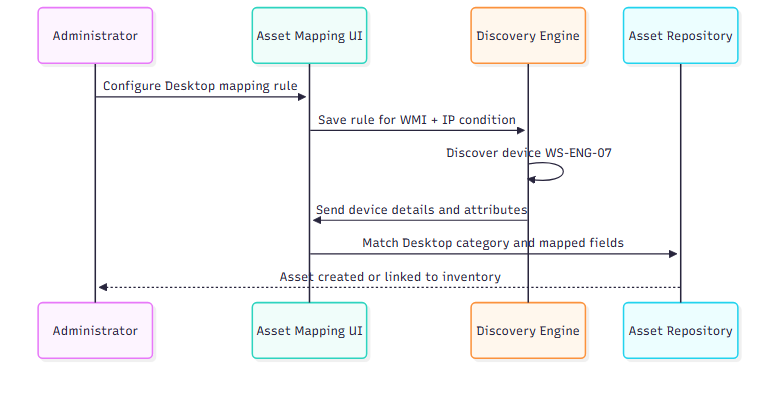
The result is that the discovery engine treats the discovered device as a Desktop asset, and the mapped fields populate the inventory record in a structured, repeatable way.
How the mapping impacts asset creation
The essential job of Asset Mapping is to turn discovered data into a valid asset record in the inventory model.
The mapping process supports two primary outcomes:
Link an existing asset record to a discovered device
Create a new asset record when the device is not yet in inventory
Linked asset
If there is already a matching asset record, the system links the discovered device with that asset and updates the active asset data based on the newer discovery values.
New asset creation
If no corresponding asset record exists, the system can create a new asset record from the discovered device information. This is especially useful during environment onboarding or when admins add newly discovered devices that are not yet represented in the asset database.
The transcript captured during reviews emphasized this point: a discovered device sitting only in the discovery inventory does not contribute much value until admins map and transform it into an asset or CI.
Mapping lifecycle and adoption
A discovered device follows this lifecycle:
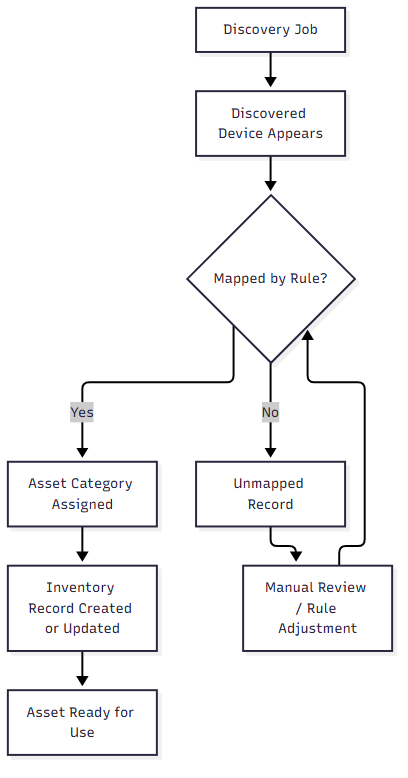
This lifecycle is a core part of the asset governance model because discovery is only the first stage. The point of the feature is to ensure that a device moves from discovery into allocation, utilization, or asset ownership.