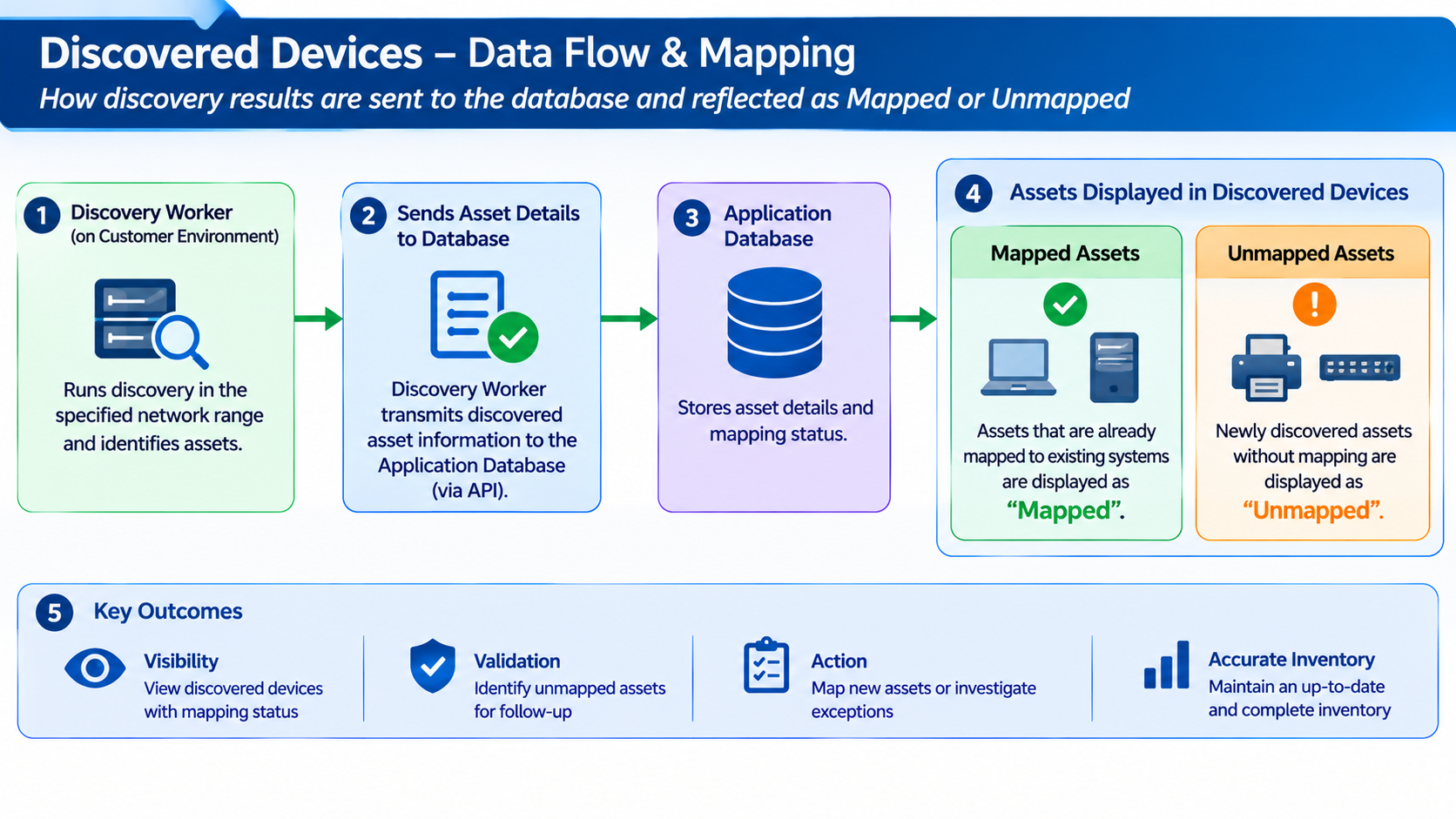
The Discovered Devices page provides a consolidated view of devices identified successfully during discovery. Analysts can use this page to review discovered device information, compare discovery coverage, check device availability and health, verify asset mapping, and open the detailed inventory information for a device.
Key Benefits
Review discovered devices and inventory details in one place.
Filter inventory by department and device category.
Check discovery coverage, device health, availability, and asset-mapping status.
Search device records and open detailed inventory information for investigation.
Use Case User Persona: Admin | Solution |
|---|---|
NovaTech Technologies has discovered devices across IT, Human Resources, Finance, and other departments. Its administrator needs to review inventory by department, spot records that need attention, and confirm each device’s asset-mapping status. | NovaTech uses the Discovered Devices page to review successful discovery results by department and device category. How NovaTech reviews discovered devices
|
The page organizes discovered records by device category and displays summary counts and device-level information for the selected department.
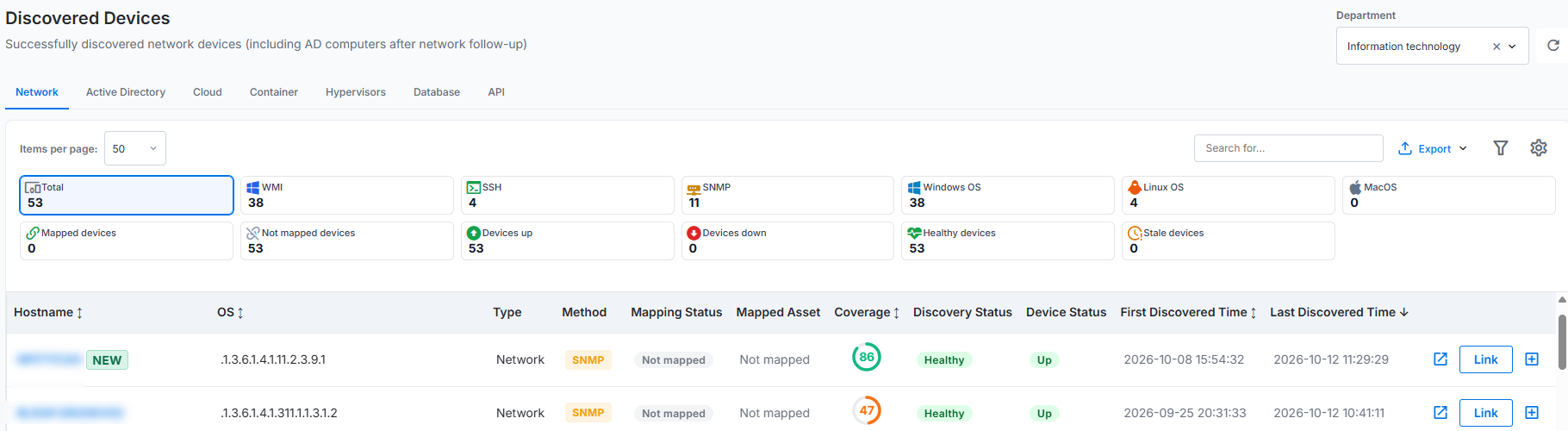
Figure: Discovered Devices
This page contains the following sections:
Department Selection
Use the Department field to view discovered devices for a specific department. The field displays the currently selected department and controls the discovery data shown throughout the page.
To select a department, perform the following steps:
Click the dropdown in the Department field.
Select the required Department from the available list. Listed departments can include IT, HR, etc.
Verify that the page refreshes with all the device details for the selected Department.
The page automatically refreshes after the selection. The refreshed page displays the device counts, discovery statistics, mapping information, health information, availability information, and device records for the selected department.
The department selection applies across all device category tabs. For example, if you select a department and open the Network tab, the page displays the department’s discovered network devices. When you open the Cloud tab, the page displays the cloud resources discovered for the same department.
If no discovered devices exist for the selected department and category, the device list displays no records.
Note: Analysts can view only the departments and discovery information available under their assigned access permissions.
Device Categories, Summaries and List
The Discovered Devices page organizes successfully discovered records into separate tabs based on the discovery source and resource category. Each tab provides category-specific summary cards, search and filter options, grid columns, and device information.
The Discovered Devices page organizes discovered records into tabs based on the discovery source and resource category.
Tab | Description |
|---|---|
Network | Lists successfully discovered network devices and Active Directory computers that completed network follow-up discovery. Supported discovery methods include WMI, SSH, and SNMP. |
Active Directory | Lists Active Directory computers, users, groups, and other objects awaiting network follow-up or without a successful network follow-up. |
Cloud | Provides resources discovered from supported cloud providers, including GCP, AWS, Azure, and OCI. Resource categories include compute, storage, network, database, Kubernetes, IAM, serverless, security, messaging, and monitoring. |
Container | Presents successfully discovered Docker and Kubernetes resources. Container-specific information includes the resource name, identifier, endpoint, image or operating system, resource type, status, mapping information, and discovery coverage. |
Hypervisors | Shows successfully discovered Hyper-V, VMware, Xen, and Nutanix hosts. Platform-specific information includes the hostname, serial number, endpoint, discovery method, mapping information, status, and discovery coverage. |
Database | Lists successfully discovered SQL Server, MySQL, PostgreSQL, Oracle, and MongoDB instances. Instance information includes the name, identifier, endpoint, database engine, resource type, mapping information, status, and discovery coverage. |
Note
If the selected department does not contain successfully discovered records for a category, the page displays an empty-state message.
Network
The Network tab displays successfully discovered network devices, including Active Directory computers processed through network follow-up discovery.
The tab supports devices discovered through the following agentless methods:
WMI
SSH
SNMP
The summary cards provide counts based on the discovery method, operating system, mapping state, availability, and discovery health. Depending on the available records, the tab can display the following summary information:
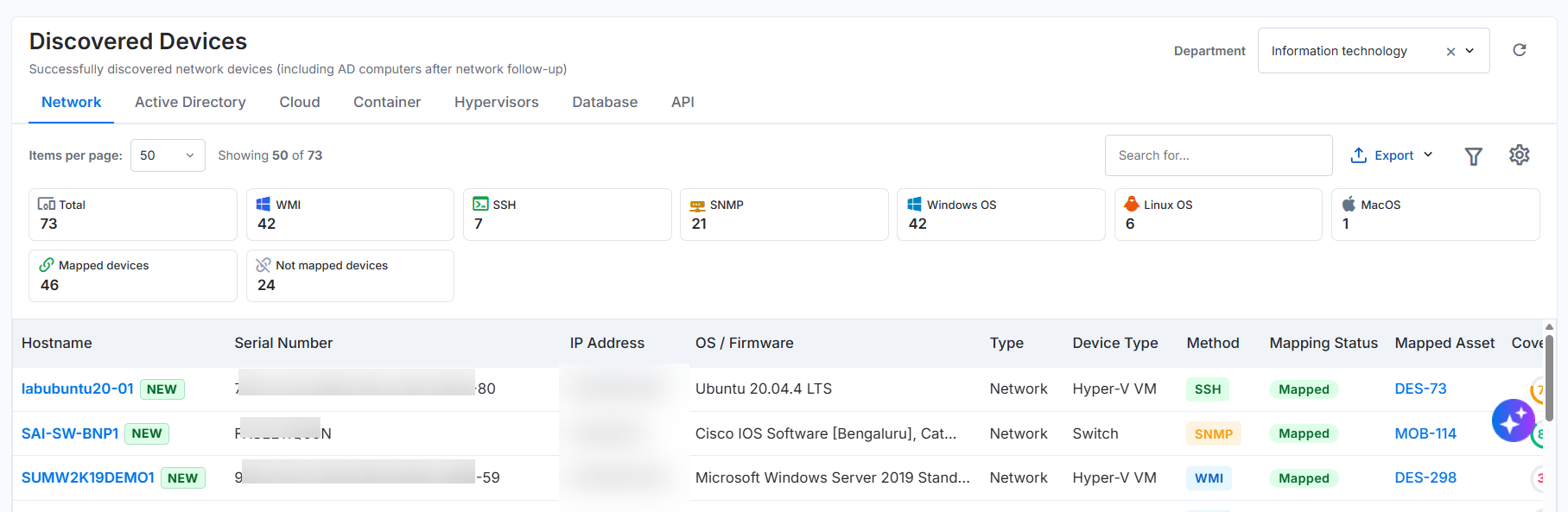
Figure: Network
The following table explains each summary card displayed on the Network tab of the Discovered Devices page.
Summary Card | Description |
|---|---|
Total devices | Shows the total number of successfully discovered network devices for the selected department. |
WMI devices | Indicates the number of devices discovered through Windows Management Instrumentation (WMI). This method typically collects inventory information from supported Windows devices. |
SSH devices | Indicates the number of devices discovered through Secure Shell (SSH). This method typically collects information from supported Linux, Unix, and other SSH-enabled devices. |
SNMP devices | Indicates the number of devices discovered through Simple Network Management Protocol (SNMP). This method typically discovers supported network devices, such as switches, routers, firewalls, and printers. |
Windows devices | Provides the number of discovered devices running a Windows operating system. |
Linux devices | Provides the number of discovered devices running a Linux operating system. |
macOS devices | Provides the number of discovered devices running macOS. |
Mapped devices | Shows the number of discovered devices mapped to assets. Each mapped device has an associated asset record in the application. |
Not mapped devices | Shows the number of discovered devices that are not mapped to assets. These devices do not have associated asset records. |
Note
Select a summary card to display the corresponding device records. The counts refresh according to the selected department and the latest available discovery information.
Network List
The Network list displays the successfully discovered network devices for the selected department. Each row provides identification, discovery, mapping, availability, and status information for a device.
Field Name | Description |
|---|---|
Hostname | Identifies the device name collected during discovery. A NEW label marks a newly discovered device. For example, SUMMIT-PROXY is the hostname, and NEW indicates that discovery found the device recently. |
Serial Number | Provides the unique hardware serial number or system identifier collected from the device. For example, 3xx2-0xx5-5xx8-6xx3-2xx0-5xx7-x8 identifies a specific device. |
IP Address | Specifies the IP address used to discover or communicate with the device. For example, 1xx.1xx.xx.xx identifies the device on the network. |
OS | Identifies the operating system detected on the device. For example, Microsoft Windows Server 2012 R2 Standard specifies the installed Windows Server version and edition. |
Type | Indicates the discovery source classification of the device. For example, Network indicates that the device belongs to the Network tab. Other types include LDAP/AD. |
Method | Identifies the agentless method used to discover the device. For example, WMI indicates that Windows Management Instrumentation collected the device information. Other supported methods include SSH and SNMP. |
Mapping Status | Indicates whether the discovered device has an associated asset record. For example, Not mapped means that the device is not linked to an existing asset. |
Mapped Asset | Identifies the asset associated with the discovered device. For example, Not mapped indicates that no asset association exists. |
Coverage | Shows the percentage of expected device information collected during discovery. For example, 64 indicates that discovery collected 64% of the expected information. |
Discovery Status | Indicates the freshness and health of the discovery information. For example, Healthy indicates that the device has current discovery information based on the configured health criteria. Stale indicates that the device is not healthy. |
Device Status | Shows the latest availability status of the device. For example, Up indicates that the device responded successfully to the applicable availability check. |
First Discovered Time | Records the date and time when the application first discovered the device. For example, 2026-09-25 21:06:06 indicates when the device first appeared in the discovery results. |
Last Discovered Time | Records the date and time of the latest successful discovery. For example, 2026-09-26 16:21:54 indicates when the application last updated the device information. |
Actions | Such as to view the asset or create if unmapped. |
Serial Number Uniqueness Criteria for Network Devices
For network devices such as firewalls, switches, and printers, use the chassis serial number reported by SNMP as the primary value for the asset’s Serial Number field. SNMP reports this value as entPhysicalSerialNum for the chassis entity. If the chassis serial number is unavailable, use the LLDP chassis ID; if that is unavailable, use the base MAC address.
Device type | Primary unique identifier | Fallback order | Example |
|---|---|---|---|
Network device (firewall, switch, or printer) | Chassis serial number from SNMP entPhysicalSerialNum | LLDP chassis ID, then base MAC address | FOxxx31L0GK (fallback: xx:xx:xx:xx:xx:xx) |
Note
Select a column heading that supports sorting to arrange the device records in ascending or descending order.
Active Directory
The summary cards on the Active Directory tab display the number of Active Directory records awaiting network follow-up or without a successful network follow-up for the selected department.
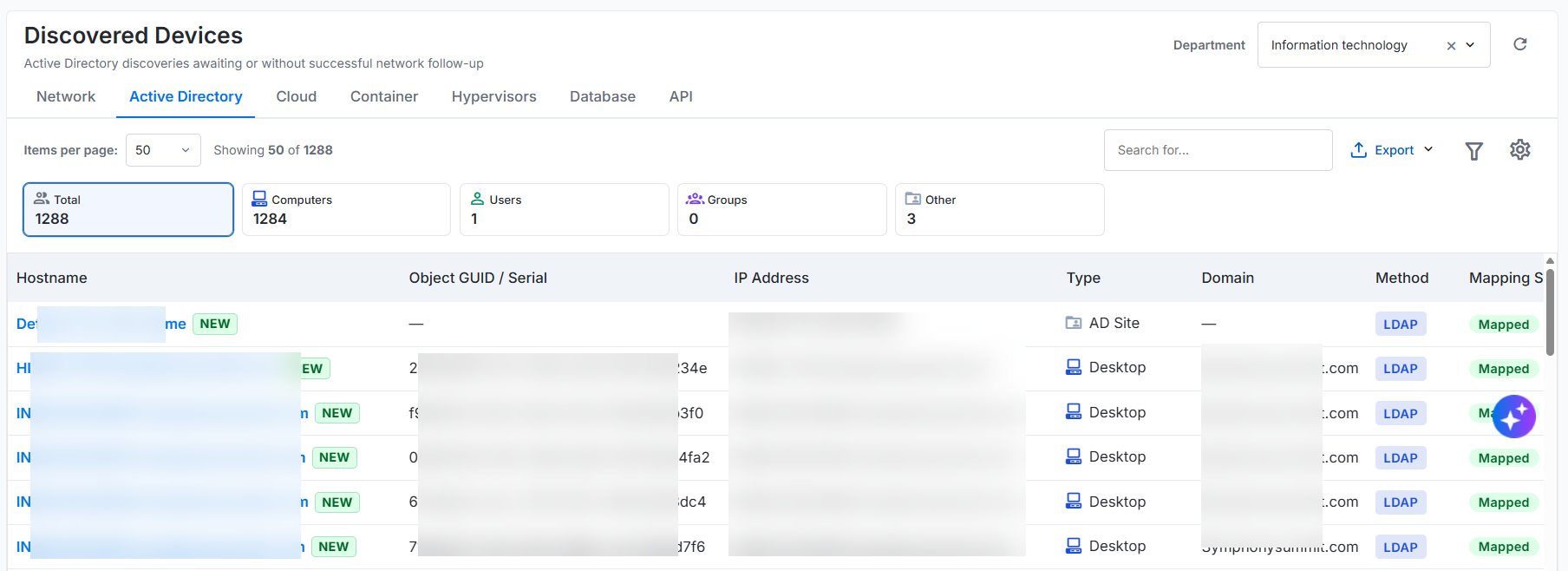
Figure: Active Directory
Summary Card | Description | Example |
|---|---|---|
Total | Shows the total number of Active Directory objects available on the Active Directory tab. The count includes computers, users, groups, and other object types. | If Active Directory discovery identifies 1284 computers, 1 users, 0 groups, and 3 other objects, the Total card shows 1288. |
Computers | Indicates the number of computer objects discovered from Active Directory that await network follow-up or did not complete network follow-up successfully. | If Active Directory discovery identifies 1288 computers and 4 have not completed network follow-up successfully, the Computers card shows 1284. |
Users | Provides the number of user objects discovered from Active Directory. | If Active Directory discovery identifies 1 user accounts, the Users card shows 1. |
Groups | Shows the number of group objects discovered from Active Directory. | If Active Directory discovery identifies 0 groups, such as security or distribution groups, the Groups card shows 0. |
Other | Indicates the number of discovered Active Directory objects that do not fall under the computer, user, or group categories. | If Active Directory discovery identifies 3 objects under another supported object type, the Other card shows 3. |
Cloud
The Cloud tab provides a consolidated view of resources discovered across supported cloud providers. Analysts can use this tab to review the enterprise multi-cloud inventory across cloud accounts, regions, and resource categories.
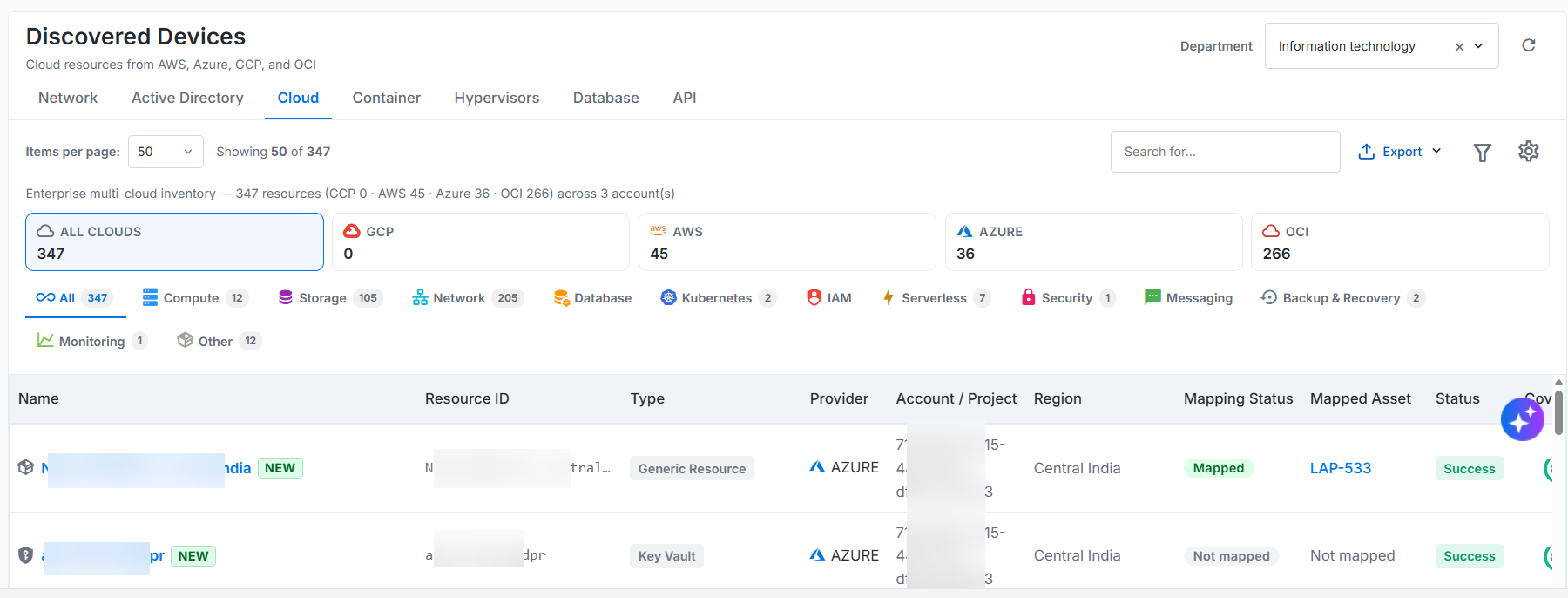
Figure: Cloud
The Cloud tab supports the following cloud providers:
Supported Cloud Providers
The Cloud tab displays resources discovered from the following supported cloud providers:
Cloud Provider | Abbreviation | Description | Example Resources |
|---|---|---|---|
All Clouds | — | Shows the combined number of discovered resources across GCP, AWS, Azure, and OCI. Selecting it displays resources from all supported cloud providers. | If the inventory contains 347 resources across the four providers, the All Clouds card displays 347. |
Google Cloud Platform | GCP | A cloud computing platform that provides infrastructure, storage, networking, databases, container management, security, monitoring, and other cloud services. Resources discovered from GCP appear under the GCP provider card. | Compute Engine instances, Cloud Storage buckets, Virtual Private Cloud networks, Google Kubernetes Engine clusters, databases, and IAM resources. Example: If the discovery job retrieves 0 resources from a GCP project, the GCP provider card displays 0. |
Amazon Web Services | AWS | A cloud computing platform that provides compute, storage, networking, database, container, security, monitoring, and other cloud services. Resources discovered from AWS appear under the AWS provider card. | EC2 instances, S3 buckets, Virtual Private Clouds, Amazon EKS clusters, database resources, IAM resources, and serverless functions. Example: If the discovery job retrieves 45 resources from one or more AWS accounts, the AWS provider card displays 45. |
Microsoft Azure | Azure | A cloud computing platform that provides virtual machines, storage, networking, databases, containers, identity management, security, monitoring, and other cloud services. Resources discovered from Azure appear under the Azure provider card. | Azure virtual machines, storage accounts, virtual networks, Azure Kubernetes Service clusters, database resources, identity resources, and serverless functions. Example: If the discovery job retrieves 36 resources from one or more Azure subscriptions, the Azure provider card displays 36. |
Oracle Cloud Infrastructure | OCI | A cloud computing platform that provides compute, storage, networking, databases, Kubernetes, identity management, security, monitoring, and other cloud services. Resources discovered from OCI appear under the OCI provider card. | Compute instances, object storage resources, virtual cloud networks, Oracle Kubernetes Engine clusters, database systems, IAM resources, and serverless functions. Example: If the discovery job retrieves 266 resources from one or more OCI accounts, the OCI provider card displays 266. |
Note
If GCP contains 0 resources, AWS contains 45 resources, Azure contains 36 resources, and OCI contains 266 resources, the All Clouds provider card displays 347.
Cloud Resource Categories
After selecting a provider, select a resource category to narrow the results.
Resource Category | Description | Example |
|---|---|---|
All | Shows all resources discovered from the selected provider that match the applied filters. | Selecting Azure and All shows all available Azure resources. |
Compute | Includes resources that provide processing capacity for applications and workloads. | Azure virtual machines. |
Storage | Covers resources used to store files, objects, application data, backups, disks, and other information. | Azure storage accounts, managed disks, and file shares. |
Network | Includes resources that provide connectivity between cloud workloads and external networks. | Azure virtual networks, subnets, public IP addresses, and load balancers. |
Database | Covers managed database resources used to store and process data. | Azure SQL databases and other supported Azure database resources. |
Kubernetes | Includes managed Kubernetes clusters and their related resources. | Azure Kubernetes Service clusters and node pools. |
IAM | Covers identity and access management resources that control access to cloud services. | Azure identities, roles, groups, and access policies. |
Serverless | Includes resources that run code without requiring direct management of the underlying servers. | Azure Functions and other supported serverless resources. |
Security | Covers resources that protect cloud identities, networks, workloads, and data. | Azure network security groups, key vaults, secrets, certificates, and security policies. |
Messaging | Includes resources that enable communication between applications and services. | Azure queues, topics, event resources, and notification services. |
Monitoring | Covers resources for infrastructure, application performance, availability, and activity. | Azure alerts, metrics, logs, dashboards, and monitoring rules. |
Other | Includes supported resources that do not fall under the listed categories. | Azure resources without a matching primary category. |
Example
Selecting Azure and then selecting Storage displays only the storage resources discovered from Azure.
Selection | Result |
|---|---|
Azure + All | Shows all discovered Azure resources across the available resource categories. |
Azure + Compute | Lists discovered Azure compute resources, such as virtual machines. |
Azure + Storage | Lists discovered Azure storage resources, such as storage accounts, managed disks, and file shares. |
Azure + Network | Lists discovered Azure network resources, such as virtual networks, subnets, public IP addresses, and load balancers. |
Cloud List
The Cloud list displays the successfully discovered cloud resources for the selected department. Each row provides identification, provider, location, ownership, mapping, inventory, and cost information for a resource. The columns are common across cloud resource categories such as Compute, Storage, Network, Database, Kubernetes, IAM, Serverless, Security, Messaging, Monitoring, and Other.
Field Name | Description |
|---|---|
Name | Identifies the name of the discovered cloud resource. A NEW label marks a newly discovered resource. For example, prod-acme-vm-01 is the resource name, and NEW indicates that discovery found the resource recently. |
Resource ID | Provides the unique identifier assigned to the resource by the cloud provider. For example, an Azure resource ID can identify the subscription, resource group, provider, resource type, and resource name associated with a resource. |
Resource Type | Identifies the discovered cloud resource type. For example, Virtual Machine, Storage Account, Database, or Kubernetes Cluster indicates the service or resource classification. |
Cloud Provider | Identifies the cloud platform that discovered the resource. Supported providers can include AWS, Azure, GCP, and OCI. |
Account / Subscription / Project | Identifies the cloud account that contains the resource. The displayed value depends on the cloud provider: account for AWS, subscription for Azure, project for GCP, or the applicable account or tenancy context for OCI. |
Region | Identifies the cloud region hosting the resource. For example, Central India shows where the resource runs. The value might be unavailable for global resources that are not associated with a specific region. |
Status | Shows the current operational or lifecycle state for the cloud resource. For example, Running, Stopped, Available, or Active. Available values depend on the resource type and cloud provider. |
Owner | Identifies the owner associated with the cloud resource when ownership information is available. The value comes from provider metadata, tags, labels, or other supported ownership information. |
Mapping Status | Indicates whether the discovered cloud resource has an associated asset record. For example, Not mapped means that the resource is not linked to an existing asset. |
Mapped Asset | Identifies the asset associated with the discovered cloud resource. For example, Not mapped indicates that no asset association exists. |
Created On | Records the date and time when the cloud provider created the resource. The value appears only when the provider returns creation information for the resource. |
First Discovery Time | Records the date and time when the application first discovered the cloud resource. For example, 2026-09-25 21:06:06 indicates when the resource first appeared in the discovery results. |
Last Inventory Time | Records the date and time when the application most recently collected inventory information for the cloud resource. For example, 2026-09-26 16:21:54 indicates when the resource information was last updated. |
Estimated Cost | Displays the estimated cost associated with the cloud resource when cost information is available. The value can depend on the cloud provider, billing data, selected reporting period, currency, resource usage, and available cost-allocation information. |
Note
The values available in fields such as Status, Owner, Created On, and Estimated Cost depend on the metadata returned by the selected cloud provider and resource type. A field can be blank when the provider does not return the corresponding information.
Serial Number Uniqueness Criteria for Cloud Resources
The following unique identifier for each cloud provider serves as the serial number for cloud resources.
Cloud Provider | Unique Identifier for Each Resource | Description | Example Shape |
|---|---|---|---|
AWS | Amazon Resource Name (ARN) or instance ID | Use the ARN when available. If the ARN is unavailable, use the instance ID. | arn:aws:ec2:us-east-1:123456789012:instance/i-0a1b2c3d4e5f67890 |
Azure | Azure Resource ID or Azure Resource Manager (ARM) ID | The Azure Resource ID uniquely identifies the resource by subscription, resource group, resource provider, resource type, and resource name. | /subscriptions/3f2e8c7a-1b45-4d9e-a0f3-7c2d5e8b1a90/resourceGroups/rg-prod-eastus/providers/Microsoft.Compute/virtualMachines/vm-app-01 |
GCP | Instance ID or canonical full resource name | The instance ID identifies a GCP instance. The canonical resource name also identifies it by project, zone, and instance name. | 4581236790124568321 or projects/prj-prod/zones/asia-south1-a/instances/vm-app-01 |
OCI | Oracle Cloud Identifier (OCID) | The OCID uniquely identifies the resource in Oracle Cloud Infrastructure. | ocid1.instance.oc1.ap-mumbai-1.anrg6ljr5kq2xyzabc3d4e5f6g7h8i9j0klmnopqrstuvwxy |
Azure
Microsoft Cloud hosts Microsoft Azure resources. Azure discovery allows an administrator to connect ITAM to Azure and schedule discovery jobs that collect subscription, cost, resource, hardware, and software information.
Azure discovery uses the following components:
Discovery Account: Stores the credentials that ITAM uses to authenticate with Azure and access the configured subscription.
Discovery Job: Defines when ITAM connects to Azure, collects the configured resource information, and stores the discovery results.
Discovery job uses only Active discovery accounts and only Active discovery jobs run at their scheduled time.
Create an Azure discovery account
Navigate to Discovery Accounts > Cloud > Azure > New Account.
Enter the Tenant ID, Client ID, Client Secret, and Subscription ID.
Save the discovery account. ITAM encrypts the client secret before storing it.
Set the discovery account to Active when ready for use.
You can also create an Azure discovery account while creating an Azure discovery job. For more information, refer Discovery Accounts.
Create an Azure discovery job
Navigate to Discovery Jobs > New Job.
Select Cloud to create an Azure discovery job.
Select one or more Active Azure discovery accounts from the add azure credential dropdown.
Configure the settings and scheduled date and time.
Save the discovery job and set it to Active.
For more information, refer Discovery Jobs.
Scheduled discovery process
At the scheduled date and time, ITAM performs the following actions:
Selects Azure discovery jobs that are Active.
Resolves only the mapped Azure discovery accounts that are Active.
Authenticates with Azure by using the credentials stored in the selected discovery account.
Calls the required APIs to collect subscription, cost, server, serverless, hardware, software, configuration, lifecycle, security, and related resource information defined for Azure discovery.
Updates the latest inventory record for each discovered resource.
Records a change when a discovered hardware or software value differs from its old stored value.
Saves the discovery job result, including the success or failure status, corresponding message and reason, start time, end time, and execution duration.
Discovered data and change tracking
ITAM stores the latest information collected for each Azure resource in the database. The system stores the information to map discovered resources to fixed assets or configuration items (CIs) and display the discovered data in the user interface.
When discovery identifies a hardware or software change, ITAM records the details.
Container
The Container tab displays successfully discovered Docker and Kubernetes resources for the selected department. Analysts can use this tab to review container resource details, discovery methods, asset mapping information, status, and discovery coverage.
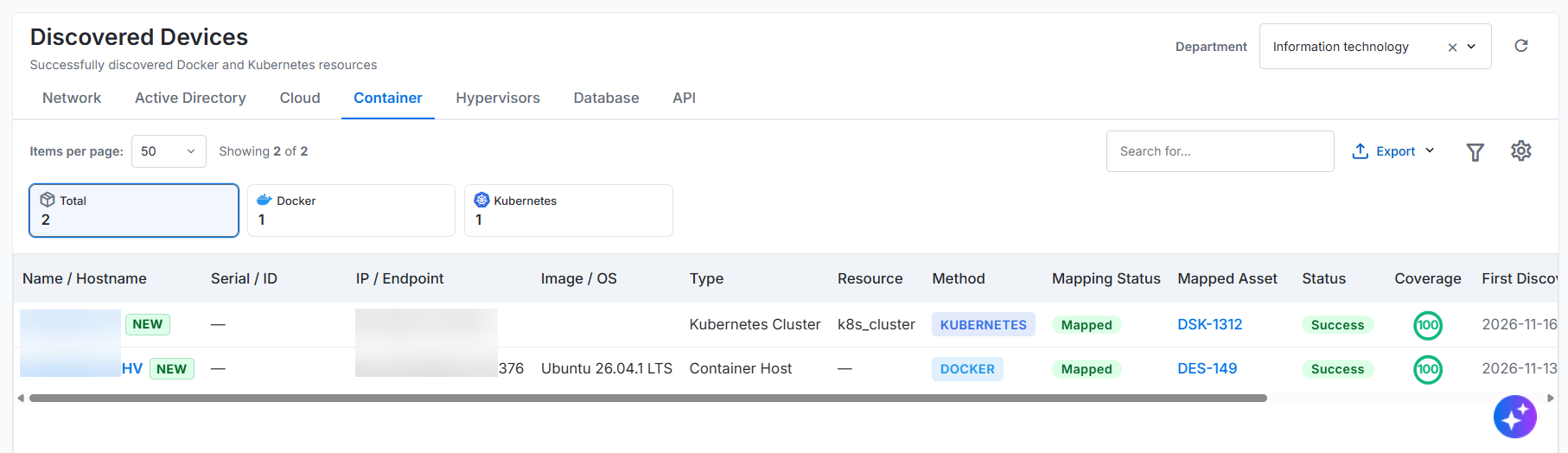
Figure: Container
Container Summary Cards
The summary cards display the number of successfully discovered container resources for the selected department.
Summary Card | Description | Example |
|---|---|---|
Total | Shows the total number of successfully discovered Docker and Kubernetes resources. | If the department contains 1 Docker resources and 1 Kubernetes resources, the Total card shows 2. |
Docker | Indicates the number of successfully discovered Docker resources. | If discovery identifies 1 Docker resources, the Docker card shows 1. |
Kubernetes | Provides the number of successfully discovered Kubernetes resources. | If discovery identifies 1 Kubernetes resources, the Kubernetes card shows 1. |
Container List
The Container list displays the successfully discovered Docker and Kubernetes resources for the selected department. Each row provides identification, platform, health, version, location, workload, scale, mapping, and inventory information for a resource.
Field Name | Description |
|---|---|
Name | Identifies the display name of the discovered Docker engine or Kubernetes cluster. For example, docker01.corp.local identifies a Docker host, and prod-eks-cluster identifies a Kubernetes cluster. |
Type | Identifies the discovered container platform. For example, Docker Engine indicates a Docker installation, and Kubernetes Cluster indicates a Kubernetes environment. |
Status or Discovery Health | Indicates the health, connectivity, or freshness of the resource based on the latest discovery scan. For example, Active indicates that discovery reached and inventoried the resource successfully. Stale indicates that discovery has not inventoried the resource within the configured freshness period. |
Version | Identifies the Docker Engine or Kubernetes cluster version collected during discovery. For example, Docker 27.1.1 identifies the Docker Engine version, and Kubernetes 1.29.4 identifies the Kubernetes version. |
Related Host / Location | Identifies where the Docker engine or Kubernetes cluster runs. The value can identify a related Server CI, cloud account, cloud resource, or multi-node environment. |
Workloads | Displays the number of workloads mapped to the resource. For example, Containers 28 indicates that a Docker engine hosts 28 containers, and Pods 146 indicates that a Kubernetes cluster hosts 146 pods. |
Nodes / Hosts | Displays the number of nodes or hosts associated with the resource. For example, 1 can represent a single Docker host, while 6 can represent six nodes in a Kubernetes cluster. |
Mapping Status | Indicates whether the discovered Docker engine or Kubernetes cluster has an associated asset record. For example, Mapped indicates that the resource links to an asset, while Not mapped indicates that no asset association exists. |
Mapped Asset | Identifies the asset associated with the discovered Docker engine or Kubernetes cluster. The field can display an asset code or name when the resource has a mapping. NA indicates that no mapped asset is available. |
First Discovery Time | Records the date and time when the application first discovered the Docker engine or Kubernetes cluster. For example, 2026-09-21 15:30 indicates when the resource first appeared in the discovery results. |
Last Inventory Time | Records the date and time when the application most recently collected inventory information for the Docker engine or Kubernetes cluster. For example, 2026-09-21 15:30 indicates when the resource information was last updated. |
Note
The information displayed for a resource depends on the data returned by the Docker Engine or Kubernetes API. A field can be blank when the platform does not return the corresponding information.
Serial Number Uniqueness Criteria for Docker and Kubernetes
Docker and Kubernetes resources do not have conventional hardware serial numbers. The following platform-reported identifiers act as the serial numbers for desktops, laptops, servers, and network devices. Docker engines and Kubernetes clusters do not have conventional hardware serial numbers. Use these platform-reported identifiers to populate their asset Serial Number fields.
Note: Engineering must confirm whether the primary identifier is unique enough or whether the team must also store the secondary identifier.
Docker Engine Uniqueness Criteria
Priority | Key | Example | Description |
|---|---|---|---|
Primary | Docker Engine Server ID shown by docker info as ID, combined with the department | 4axxxxxd-5xxf-7xx1-9xx3-b4xxxxx7f809 (legacy format: Wxx3:DxxP:7xxM:2xxB:…) | Provides the preferred unique identifier for a Docker Engine installation on a host. Combining the Engine ID with the department prevents discovery from treating the same identifier as the same resource across different departments. |
Secondary | Normalized hostname or IP address, linked Server CI, and department | docker01.corp.local + srv-linux-xx2 | Provides a fallback identifier when the Docker Engine ID is unavailable, such as when deep collection fails or an older discovery component does not return the Engine ID. |
Docker Child-Resource Uniqueness Criteria
Child resources must be uniquely identified within the Docker Engine that owns them.
Docker Resource | Unique Identifier | Description |
|---|---|---|
Container | Docker Engine ID combined with the full container ID | Uniquely identifies a container within a specific Docker Engine. Use the full container ID instead of a shortened display ID. |
Image | Docker Engine ID combined with the image ID | Uniquely identifies an image within a specific Docker Engine. The image ID typically uses a SHA-256 value, such as sha256:…. |
Network | Docker Engine ID combined with the network ID | Uniquely identifies a Docker network within a specific Docker Engine. |
Volume | Docker Engine ID combined with the volume name | Uniquely identifies a Docker volume within a specific Docker Engine. |
Important: A child-resource identifier might not be unique across separate Docker Engine installations. Include the Docker Engine ID when identifying containers, images, networks, and volumes.
Kubernetes Uniqueness Criteria
Priority | Key | Example | Description |
|---|---|---|---|
Primary | Kubernetes cluster identity: UID of the kube-system namespace, combined with the department | bxxxxxxe3-1xx2-xxc6-8xx9-79c0xxxxx6af | Provides the preferred stable identity for a Kubernetes cluster across different API access methods. Combining the namespace UID with the department prevents discovery from treating the cluster as the same resource across different departments. |
Secondary | Normalized Kubernetes API server endpoint combined with the department | Normalized API server URL | Provides a fallback identifier when discovery cannot collect the kube-system namespace UID. Normalize the API server endpoint before comparison to avoid duplicate records caused by differences in URL formatting. |
Note
The Kubernetes API server endpoint can change because of cluster migration, endpoint replacement, proxy configuration, or managed-service changes. Use the kube-system namespace UID as the primary identifier whenever available.
Hypervisors
The Hypervisors tab displays successfully discovered virtualization hosts for the selected department. Analysts can use this tab to review hosts discovered from supported virtualization platforms, check asset mapping, verify discovery status, and view discovery coverage.
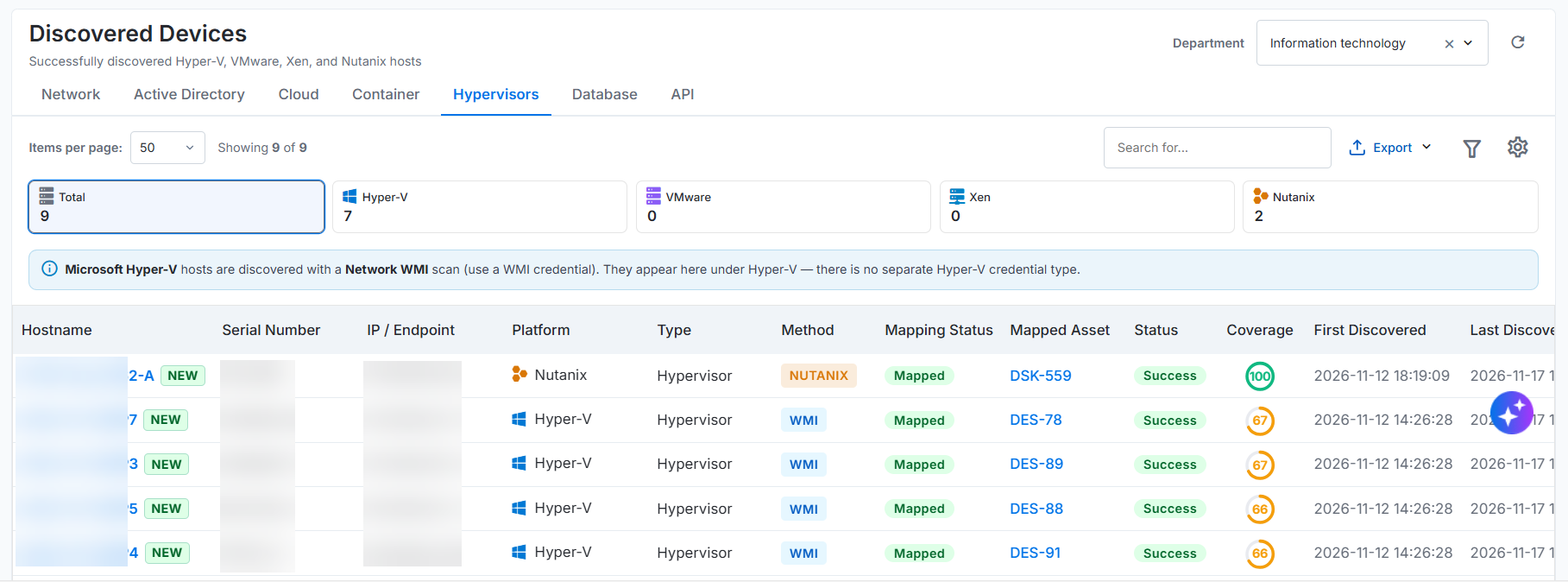
Figure: Hypervisor
The tab supports the following hypervisor platforms:
Hyper-V
VMware
Xen
Nutanix
Note: Network WMI scan discovers Microsoft Hyper-V Hosts (use a WMI credential). They appear here under Hyper-V — there is no separate Hyper-V credential type.
Hypervisor Summary Cards
The summary cards display the number of successfully discovered hypervisor hosts for the selected department. Select a card to display hosts from the corresponding virtualization platform.
Summary Card | Detailed Description | Example |
|---|---|---|
Total | Shows the total number of successfully discovered hosts across all supported hypervisor platforms. The count includes Hyper-V, VMware, Xen, and Nutanix hosts. | If the department contains 7 Hyper-V hosts, 0 VMware hosts, 0 Xen hosts, and 2 Nutanix host, the Total card shows 9. |
Hyper-V | Indicates the number of successfully discovered Microsoft Hyper-V hosts. A Network WMI scan discovers Hyper-V hosts by using a valid WMI credential. | If discovery identifies 7 Hyper-V hosts, the Hyper-V card shows 7. Select the card to view only the Hyper-V hosts. |
VMware | Provides the number of successfully discovered VMware virtualization hosts. | If discovery identifies 0 VMware hosts, the VMware card shows 0. Select the card to view only the VMware hosts. |
Xen | Shows the number of successfully discovered Xen virtualization hosts. | If discovery identifies 0 Xen hosts, the Xen card shows 0. Select the card to view only the Xen hosts. |
Nutanix | Indicates the number of successfully discovered Nutanix virtualization hosts. | If discovery identifies 2 Nutanix host, the Nutanix card shows 2. Select the card to view only the Nutanix hosts. |
Hypervisor List
The Hypervisor list provides identification, platform, discovery, asset mapping, status, and coverage information for each successfully discovered virtualization host.
Field Name | Description |
|---|---|
Hostname | Identifies the virtualization host by the name collected during discovery. A NEW label marks a recently discovered host. For example, SxxS-Hxx-xxx5 is the hostname, and NEW shows that discovery recently found this host. |
Serial Number | Provides the unique hardware serial number or system identifier collected from the host. For example, 9xxxxx2 identifies a specific Hyper-V host. |
IP / Endpoint | Specifies the IP address or endpoint used to discover and communicate with the host. For example, 1xx.1xx.xx.xx is the IP address of the discovered host. |
Platform | Identifies the virtualization platform running on the host. For example, Hyper-V indicates that the device is a Microsoft Hyper-V host. Other supported platforms include VMware, Xen, and Nutanix. |
Type | Indicates the resource classification assigned during discovery. For example, Hypervisor classifies the discovered resource as a virtualization host. |
Method | Identifies the method used to discover the host. For example, WMI indicates that a Network WMI scan discovered the Hyper-V host by using a valid WMI credential. |
Mapping Status | Indicates whether discovery mapped the host to an asset record. For example, Not mapped means the host is not linked to an existing asset. |
Mapped Asset | Identifies the asset associated with the discovered host. For example, Not mapped indicates that no asset association exists for the host. |
Status | Shows the result of the latest discovery operation. For example, Success indicates that discovery completed successfully and returned host information. |
Coverage | Shows the percentage of expected host information collected during discovery. For example, 63 indicates that discovery collected 63% of the expected information for the host. |
First Discovered | Records the date and time when the application first discovered the host. For example, 2026-09-25 21:04:33 indicates when the host first appeared in the discovery results. |
Last Discovered | Records the date and time of the latest successful discovery. For example, 2026-09-26 16:20:36 indicates when the host last appeared in the discovery results. |
Serial number uniqueness criteria for Hypervisors
Device type | Primary unique identifier | Sample value |
|---|---|---|
VMware ESXi hypervisor host | Physical host hardware UUID (SMBIOS system UUID), reported through hardware.systemInfo.uuid; use the host serial number if the UUID is unavailable. Prefer the UUID over a Managed Object Reference (MoRef), which can change if an administrator removes the host and adds it back to vCenter. | 4xxxx544-0xx1-4xx0-8xx4-b7cxxxx65033 |
Microsoft Hyper-V | Host hardware UUID, reported through Win32_ComputerSystemProduct.UUID. | d2xxxxb1-6xx7-4xx9-9xxd-3f71e5xxxx46 |
Nutanix AHV | Host or node UUID scoped by the cluster UUID. | Host a7xxxx1d-5xxb-4xx8-bxxa-9c4exxxxd853; cluster 3xxxxf46-9xx5-4xxc-8xx3-6fxxxxxxx4d7 |
Citrix Hypervisor (XenServer) | Host UUID scoped by the pool UUID. XAPI reports the host UUID as host.uuid. | Host 6exxxx74-4xxf-4xx9-9xx2-7axxxxxxxd03; pool f0xxxxc2-1xxx3-4xxe-9xx7-2c6dxxxxxb51 |
Hyper-V
Hyper-V is the Microsoft Windows hypervisor. Hyper-V discovery collects details about both the Hyper-V host and its guest virtual machines.
ITAM connects to the Windows host or Failover Cluster by using Windows remote management. Hyper-V discovery does not require a dedicated virtualization management API.
Discovery method
Use one of the following methods to discover Hyper-V:
Preferred: Use WMI or CIM queries in the root\virtualization\v2 namespace over Windows Remote Management (WinRM).
Fallback: Use WMI over DCOM/RPC when WinRM is not available.
Discovery also queries the root\cimv2 namespace to collect operating system and hardware information from the Hyper-V host.
Connect to one of the following targets by using a Windows user account:
Hyper-V host FQDN or IP address: Use this target to discover an individual Hyper-V host.
Failover Cluster name or cluster shared name: Use this target to discover the cluster and its associated nodes.
Configure Hyper-V discovery
In Discovery Accounts, create the Windows credentials required to discover Hyper-V.
In Discovery Jobs, create and schedule a Hyper-V discovery job. Select Hyper-V in the Used for field, select the required discovery account, specify the Hyper-V host or cluster target, and configure the schedule.
At the scheduled date and time, the scheduler runs only Hyper-V discovery jobs that are Active.
The discovery job uses only discovery accounts that are Active.
The scheduler connects to the configured Hyper-V host or cluster and runs the required WMI or CIM queries to collect host, cluster, and guest virtual machine information.
The system saves the result of each discovery job run, including the success or failure status, corresponding message and reason, start time, end time, and execution duration.
The system stores the discovered information in the database to map Hyper-V hosts and guest virtual machines to fixed assets or configuration items (CIs) and display the discovered data in the user interface.
Discovery retains the latest information collected for each Hyper-V host and guest virtual machine. When discovery detects a hardware or software change, the system records the parameter name, previous value, current value, previous discovery time, and current discovery time.
Nutanix
Nutanix is a hyperconverged infrastructure platform that combines the Acropolis Hypervisor (AHV) with Controller Virtual Machines (CVMs). Prism provides the management plane that discovery accesses through REST APIs.
Discovery collects both host and guest details from the Nutanix environment.
Discovery method
Use one of the following methods to discover Nutanix:
Preferred: Prism Central REST API v3, or v4 for newer Prism Central versions. Use Prism Central to discover many clusters.
Fallback: Prism Element REST API v2. Use Prism Element to discover a single cluster.
Discovery uses HTTP Basic Authentication over port 9440.
Connect to one of the following endpoints:
Prism Central VIP or FQDN: Preferred when discovering many clusters.
Prism Element cluster VIP: Use when discovering a single cluster.
Configure Nutanix discovery
In Discovery Accounts, create the credentials required to discover the Nutanix environment.
In Discovery Jobs, create and schedule a Nutanix discovery job. Configure the job by selecting Nutanix in the Used for field, selecting the required discovery account, and specifying the schedule. A discovery scope, such as an IP address range, individual IP addresses, CIDR, or LDAP, is not required for a Nutanix discovery job.
At the scheduled date and time, the scheduler runs only discovery jobs that are Active.
The discovery job can use only discovery accounts that are Active.
The scheduler calls the required Nutanix APIs with the configured parameters to collect data from the Nutanix environment.
The system saves the result of every job run, including its success or failure status, the corresponding message and reason, and the job execution time.
The system stores the discovered information in the database. This information is later used to map discovered devices to fixed assets or configuration items (CIs) and to display the discovered data in the user interface.
Discovery retains only the latest discovered information. When the system detects hardware or software changes it stores the parameter name, previous value, current value, previous discovery time, and current discovery time.
Database
The Database tab displays successfully discovered database instances for the selected department. Analysts can use this tab to review database instances by engine, check asset mapping, verify discovery status, and view discovery coverage.
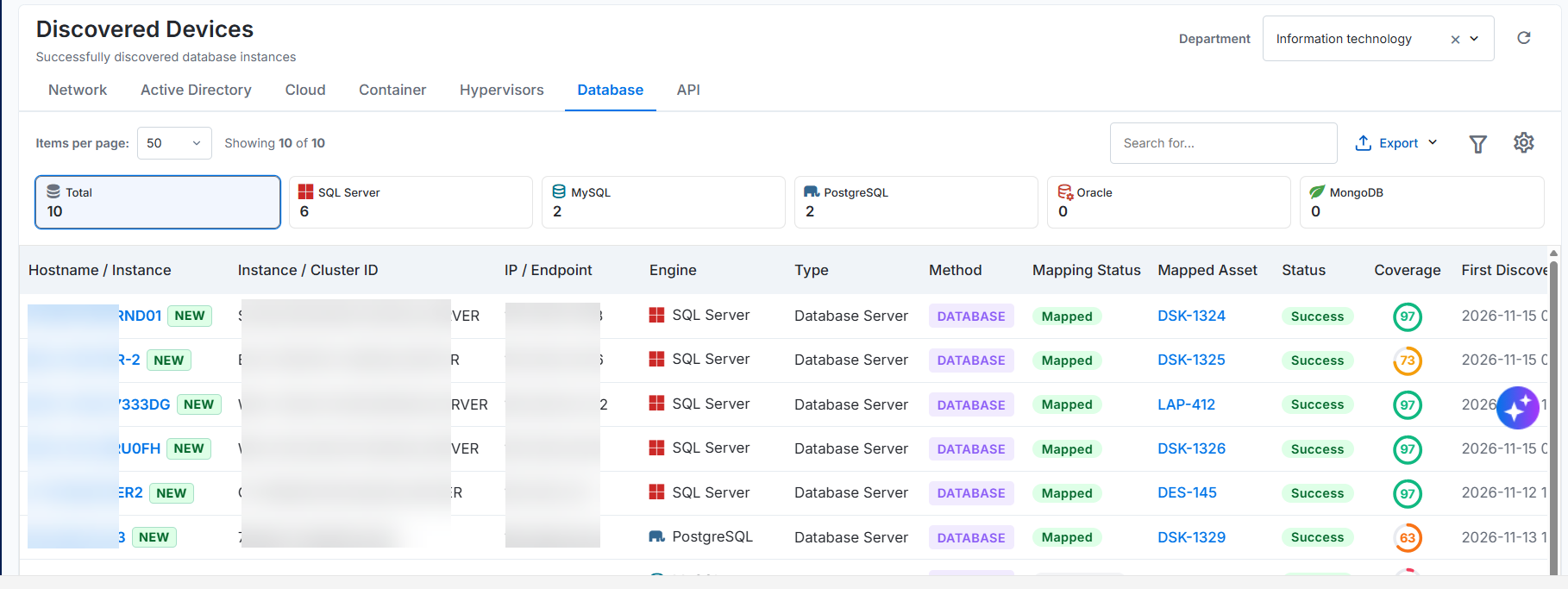
Figure: Database
The tab supports the following database engines:
SQL Server
MySQL
PostgreSQL
Oracle
MongoDB
Database Summary Cards
The summary cards display the number of successfully discovered database instances for the selected department. Select a card to display instances for the corresponding database engine.
Summary Card | Detailed Description | Example |
|---|---|---|
Total | Shows the total number of successfully discovered database instances across all supported database engines. The count includes SQL Server, MySQL, PostgreSQL, Oracle, and MongoDB instances. | If the department contains 6 SQL Server instances, 2 MySQL instances, 2 PostgreSQL instances, 0 Oracle instances, and 0 MongoDB instance, the Total card shows 10. |
SQL Server | Indicates the number of successfully discovered Microsoft SQL Server instances. | If discovery identifies 6 SQL Server instances, the SQL Server card shows 6. Select the card to view only SQL Server instances. |
MySQL | Provides the number of successfully discovered MySQL instances. | If discovery identifies 2 MySQL instances, the MySQL card shows 2. Select the card to view only MySQL instances. |
PostgreSQL | Shows the number of successfully discovered PostgreSQL instances. | If discovery identifies 2 PostgreSQL instances, the PostgreSQL card shows 2. Select the card to view only PostgreSQL instances. |
Oracle | Indicates the number of successfully discovered Oracle database instances. | If discovery identifies 0 Oracle instances, the Oracle card shows 0. Select the card to view only Oracle instances. |
MongoDB | Provides the number of successfully discovered MongoDB instances. | If discovery identifies 0 MongoDB instance, the MongoDB card shows 0. Select the card to view only MongoDB instances. |
Database List
The Database list provides identification, database engine, discovery, asset mapping, status, and coverage information for each successfully discovered database instance.
Field Name | Description |
|---|---|
Hostname / Instance | Identifies the database host or instance by the name collected during discovery. A NEW label marks a recently discovered database instance. For example, WIN-Lxxxxxxxxxx1 is the hostname, and NEW indicates that discovery recently found the instance. |
Serial / Instance ID | Provides the unique serial number or instance identifier collected from the database host. For example, — indicates that discovery did not return a serial number or instance identifier. |
IP / Endpoint | Specifies the IP address or endpoint used to discover and communicate with the database instance. For example, 1xx.1xx.xxx.xx is the IP address of the discovered instance. |
Engine | Identifies the database engine running on the discovered instance. For example, SQL Server indicates that the instance uses Microsoft SQL Server. Other supported database engines include MySQL, PostgreSQL, Oracle, and MongoDB. |
Type | Indicates the resource classification assigned during discovery. For example, Database Server classifies the discovered resource as a database server. |
Method | Identifies the method used to discover the database instance. For example, DATABASE indicates that a database discovery scan found the instance by using the configured database credential. |
Mapping Status | Indicates whether discovery mapped the database instance to an asset record. For example, Not mapped means the instance is not linked to an existing asset. |
Mapped Asset | Identifies the asset associated with the discovered database instance. For example, Not mapped indicates that no asset association exists for the instance. |
Status | Shows the result of the latest discovery operation. For example, Success indicates that discovery completed successfully and returned database instance information. |
Coverage | Shows the percentage of expected database information collected during discovery. For example, 87 indicates that discovery collected 87% of the expected information for the database instance. |
First Discovered | Records the date and time when the application first discovered the database instance. For example, 2026-10-09 15:09:00 indicates when the instance first appeared in the discovery results. |
Last Discovered | Records the date and time of the latest successful discovery. For example, 2026-10-09 15:42:35 indicates when the instance last appeared in the discovery results. |
Serial number uniqueness criteria for database resources
Use the database instance name as its identity. If the instance name is unavailable, use the service name or endpoint. The examples below show the value to store in the asset’s Serial Number field.
Database engine | Unique identifier for the Serial Number field | Sample value |
|---|---|---|
MySQL | Instance name, then service name or endpoint. The server_uuid is a stronger key when available. | prod-mysql-01:3306 (server_uuid: 3exxxx47-71xxxx1e1-9xx3-c80xxxxx9562) |
Microsoft SQL Server | Instance name, then service name or endpoint. | SQLPROD01\FINANCE (default instance: SQLPROD01:1433) |
PostgreSQL | Instance name, then service name or endpoint. The pg_control system identifier is a stronger key when available. | pg-prod-01:5432 (system identifier: 7312458903421765432) |
Search and Table Actions
Use the options above the device list to search for specific devices, export device details, filter the displayed records, or configure the table view.
Option | Description |
|---|---|
Search | Enter a complete or partial value, such as a hostname, serial number, or IP address, to locate matching device records. Select the Clear (×) icon to remove the search value and display all records. For more information, refer Search. |
Export | Exports the device records displayed in the table. Select the adjacent arrow to view the available export options such as CSV and Excel. |
Filter | Opens the filter options. Specify the required criteria to narrow the device records displayed in the table. For more information, refer Filter. |
Settings | Opens the table settings. Use these settings to select or manage the columns displayed in the device list. For more information, refer Configure Columns. |
Search for a Device
Enter a complete or partial device value in the Search field.
Review the matching records in the device table.
Select the Clear (×) icon to remove the search value and display all device records.
Example: Enter Bxxxxxxxxxxx02 in the Search field to display the matching device record.
Filter Device Records
Select the Filter icon.
Select a field from the list page.
Select an Operator.
Enter or select the required Value.
To add another filter condition, select + Add filter and specify the field, operator, and value.
Select Apply filter to display the matching device records.
Select Reset to clear the configured filter conditions. To remove an individual filter condition, select the Delete icon next to the condition.
Configure Table Columns
Use the Settings icon to select the columns displayed in the device table and change their display order.
Select the Settings icon.
In the Configure table columns panel, review the following sections:
In use: Lists the columns currently displayed in the device table.
Not in-use: Lists the columns that are not displayed in the device table.
Drag and drop a column between In use and Not in-use to show or hide the column.
Drag and drop columns within In use to change their display order.
Select Apply to save the changes.
Select Restore default to restore the default columns and their original display order.
Note: When all available columns appear under In use, the Not in-use section displays All columns in use.
Manage Discovered Device List
The Discovered Devices list page provides actions to view device details, and create an asset from the discovered devices list page.
Action | Description |
|---|---|
View Details | Opens the details page for the selected device. Use the details page to review the available hardware, software, network, and discovery information. For more information, refer View Device Details. |
Create | Opens the Add asset window. Use this action to create an asset when no matching asset exists for a device with the Not mapped status. For more information, refer Create Asset. |
View Device Details
Use the View Details action to review the information collected for a discovered device. The details page helps you verify the device identity, configuration, availability, and discovery coverage before creating a new asset.
To view the device details:
On the Discovered Devices list page, locate the required device.
Select the View Details icon.
The device details page opens and displays the following information:
Section | Description |
|---|---|
Device summary | Displays the hostname, IP address, manufacturer, model, device type, virtualization platform, device status, discovery method, scan type, and latest scan time. |
Resource summary | Displays key resource information, including the CPU cores and threads, total RAM, disk devices, network interfaces, and processor details. |
Discovery Score | Indicates the discovery coverage for the device by comparing the number of collected parameters with the total applicable parameters. It also displays the coverage for categories such as system information, processor, physical memory, disk drives, mounted file systems, and network adapters. |
Overview | Provides a summary of the processor, total memory, disk devices, network interfaces, installed packages, running services, and memory usage. |
Hardware | Displays the hardware components and configuration collected from the device. |
Software | Displays the software packages and applications discovered on the device. The number beside the tab indicates the number of discovered software records. |
Network | Displays the network interfaces and related network information. The number beside the tab indicates the number of discovered network records. |
Changes | Displays changes detected in the device information across discovery scans. |
Vulnerabilities | Displays the available vulnerability information associated with the device. |
Raw | Displays the device information in its collected and unprocessed format. |
Discovery & Collection | Displays the first discovered time, last scan time, last seen time, protocol response time, scan duration, collection type, scan speed, discovery job, discovery sources, data collection status, device status, and last collection attempt. |
System Information | Displays the hostname, FQDN, IP address, device type, operating system, OS version, kernel or build, architecture, processor, RAM, disk capacity, manufacturer, model, serial number, virtualization details, device ID, VM UUID, hyper-threading status, and discovery protocol. |
For example, select the View Details icon for lxxubuntuxx-xx to verify its IP address, operating system, processor, memory, disk capacity, installed software, network interfaces, discovery status, and collection coverage. Based on the available details, you can create a new asset.
Create an Asset
Use the Create action when the discovered device does not have a corresponding asset in the inventory.
To create an asset:
On the Discovered Devices list page, locate a device with the Not mapped status.
Select the Create icon.
.png?sv=2026-02-06&spr=https&st=2026-11-20T21%3A29%3A55Z&se=2026-11-20T22%3A13%3A55Z&sr=b&sp=r&sig=dfyfigZkj2kfWFHnutNVXTpIyhhbltyKcNJcx1ek8jY%3D)
Figure: Discovered Devices
The Add asset window opens and displays the Basic step.
.png?sv=2026-02-06&spr=https&st=2026-11-20T21%3A29%3A55Z&se=2026-11-20T22%3A13%3A55Z&sr=b&sp=r&sig=tno7Di1wzAuOqrQ8dE1o6YEX2oURVDYiQjsBXI14Mbo%3D)
Figure: Add AssetEnter or select the following information:
Field | Description |
|---|---|
Department | Select the department that owns or manages the asset. For example, select Information technology. |
Classification | Select IT or Non-IT based on the asset classification. |
Type | Select the applicable asset type as Fixed. |
Category | Select the asset Category. The available categories depend on the selected classification and type. Examples include Desktop and Laptop. |
Select Next.
The Information step opens.
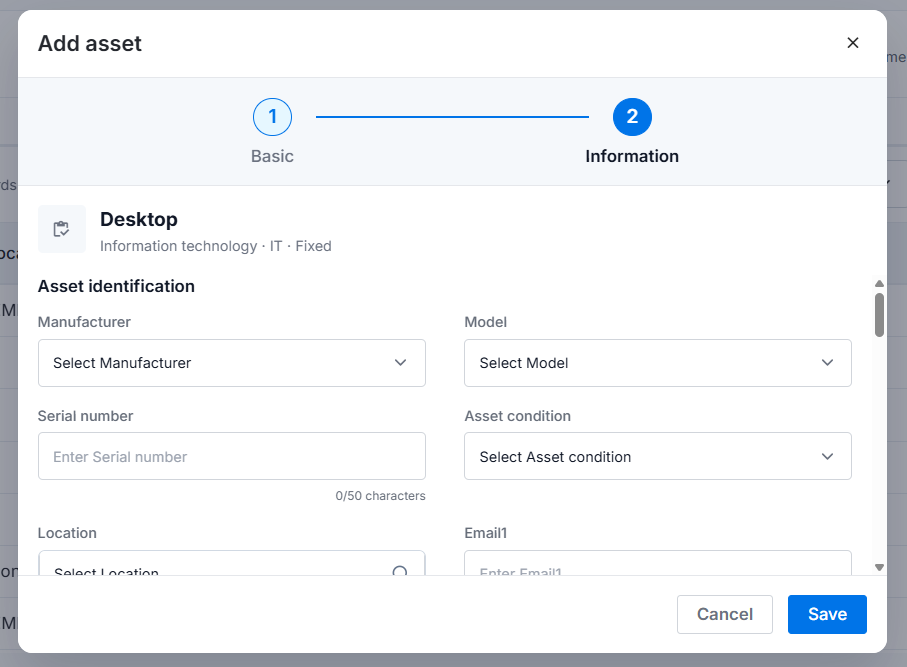
Figure: Add AssetEnter the available asset details in the following sections:
Asset identification, such as manufacturer, model, serial number, and asset condition.
Technical information, such as hostname, IP address, operating system, and environment.
Procurement & financial, such as vendor, purchase order number, purchase date, purchase cost, currency, and invoice number.
General, including the required cost tree, department tree, and asset name.
Select Save.
The system creates the asset and adds the asset record to the Asset Lifecycle Management (ALM) inventory.
Note
Department will be auto filled. Analyst needs to select Classification as ‘IT’, Type as ‘Fixed’ or ‘CI’ and a category.