Cloud credentials enable Discovery to connect to supported cloud platforms and retrieve information about cloud resources.
The Cloud Credentials page supports the following credential types:
Credential Type | Supported Platform | Purpose |
|---|---|---|
Amazon Web Services | Connects to the AWS API by using IAM access keys, temporary credentials, or an instance profile to discover AWS resources. | |
Microsoft Azure | Connects to the Azure Resource Manager API by using service principal credentials to discover Azure resources. | |
Google Cloud Platform | Connects to Google Cloud by using a service account JSON key to discover Google Cloud resources. | |
Oracle Cloud Infrastructure | Connects to Oracle Cloud Infrastructure to discover OCI resources. |
AWS Credentials
Use an AWS credential profile to connect to the AWS API and discover resources in the specified AWS Region. Discovery can use IAM access keys, temporary AWS Security Token Service credentials, or the instance profile associated with the Discovery Worker host.
Configure an AWS Credential Profile
Create an AWS credential profile to allow Discovery to connect to the AWS API and retrieve resource information from the specified AWS Region.
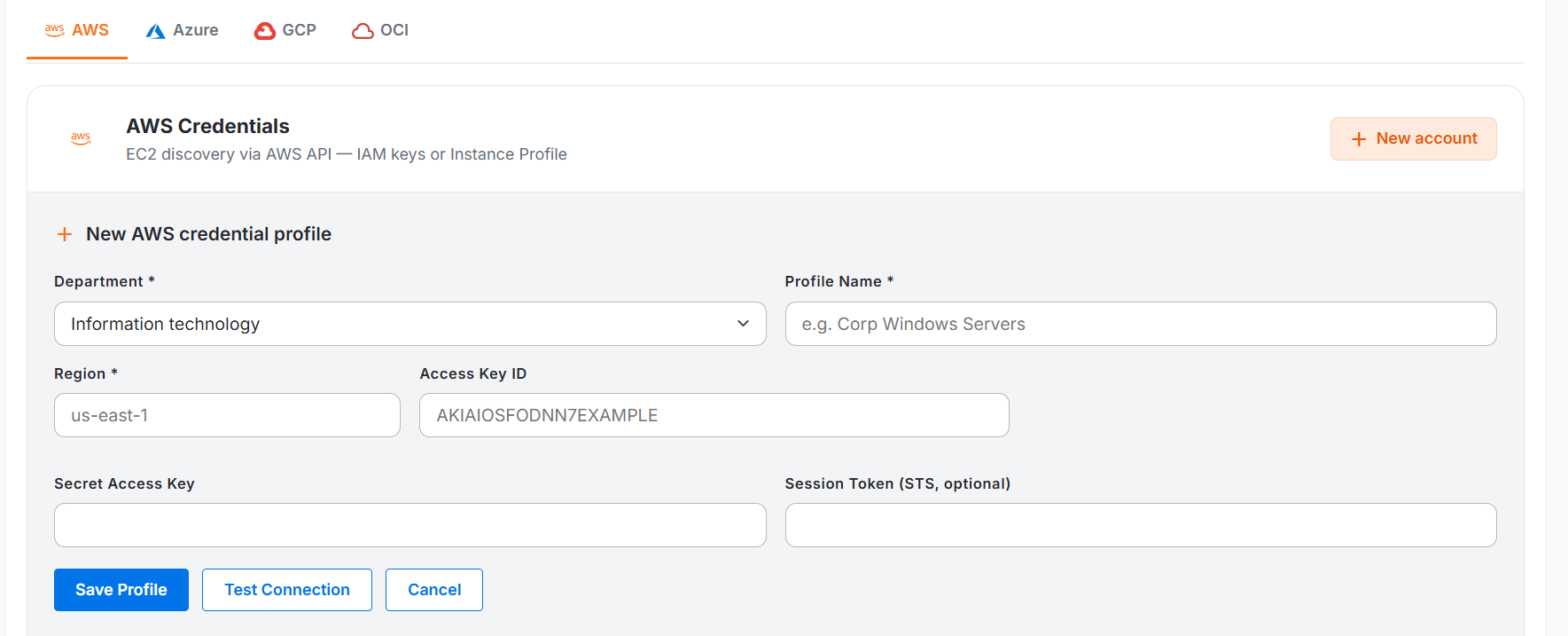
Figure: AWS
Perform the following steps to configure and check an AWS credential profile:
Select the Cloud credential category.
Select the AWS tab.
Select New account.
Select the required Department.
Enter a profile name.
Enter the target AWS Region in Region.
To use IAM credentials, enter the access key ID in Access Key ID and the corresponding secret key in Secret Access Key.
Enter the temporary session token in Session Token (STS, optional) when you use temporary AWS Security Token Service credentials.
To use an instance profile, leave Access Key ID, Secret Access Key, and Session Token (STS, optional) blank.
Select Test Connection to check the credentials and AWS API connectivity.
After a successful connection test, select Save Profile.
Select Cancel to discard the entered information.
AWS Credential Fields
Field Name | Description |
|---|---|
Department | Select the Department for which you want to create the AWS credential profile. |
Profile Name | Enter a unique and descriptive name for the credential profile. For example, Production AWS Account. |
Region | Enter the AWS Region from which you want to discover resources. For example, us-east-1. |
Access Key ID | Enter the access key ID associated with the AWS IAM credentials. Leave this field blank when Discovery uses the instance profile associated with the Discovery Worker host. |
Secret Access Key | Enter the secret access key associated with the access key ID. Leave this field blank when Discovery uses an instance profile. |
Session Token (STS, optional) | Enter the session token when you use temporary credentials issued through AWS Security Token Service. Leave this field blank when you use long-term IAM access keys or an instance profile. |
Note
When you provide an Access Key ID, you must also provide the corresponding Secret Access Key. Provide a Session Token only when you use temporary AWS Security Token Service credentials.
Azure Credentials
Use an Azure credential profile to connect to the Azure Resource Manager API through a Microsoft Entra service principal. The service principal credentials determine the subscription and resources available for discovery.
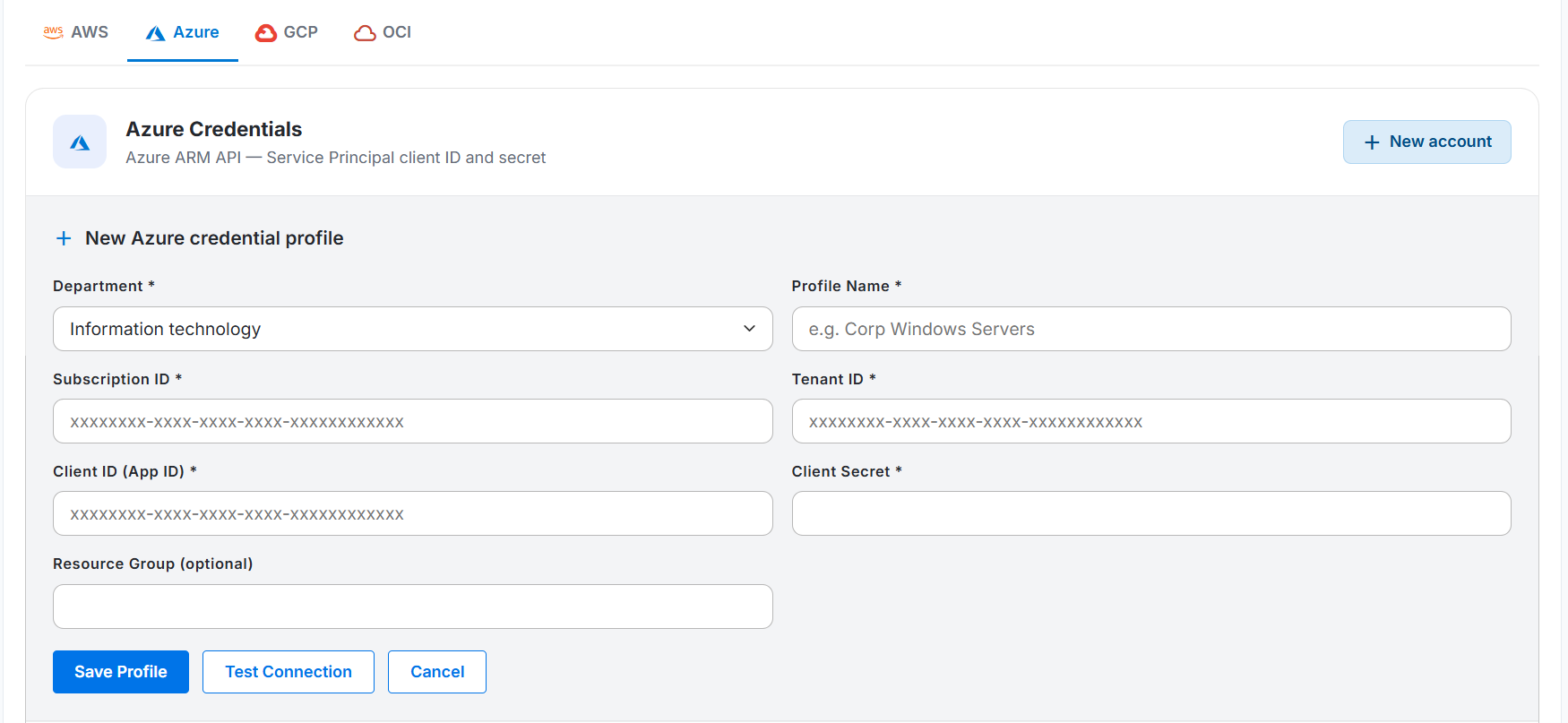
Figure: Azure
Configure an Azure Credential Profile
Create an Azure credential profile to allow Discovery to connect to the Azure Resource Manager API and retrieve resource information from an Azure subscription.
Perform the following steps to configure and check an Azure credential profile:
Select the Cloud credential category.
Select the Azure tab.
Select New account.
Select the required application Department.
Enter a profile name.
Enter the Azure subscription identifier in Subscription ID.
Enter the Microsoft Entra tenant identifier in Tenant ID.
Enter the service principal application identifier in Client ID (App ID).
Enter the service principal secret in Client Secret.
To limit discovery to a specific resource group, enter the resource group name in Resource Group (optional).
Select Test Connection to check the service principal credentials and Azure connectivity.
After a successful connection test, select Save Profile.
Select Cancel to discard the entered information.
Azure Credential Fields
Field Name | Description |
|---|---|
Department | Select the application Department for which you want to create the Azure credential profile. |
Profile Name | Enter a unique and descriptive name for the credential profile. For example, Production Azure Subscription. |
Subscription ID | Enter the unique identifier of the Azure subscription that contains the resources you want to discover. |
Tenant ID | Enter the Microsoft Entra tenant identifier associated with the Azure subscription and service principal. |
Client ID (App ID) | Enter the application or client identifier of the service principal used for discovery. |
Client Secret | Enter the client secret associated with the service principal. |
Resource Group (optional) | Enter the name of an Azure resource group to limit discovery to that resource group. Leave this field blank to discover accessible resources across the subscription. |
Note
The selected application Department and the Microsoft Entra tenant specified in Tenant ID serve different purposes. The application Department identifies the Department in Discovery, while Tenant ID identifies the Microsoft Entra directory used for Azure authentication.
GCP Credentials
Use a GCP credential profile to connect to Google Cloud by using a service account JSON key. You can upload the JSON key file or paste the JSON key content manually.
Discovery automatically extracts the project ID and service account email from the provided JSON key. The service account requires at least the Compute Viewer role (roles/compute.viewer) on the target project.
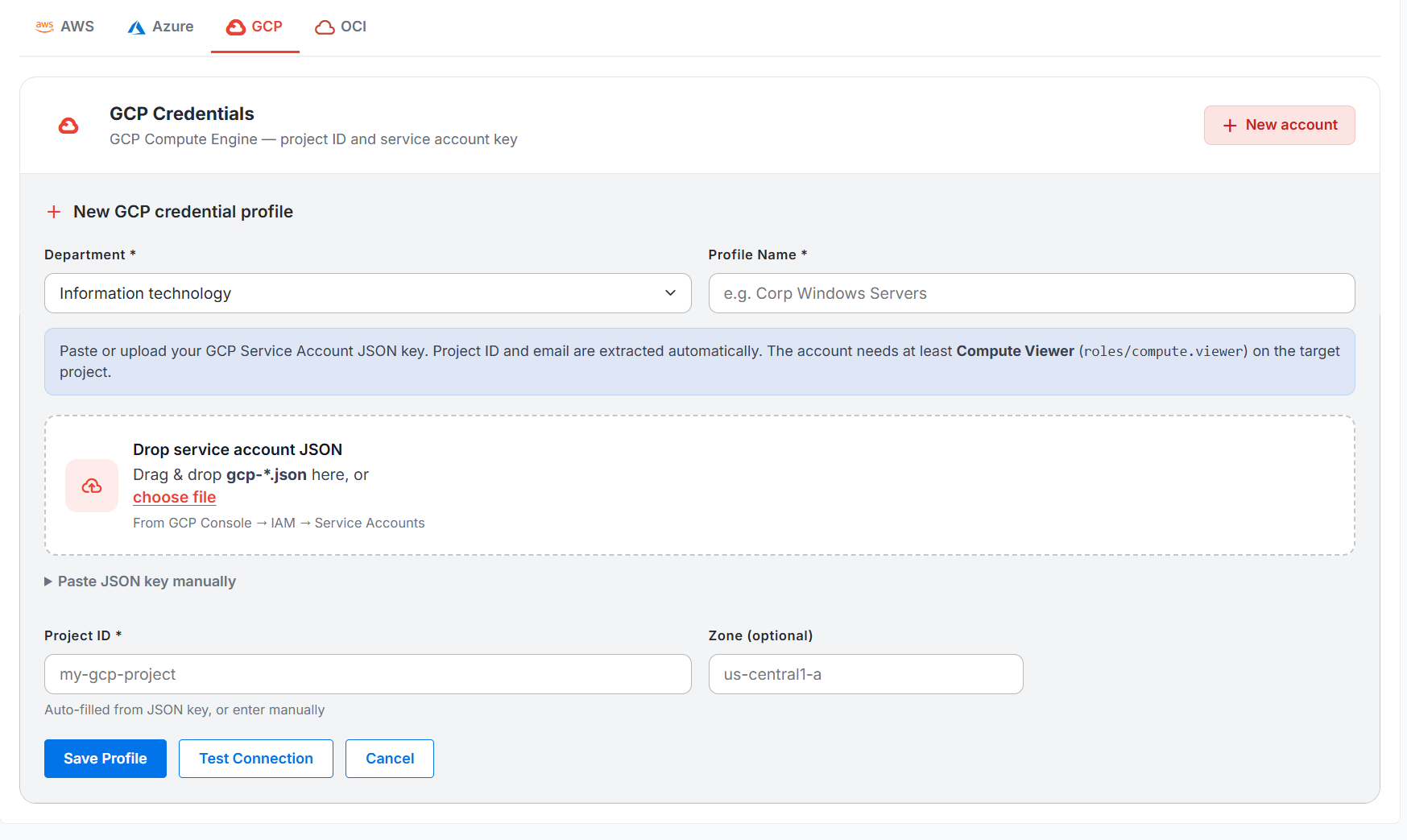
Figure: GCP
Configure a GCP Credential Profile
Create a GCP credential profile to allow Discovery to authenticate with Google Cloud and retrieve resource information from the target project.
Perform the following steps to configure and check a GCP credential profile:
Select the Cloud credential category.
Select the GCP tab.
Select New account.
Select the required Department.
Enter a profile name.
Provide the GCP service account JSON key by using one of the following methods:
Drag the .json key file into the Drop service account JSON area.
Select choose file, and then select the required .json key file.
Expand Paste JSON key manually, and then paste the complete service account JSON key.
Verify the project identifier displayed in Project ID. Enter the project ID manually when the system does not extract it from the JSON key.
To limit discovery to a specific zone, enter the zone in Zone (optional).
Select Test Connection to check the service account credentials and Google Cloud connectivity.
After a successful connection test, select Save Profile.
Select Cancel to discard the entered information.
GCP Credential Fields
Field Name | Description |
|---|---|
Department | Select the Department for which you want to create the GCP credential profile. |
Profile Name | Enter a unique and descriptive name for the credential profile. For example, Production GCP Project. |
Service Account JSON | Upload a GCP service account JSON key file. You can drag a .json file into the upload area or select choose file to browse for the file. |
Paste JSON key manually | Paste the complete service account JSON key when you do not want to upload the JSON file. |
Project ID | Displays the Google Cloud project identifier extracted from the service account JSON key. You can also enter the project ID manually. |
Zone (optional) | Enter a Google Cloud zone to limit discovery to that zone. For example, us-central1-a. Leave this field blank when you do not want to limit discovery to a specific zone. |
Note
Get the service account JSON key from Google Cloud Console > IAM > Service Accounts.
Important: The service account requires at least the Compute Viewer role (roles/compute.viewer) on the target Google Cloud project.
OCI Credentials
Use an OCI credential profile to connect to Oracle Cloud Infrastructure through API key authentication. The credential profile uses the tenancy OCID, user OCID, API key fingerprint, region, and RSA private key to authenticate the connection.
The OCI user requires an IAM policy that permits access to the resources required for discovery.
For example: allow group <group> to read all-resources in tenancy.
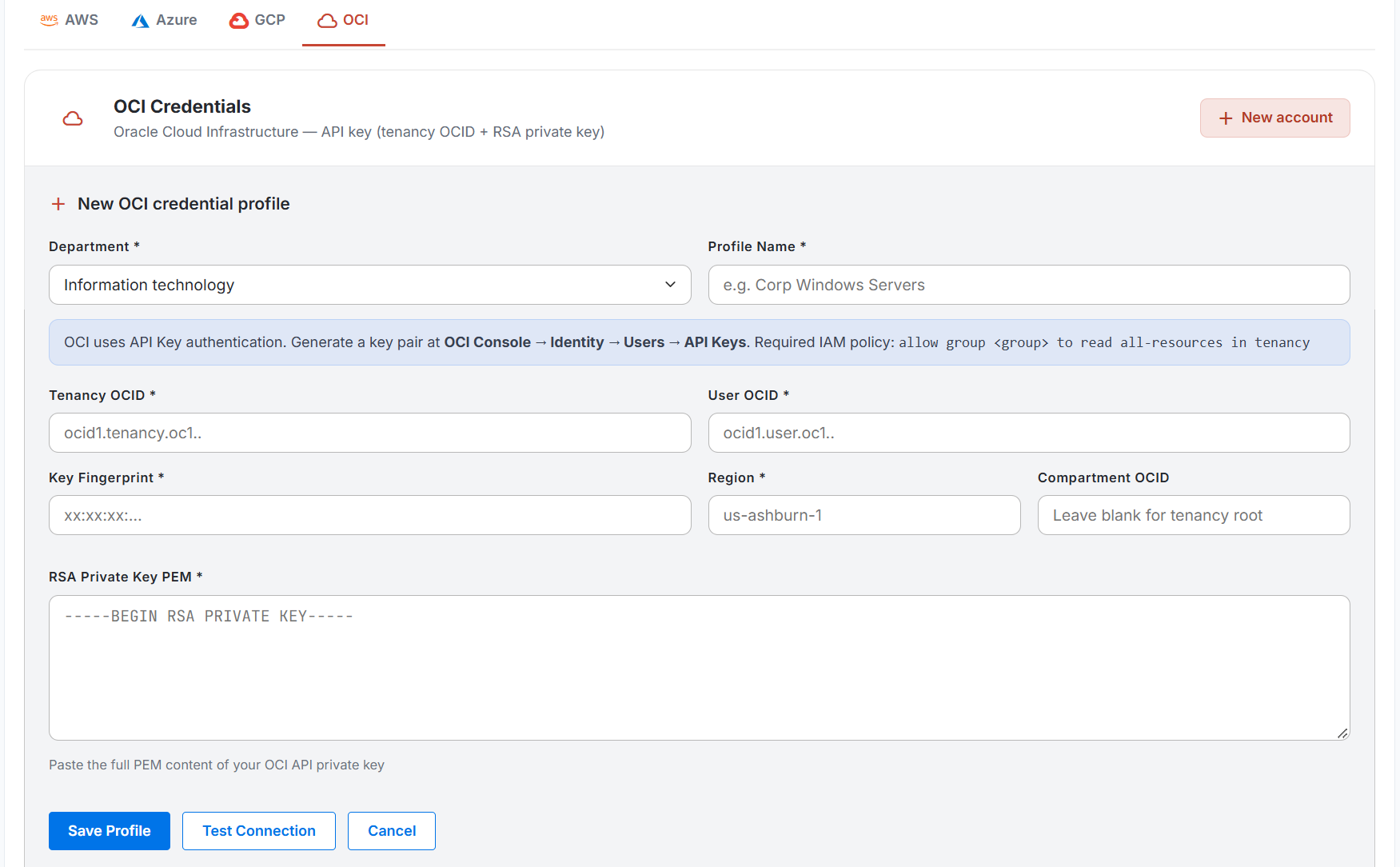
Figure: OCI
Configure an OCI Credential Profile
Create an OCI credential profile to allow Discovery to authenticate with Oracle Cloud Infrastructure and retrieve resource information from the tenancy or a specified compartment.
Perform the following steps to configure and check an OCI credential profile:
Select the Cloud credential category.
Select the OCI tab.
Select New account.
Select the required Department.
Enter a profile name.
Enter the tenancy identifier in Tenancy OCID.
Enter the OCI user identifier in User OCID.
Enter the API key fingerprint in Key Fingerprint.
Enter the target OCI region in Region.
To limit discovery to a specific compartment, enter the compartment identifier in Compartment OCID. Leave this field blank to use the tenancy root.
Paste the complete RSA private key in PEM format in RSA Private Key PEM.
Select Test Connection to check the OCI API key credentials and connectivity.
After a successful connection test, select Save Profile.
Select Cancel to discard the entered information.
OCI Credential Fields
Field Name | Description |
|---|---|
Department | Select the Department for which you want to create the OCI credential profile. |
Profile Name | Enter a unique and descriptive name for the credential profile. For example, Production OCI Tenancy. |
Tenancy OCID | Enter the Oracle Cloud Identifier of the OCI tenancy that contains the resources you want to discover. The tenancy OCID typically begins with ocid1.tenancy.oc1. |
User OCID | Enter the Oracle Cloud Identifier of the OCI user associated with the API key. The user OCID typically begins with ocid1.user.oc1. |
Key Fingerprint | Enter the fingerprint of the public API key uploaded for the OCI user. |
Region | Enter the OCI region that contains the resources you want to discover. For example, us-ashburn-1. |
Compartment OCID | Enter the OCID of the compartment to limit discovery to that compartment. Leave this field blank to discover accessible resources from the tenancy root. |
RSA Private Key PEM | Paste the complete PEM content of the RSA private key associated with the public API key uploaded for the OCI user. Include the BEGIN and END private key lines. |
Note
Generate an API key pair from OCI Console > Identity > Users > API Keys.
Important: Ensure that the OCI user belongs to a group with the required IAM policy. For example, allow group <group> to read all-resources in tenancy.
Manage Cloud Credential Profiles
The credential profile list displays the profiles configured for the selected cloud platform. Select the AWS, Azure, GCP, or OCI tab to view and manage the corresponding credential profiles.
Credential Profile List
Column | Description |
|---|---|
Account Name | Displays the name assigned to the cloud credential profile. |
Type | Displays the cloud credential type, such as AWS, Azure, GCP, or OCI. |
Username | Displays the username associated with the credential profile. A hyphen (—) displays when the cloud credential type does not use a username. |
Active Status | Indicates whether the credential profile is active. Use the toggle to activate or deactivate the profile. |
Last Updated | Displays the date and time when a user last updated the credential profile. Select the column heading to sort the profiles by the last updated date and time. |
Actions | Provides options to edit the credential profile or view its change history. |
Activate or Deactivate a Cloud Credential Profile
Use the Active Status toggle to control whether Discovery can use the cloud credential profile.
Turn on the toggle to activate the credential profile.
Turn off the toggle to deactivate the credential profile.
A deactivated credential profile remains available in the list, but Discovery does not use the profile for later discovery operations.
Edit a Cloud Credential Profile
To edit a cloud credential profile:
Select the Cloud credential category.
Select the required cloud platform tab:
AWS
Azure
GCP
OCI
Locate the credential profile in the list.
Select the Edit icon under Actions.
Update the required profile details.
Provide the secret, key, token, or credential file again when required.
Select Test Connection to check the updated credentials and connectivity.
Select Save Profile.
View Credential Profile History
The credential profile history provides a read-only record of changes made to the selected profile. The newest changes display first, and secret values remain masked.
To view the credential profile history:
Select the Cloud credential category.
Select the required cloud platform tab.
Locate the credential profile in the list.
Select the History icon under Actions.
Review the available history records.
Change History Fields
Field Name | Description |
|---|---|
Field name | Displays the name of the credential profile field added or modified. |
Old value | Displays the field value before the change. A hyphen (—) displays when no previous value exists. Secret values remain masked. |
New value | Displays the field value after the change. Secret values remain masked. |
Date changed | Displays the date and time when the change occurred. |
Changed by | Displays the identifier of the user who made the change. |
Select Close to exit the Change history page and return to the credential profile list.
List Page Actions
Action | Description |
|---|---|
New account | Opens the credential profile form for the selected cloud platform. |
Active Status | Activates or deactivates the credential profile. |
Edit | Opens the selected credential profile for modification. |
History | Displays the change history for the selected credential profile. |